
Research
The Complete Guide to Install & Activate an EA (Trading Robot) on MT4

Dec
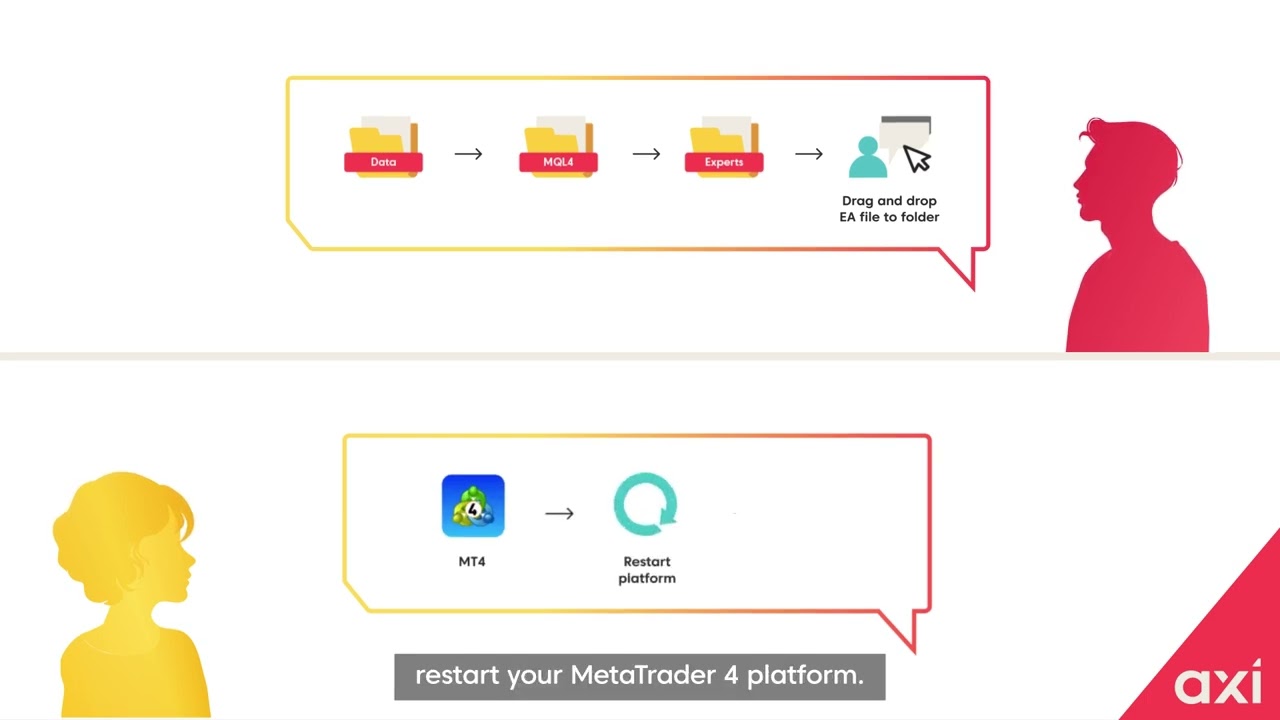
Installing and activating an Expert Advisor (EA) on MT4 involves locating the correct data folder, placing the .ex4 file in the ‘Experts’ directory, and then enabling specific trading permissions within the platform. This process allows the automated trading robot to run on your chosen chart. To begin, you must first open the MT4 platform and navigate to ‘File’ > ‘Open Data Folder’. From there, you will find the ‘MQL4’ folder, and inside it, the ‘Experts’ folder where the EA file must be copied.
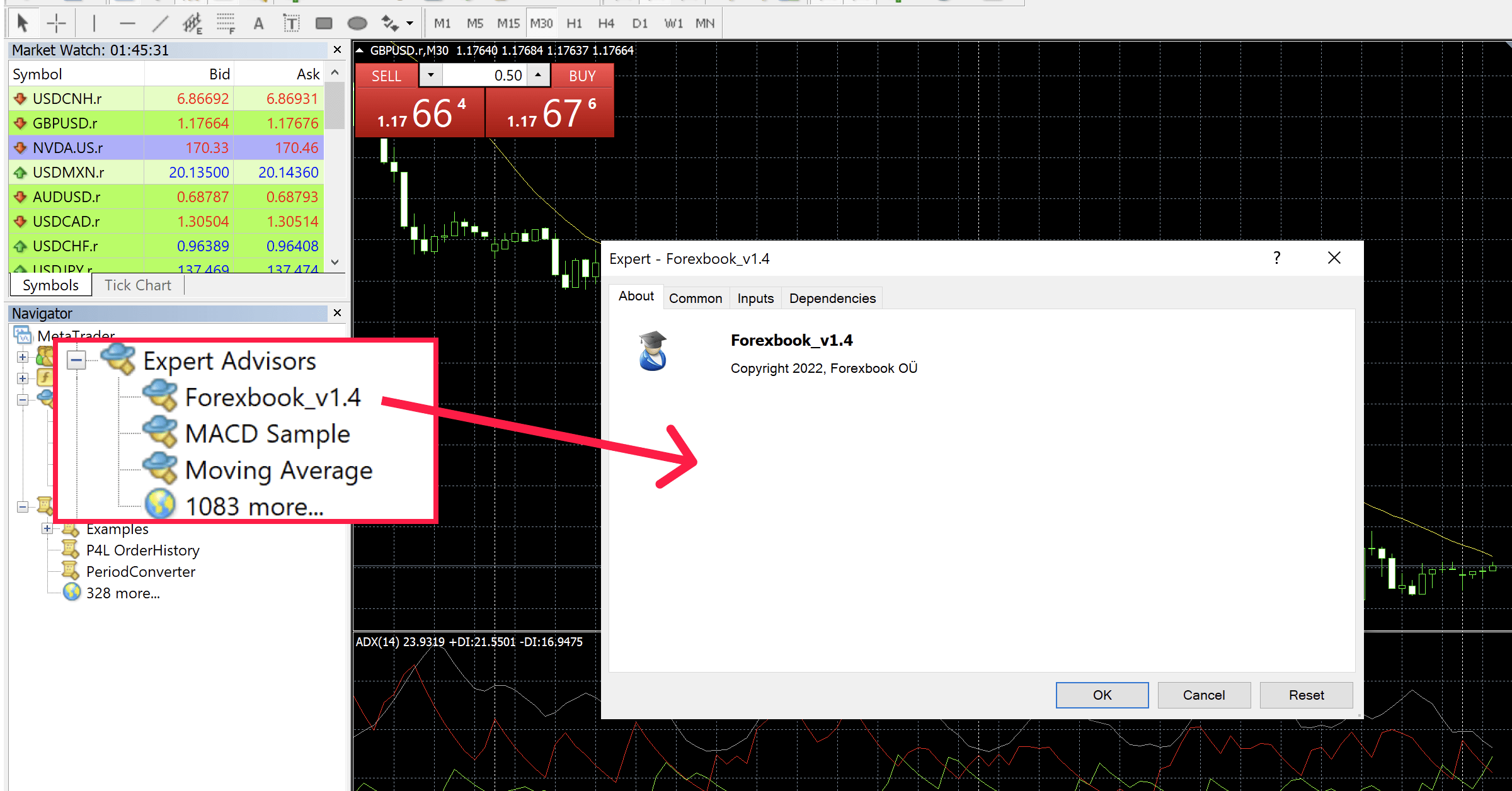
After placing the file, the next step is to activate the EA on a chart. This requires you to refresh the ‘Navigator’ panel or restart the MT4 platform for the new EA to appear. Once visible, you can drag the EA onto a currency pair chart. A properties window will pop up, where you must check ‘Allow live trading’ to give the robot permission to execute trades.
Finally, you need to enable automated trading for the entire platform. This is done by clicking the ‘AutoTrading’ button located in the main toolbar. When this button is green, and a smiley face appears in the top-right corner of your chart, it confirms that your EA is fully installed, activated, and ready to analyze the market based on its programmed strategy.
Understanding these sequential steps is fundamental for any trader looking to leverage automated systems. The guide below will walk you through each part of this process in detail, from identifying the correct EA files to confirming that the robot is functioning as intended. Let’s start by defining what an Expert Advisor is.
What is an Expert Advisor (EA)?
An Expert Advisor (EA) is an automated trading program used on the MetaTrader 4 (MT4) platform that executes trades based on a pre-programmed set of rules and algorithms, using file types like .mq4 for source code and .ex4 for the compiled file. It functions as a trading robot, analyzing market data and making trading decisions without direct human intervention. The primary purpose of an EA is to automate a trading strategy, allowing it to operate 24 hours a day, five days a week, following the financial markets. This removes the emotional component from trading and ensures that the strategy is executed with discipline and speed. To understand how EAs work, you need to know about the two file types associated with them.
What is the function of an .ex4 file versus an .mq4 file?
The function of an .ex4 file is to serve as the compiled, executable program that the MT4 platform can directly run, while the .mq4 file contains the human-readable source code that can be edited by developers. Think of the .mq4 file as the blueprint or recipe for the Expert Advisor. It is written in the MQL4 (MetaQuotes Language 4) programming language. A developer can open this file in the MetaEditor application to view, modify, and improve the trading logic. It contains all the rules, conditions, and instructions that tell the EA how to behave. For example, it specifies when to open a trade, what lot size to use, where to place stop-loss and take-profit orders, and when to close a position. You cannot use an .mq4 file directly on a chart; it must first be compiled.


When the .mq4 file is compiled, it creates the .ex4 file. This .ex4 file is the final product that you, the user, will install and use on your MT4 platform. It is a machine-readable file that cannot be easily opened or edited to view its underlying strategy. This protects the developer’s intellectual property. When you purchase or download an EA, you will almost always receive the .ex4 file. This is the file you will copy into the ‘Experts’ folder of your MT4 installation. The platform recognizes and executes the instructions contained within this file to manage your trades automatically.
Does an EA guarantee profits?
No, an Expert Advisor does not guarantee profits; it is a tool that automates a specific trading strategy, and its profitability depends heavily on the quality of that strategy, current market conditions, and the user’s risk management settings. An EA is only as effective as the logic programmed into it. A poorly designed strategy will lead to losses, regardless of how perfectly the EA automates it. Similarly, a strategy that performed well in the past is not certain to perform well in the future. Markets are dynamic and constantly changing. A trend-following EA, for instance, may generate substantial profits in a trending market but could suffer significant losses during a period of sideways consolidation.

Furthermore, the performance of an EA is directly influenced by the settings chosen by the user. Parameters such as lot size, stop-loss levels, and risk percentage per trade play a large part in the final outcome. Aggressive settings might lead to high returns but also expose the account to a high risk of ruin. Conservative settings may protect capital but generate lower returns. Finally, external factors like internet connection stability, computer performance, and broker execution speed can also affect results. Many serious traders use a Virtual Private Server (VPS) to run their EAs, which provides a stable, 24/7 connection to the markets, reducing the risk of downtime. The EA is a tool for execution, not a source of guaranteed income.
What are the steps to install an EA on the MT4 platform?
The steps to install an EA on the MT4 platform involve accessing the platform’s Data Folder, navigating to the MQL4 > Experts directory, copying the EA’s .ex4 file into that folder, and then refreshing or restarting MT4 to load the robot. This procedure places the trading robot’s file where the platform can find and execute it. The entire process is straightforward and ensures that your automated trading system is correctly integrated with the software. The first and most important step is finding the right location for the file, which is known as the MT4 Data Folder. This special directory holds all custom user files, including EAs, indicators, and scripts. Let’s look at how to find this folder and complete the installation.
What are the two primary ways to access the MT4 Data Folder?
There are two main ways to access the MT4 Data Folder: directly through the MT4 platform’s menu, which is the simplest method, or by manually navigating through your computer’s file system. The first method is highly recommended for its ease and accuracy. To use it, simply open your MT4 terminal. In the top-left corner of the window, click on the ‘File’ menu. A dropdown list will appear. From this list, select the option ‘Open Data Folder’. A new window will immediately open, showing you the exact location of the data directory for that specific MT4 installation. This method removes any guesswork and takes you directly to the correct folder, preventing you from accidentally placing files in the wrong location, especially if you have multiple MT4 terminals installed.
The second method involves manually finding the folder using your computer’s file explorer. This can be more complicated because the folder is often hidden and located in a complex path. The typical path is `C:Users[Your_Username]AppDataRoamingMetaQuotesTerminal[A_Long_String_Of_Characters]`. You would need to replace `[Your_Username]` with your actual Windows username and find the folder with the long, unique ID. The `AppData` folder is usually hidden by default in Windows. To see it, you must go into your file explorer’s view settings and check the option to “Show hidden items.” While this method works, it is prone to error and is generally only used if you cannot open the MT4 platform for some reason.
Which folder should the EA file be placed in?
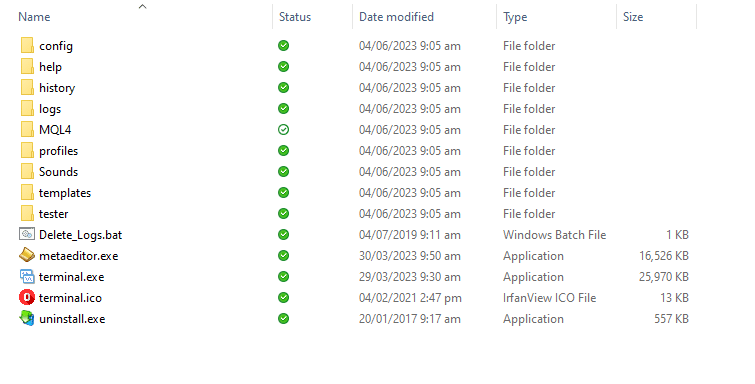
The EA file, which is the .ex4 file, must be placed inside the `MQL4` > `Experts` folder. This specific location is where the MT4 platform is programmed to look for all Expert Advisors. When you open the MT4 Data Folder using either of the methods described previously, you will see a folder named `MQL4`. This is the main directory for all custom MQL4 programs. Inside the `MQL4` folder, you will find several subfolders, each with a specific purpose. These include `Indicators`, `Scripts`, `Libraries`, and `Experts`. Each folder type corresponds to a different type of custom program that can be run on MT4.
Placing the .ex4 file in the `Experts` folder is necessary because it tells the MT4 platform to treat this file as an automated trading system. If you were to place it in the `Indicators` folder, for example, the platform would try to load it as a custom indicator and fail. By organizing files this way, MT4 can correctly populate the ‘Navigator’ window, listing your EA under the “Expert Advisors” section. This makes it easy for you to find, attach, and manage your trading robots. Copying the file is as simple as a standard copy-and-paste action. Once the .ex4 file is in the `MQL4Experts` directory, the installation part of the process is nearly complete.
Do you need to restart MT4 after copying the EA file?
Yes, in most cases, you will need to perform an action to make MT4 recognize the new EA file, but a full restart is not always required; a faster alternative is to refresh the ‘Expert Advisors’ list in the ‘Navigator’ window. After you copy the .ex4 file into the `M-QL4Experts` folder, the MT4 platform does not automatically detect it. You must prompt the platform to scan for new files. The most common and foolproof method is to simply close the MT4 terminal completely and then reopen it. During its startup sequence, MT4 scans all its directories, including the `Experts` folder, and will load any new EAs it finds. The new EA will then appear in your ‘Navigator’ panel.
However, a more efficient method exists that does not require you to close the platform. This is particularly useful if you have other charts or EAs already running that you do not wish to interrupt. You can perform a refresh. To do this, locate the ‘Navigator’ window, which is typically docked on the left side of the platform (if it is not visible, you can open it by pressing Ctrl+N or going to View > Navigator). In the ‘Navigator’ window, find the ‘Expert Advisors’ heading. Right-click on this heading, and a small context menu will appear. From this menu, select the ‘Refresh’ option. The platform will quickly rescan the `Experts` folder and your new EA will appear in the list, ready to be used. This refresh method achieves the same result as a restart but is much faster.
How do you activate and run an EA on a specific chart?
To activate and run an EA on a specific chart, you must first drag the EA from the ‘Navigator’ panel onto the desired chart, then configure its permissions in the ‘Properties’ window by enabling ‘Allow live trading’, and finally, turn on the main ‘AutoTrading’ button in the toolbar. This three-step process attaches the robot to a specific financial instrument, grants it the necessary permissions to execute trades, and then activates the platform’s overall automated trading functionality. Once these steps are complete, you can confirm the EA is active by looking for a smiley face icon in the top-right corner of the chart. The process begins after the EA file has been correctly installed and is visible in your ‘Navigator’ list.
What are the essential settings to enable in the EA’s ‘Properties’ window?
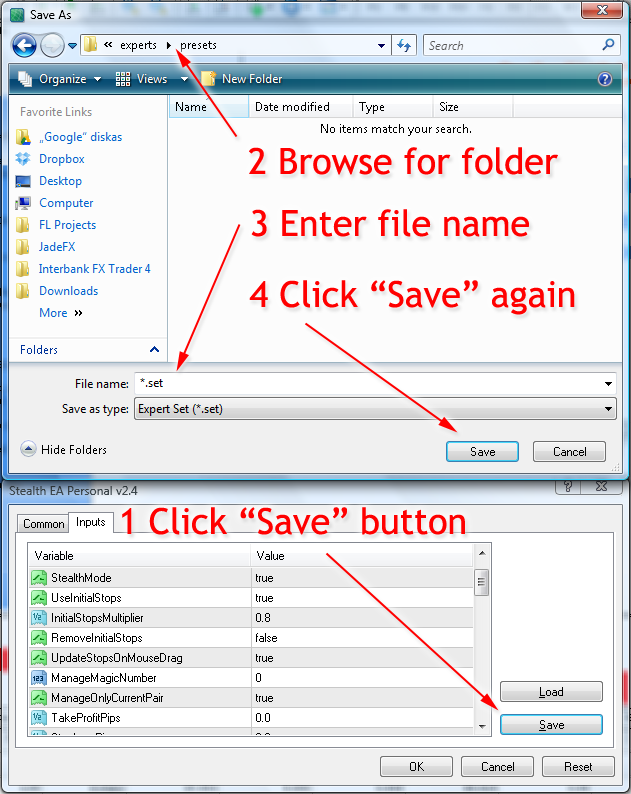
The essential settings to enable in the EA’s ‘Properties’ window are found under the ‘Common’ tab: the “Allow live trading” checkbox and, if the EA requires it, the “Allow DLL imports” checkbox. When you first drag an EA onto a chart, a pop-up window titled ‘Properties’ appears. This window has several tabs, but the ‘Common’ tab contains the most critical permissions. The “Allow live trading” option is the primary on/off switch for the EA’s ability to trade on that specific chart. If this box is not checked, the EA may perform analysis and send alerts, but it will be blocked from opening, modifying, or closing any market positions. You must enable this for the EA to function as a trading robot.
The second setting, “Allow DLL imports,” is for more advanced EAs. A DLL (Dynamic Link Library) is an external library of code that the EA can use to perform functions not built into the MQL4 language. For example, an EA might use a DLL to connect to a news website to avoid trading during high-impact events or to communicate with a licensing server to verify your purchase. If the developer of your EA states that DLL imports are required, you must check this box. If you do not, the EA will likely fail to initialize and will not run properly. Always consult the EA’s user manual to see if this setting is needed.
What is the difference between the main ‘AutoTrading’ button and the ‘Allow live trading’ setting?
The difference between the main ‘AutoTrading’ button and the ‘Allow live trading’ setting is that the ‘AutoTrading’ button is a global master switch for the entire MT4 platform, while ‘Allow live trading’ is a specific permission granted to an individual EA on a single chart. Think of the ‘AutoTrading’ button as the main circuit breaker for your house. If this breaker is off, no electricity flows anywhere, and no appliances can run. Similarly, if the ‘AutoTrading’ button is red, it means all automated trading is disabled across your entire MT4 terminal. No EA, no matter its individual settings, will be able to place a trade. This serves as a quick and powerful safety feature to instantly halt all robotic activity.
In contrast, the ‘Allow live trading’ setting inside an EA’s properties is like the on/off switch on a specific lamp. For that lamp to turn on, two conditions must be met: the main circuit breaker for the house must be on, and the lamp’s own switch must also be turned on. In the same way, for an EA to trade on a chart, the global ‘AutoTrading’ button must be green (on), AND the ‘Allow live trading’ checkbox for that specific EA instance must be checked. This two-level system gives you precise control. You can have multiple EAs on different charts, but only enable trading for some of them, all while having a single master button to stop everything in an emergency.
What does the smiley face icon in the top-right corner of the chart indicate?
The smiley face icon in the top-right corner of the chart indicates that the Expert Advisor is active and running correctly with all necessary permissions enabled. When you see this happy face ( ), it is a visual confirmation that everything is set up properly. It means that both the global ‘AutoTrading’ button is turned on (green) and the ‘Allow live trading’ option within that specific EA’s properties has been checked. The EA is now fully operational, monitoring the market based on its internal logic, and it will execute trades as soon as its conditions are met. This is the state you want to see for your EA to function as intended. It is a quick diagnostic tool to verify a successful activation.
Conversely, if you see a sad face ( ) or an ‘x’ icon in that same corner, it signifies a problem. This is an immediate visual alert that the EA is not able to trade. The most common cause for a sad face is that one of the required permissions is missing. Usually, this means either the global ‘AutoTrading’ button is disabled (red), or you forgot to check the ‘Allow live trading’ box in the EA’s properties for that chart. By checking these two settings, you can almost always fix the issue and turn the sad face into a smiley face. The icon provides instant feedback on the operational status of your EA, letting you know at a glance whether it is ready to trade or if it requires your attention.
What are the advanced considerations for optimizing EA performance?
Optimizing an Expert Advisor’s performance involves using a Virtual Private Server for constant connectivity, understanding different installation methods, and thoroughly testing the robot’s strategy. Beyond the initial setup, these elements determine whether your automated trading system functions reliably and profitably. How you acquire, host, and test your EA can have a substantial impact on its long term results. A well tested EA running on a stable connection is much more likely to perform as expected compared to an untested one on an unreliable home computer. Let’s look at these advanced topics more closely.
What is the difference between installing a manual EA file versus an EA from the MQL5 Marketplace?
The primary distinction between these two installation procedures is automation versus manual effort. Installing an EA from a file you downloaded, often with an .ex4 or .mq4 extension, is a hands on process. You must manually open the MT4 Data Folder, navigate to the correct MQL4Experts directory, and then copy and paste the file into that specific location. Following this, you have to refresh the Navigator pane in MT4 for the platform to recognize the new file. This method gives you complete control but also introduces opportunities for error, such as placing the file in the wrong folder.

In contrast, acquiring an EA from the MQL5 Marketplace is an integrated and automated experience. You browse for the robot directly within the “Market” tab of your MT4 Terminal. When you download or purchase an EA, the platform handles the entire installation. It automatically places the file in the correct directory and makes it available in the Navigator under the “ExpertsMarket” section. This process is far simpler for beginners and removes the chance of misplacing files.
Thinking about the long term use of the EA reveals other differences.
- Updates and Versions: A Marketplace EA can be updated with a single click, as the platform notifies you of new versions. For a manual file, you must find, download, and replace the old file with the new one yourself.
- Verification and Trust: EAs on the official Marketplace are scanned by MetaQuotes and often come with user reviews and author history. A manual file from an unknown source carries a higher risk of being outdated, poorly coded, or even malicious.
- Accessibility: Marketplace EAs are tied to your MQL5 account, allowing you to easily install them on different computers or MT4 instances. A manual file must be transferred and installed on each machine separately.
Is a Virtual Private Server (VPS) required to run an EA effectively?
A Virtual Private Server, or VPS, is not technically required, but it is highly recommended for any serious automated trading. An EA can certainly run on your personal desktop or laptop computer. However, this approach exposes your trading to numerous vulnerabilities that can disrupt performance and lead to missed opportunities or unexpected losses. Your home computer is susceptible to power outages, internet connection drops, automatic system updates that force restarts, and accidental shutdowns. Since forex markets operate 24 hours a day, five days a week, any interruption means your EA stops working.
A VPS solves these problems by providing a stable and constantly connected environment. It is essentially a remote computer located in a professional data center that is designed for 100% uptime. By installing MT4 and your EA on a VPS, your trading strategy runs without interruption, regardless of what happens to your personal computer. Have you thought about what happens to your open trades if your internet goes down for an hour?
This continuous operation offers several key advantages.
- Reduced Latency: Many VPS providers have servers physically located in the same data centers as brokerage servers. This proximity dramatically reduces the time it takes for your EA to send an order to the broker, a factor known as latency. Lower latency can result in better trade execution prices and less slippage.
- Uninterrupted Operation: A VPS is maintained to run 24/7 with redundant power and internet connections. Your EA never sleeps, ensuring it can monitor the market and manage trades exactly as it was designed to, even while you are away from your screen.
- Enhanced Security: Professional data centers offer a much more secure environment than a typical home network, protecting your trading platform from external threats.
What are EA backtesting and optimization in the Strategy Tester?
The Strategy Tester is an essential tool built into the MT4 platform that allows you to simulate your Expert Advisor’s performance using historical price data. Its core function is to provide insight into how a trading strategy would have performed in the past, which helps you assess its potential viability before risking real capital. Backtesting involves running your EA over a specific historical period, for example, the last two years, on a particular currency pair and timeframe. The tester processes the historical data tick by tick, executing virtual trades according to the EA’s logic.
Upon completion, the Strategy Tester generates a detailed report. This report includes critical performance metrics such as total net profit, profit factor, maximum drawdown, and a full list of all simulated trades. This data allows you to analyze the strategy’s strengths and weaknesses. Did it perform well during trending markets but poorly in ranging conditions? What was the longest period of losses? Answering these questions through backtesting is a fundamental step in risk management.
Optimization is a more advanced feature of the Strategy Tester. It takes backtesting a step further by systematically testing a wide range of an EA’s input parameters to find the most profitable or stable combination. For instance, you can tell the tester to run the backtest multiple times, trying every Stop Loss value from 10 to 50 pips and every Take Profit value from 20 to 100 pips.
- Finding Robust Settings: Optimization helps identify which settings have historically produced the best results, helping you fine tune the EA for current market conditions.
- Avoiding Overfitting: A key goal is to find settings that perform well across various market conditions, not just a single historical period. This process helps avoid “curve fitting,” where settings are too perfectly tailored to past data and fail in a live market.
- Strategy Validation: If no combination of parameters yields positive results during optimization, it may indicate a fundamental flaw in the EA’s core trading logic.
How does the EA installation process on MT4 compare to installing an indicator or script?
The installation process for EAs, indicators, and scripts on MT4 is very similar in principle but differs in one key detail: the destination folder. All three are types of MQL4 programs, but they serve different functions, and MT4 organizes them into separate directories within the Data Folder to manage their distinct roles. The core procedure of opening the Data Folder, navigating to the MQL4 directory, and pasting a file remains the same for all three. The divergence happens in the final step.
An Expert Advisor (EA) file must be placed in the `MQL4Experts` folder. EAs are designed for automated trading; they can monitor market prices and execute buy or sell orders on your behalf. Placing an EA file here allows it to appear in the “Expert Advisors” section of the Navigator, from where you can attach it to a chart to begin trading.
An indicator file, on the other hand, goes into the `MQL4Indicators` folder. Indicators are tools used for technical analysis that display data visually on a chart, such as a moving average or the RSI oscillator. They provide information but do not execute trades. You’ll notice them listed under the “Indicators” section in the Navigator.
Finally, a script file belongs in the `MQL4Scripts` folder. A script is designed to perform a single, immediate action and then stop. For example, you might use a script to close all open positions simultaneously or to delete all pending orders. It executes its task once when you drag it onto a chart and does not run continuously like an EA.
- Function Dictates Location: The program’s function directly determines its correct folder. An EA in the Indicators folder will not work, and vice versa.
- Platform Organization: This folder structure is how MT4 differentiates between programs that trade, programs that analyze, and programs that perform one off tasks.
- User Workflow: Knowing these paths is fundamental to correctly managing and using custom tools within the MetaTrader 4 platform.
