
Research
How to Load SET Files in MT4: A Simple Guide for EA Settings & Backtesting

Dec
Loading a SET file in MT4 involves opening the “Expert Properties” window, either in the Strategy Tester for backtesting or from the settings of an Expert Advisor on a live chart, and then using the “Load” button to select your desired .set file. This process allows traders to quickly apply pre-configured parameters to an EA without manually entering each value. The function is fundamental for efficient strategy testing and consistent deployment of automated trading systems across different charts or terminals.
A SET file is a simple configuration file that stores all the input parameters for a specific MetaTrader 4 Expert Advisor. These files act as a memory bank for your EA’s settings. When you find a combination of inputs that performs well during backtesting or that you want to use for live trading, you can save it as a .set file. This prevents errors from manual data entry and saves a large amount of time.
The primary benefit of using SET files is the ability to maintain consistency and efficiency in both testing and trading. For backtesting, you can load a specific SET file to run a precise test, then load another to compare results. For live trading, you can apply a trusted, optimized set of parameters to a new chart in seconds. This makes managing multiple strategies or chart setups much simpler and less prone to mistakes.
These files are distinct from the EA’s core program files, like MQ4 or EX4, as they only contain settings, not the trading logic itself. To fully understand how to use them, let’s explore what a SET file is in greater detail before moving on to the step-by-step loading and saving procedures.
What Is an MT4 SET File?
An MT4 SET file is a configuration file that stores the specific input parameters for an Expert Advisor (EA), allowing you to save and load different settings without changing the EA’s code. It acts as a preset, capturing a snapshot of all the adjustable variables for an automated trading strategy. When you want to test different parameter combinations or apply a proven setup to a live chart, the SET file streamlines the entire process. It separates the EA’s logic from its operational settings.
To understand this better, let’s break down the exact information a SET file holds and clarify how it differs from other files associated with an EA.

What specific information is stored in a SET file?
A SET file stores a straightforward list of variable names and their corresponding assigned values, which directly control the behavior of an Expert Advisor. This information is saved in a plain text format, making it easy to read and even edit outside of the MT4 platform using a simple text editor like Notepad. The file essentially contains a series of lines where each line defines one parameter. For instance, a line might read `TakeProfit=100`, instructing the EA to use a take profit level of 100 pips for its trades.

Let’s see some common types of data you will find inside a typical SET file:
- Numerical Values: These are the most frequent entries. They include integer values for settings like StopLoss (e.g., `StopLoss=50`), Slippage (e.g., `Slippage=3`), and MagicNumber (e.g., `MagicNumber=123456`). They also include decimal values (doubles) for parameters like LotSize (e.g., `LotSize=0.01`) or a risk percentage (e.g., `RiskPercent=2.5`).
- Boolean Values: These represent true or false options that enable or disable certain features within the EA. For example, a parameter like `UseTrailingStop=true` would activate the trailing stop function, while `UseTrailingStop=false` would turn it off. Another example could be `EnableEmailAlerts=true`.
- String Values: This data type is used for text-based inputs. A common example is a trade comment that the EA attaches to each order, such as `TradeComment=My_Scalping_Strategy_V2`. It can also be used for things like filenames or specific trading session times written as text.
Is a SET file the same as an EX4 or MQ4 file?
No, a SET file is not the same as an EX4 or MQ4 file; each file type serves a completely different and unique function within the MetaTrader 4 environment. Confusing them can lead to problems when trying to install or run an Expert Advisor. While they all work together to make an EA function, their roles are distinct. An EA needs its logic (MQ4/EX4) and its settings (SET) to operate, but these components are stored separately.

Here is a clear breakdown of each file type to illustrate the difference:
- MQ4 (MetaQuotes Language 4) File: This is the source code of the Expert Advisor. It is a human-readable text file containing all the programming logic, rules, and functions that define how the EA will trade. A developer writes the strategy in the MQL4 programming language and saves it as an MQ4 file. You can open and edit this file in the MetaEditor to modify the strategy’s core behavior. Think of the MQ4 file as the detailed recipe for a cake.
- EX4 (Executable) File: This is the compiled version of the MQ4 file. The MT4 platform cannot directly run the human-readable source code. The MQ4 file must first be compiled into a machine-readable format, which results in the EX4 file. This is the actual program that you attach to a chart to run the EA. You cannot edit an EX4 file to see or change its source code. Following the analogy, the EX4 file is the finished cake, baked and ready to be served.
- SET (Settings) File: This file contains only the input parameters for the EX4 file. It does not contain any trading logic. It simply tells the compiled EA (the EX4 file) what specific settings to use for a particular run. For example, it might specify the lot size, stop loss, and take profit values. In our analogy, the SET file is the list of specific ingredient quantities, like “use 200g of sugar” or “bake at 180 degrees,” that you give to the baker using the recipe.
What Are the Steps to Load and Save a SET File in MT4?
The steps to load and save a SET file in MT4 are centered around the “Expert Properties” window, which is accessible from both the Strategy Tester for backtesting and directly from an EA running on a live chart. This centralized interface provides “Load” and “Save” buttons that allow you to manage your EA’s input parameters with ease. Whether you are preparing for a series of backtests with different configurations or applying an optimized setup to a new currency pair, the process is consistent and direct.
Let’s walk through the exact steps for both loading a pre-configured file for testing and saving your own optimized settings for future use.
What is the process for loading a SET file in the Strategy Tester?
Loading a SET file in the Strategy Tester is a standard procedure for running backtests with predefined EA parameters. This method allows for repeatable and consistent testing, which is foundational for evaluating an automated strategy’s performance. Instead of manually typing in dozens of input values each time, you can apply a complete set of parameters in just a few clicks. This not only saves time but also eliminates the risk of data entry errors that could invalidate your test results.

Here is the step-by-step process for loading your SET file:
1. Open the Strategy Tester: First, open the testing environment. You can do this by pressing the keyboard shortcut `Ctrl+R` or by navigating to the “View” menu at the top of the MT4 terminal and selecting “Strategy Tester.” A new panel will appear at the bottom of your screen.
2. Select Your Expert Advisor: In the Strategy Tester panel, locate the “Expert Advisor” dropdown menu. Click on it and choose the specific EA you want to test. The EA you select must be the one for which the SET file was created, as the parameter names must match.
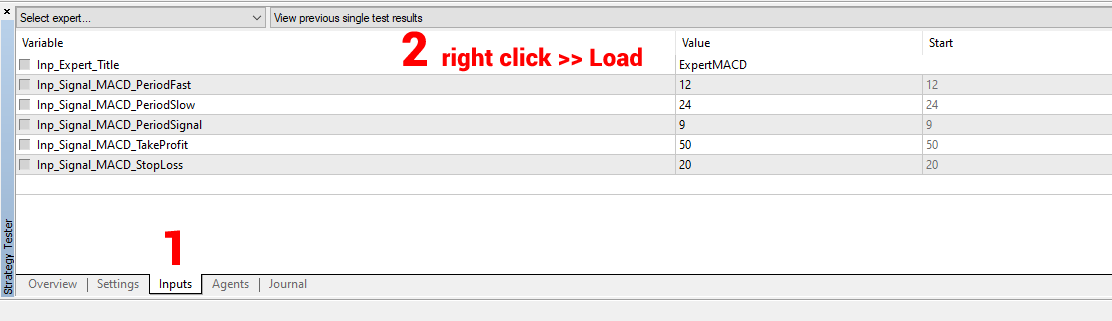
3. Open Expert Properties: On the right side of the Strategy Tester panel, find and click the “Expert properties” button. This will open a new window that displays all the adjustable input parameters for the selected EA.
4. Navigate to the “Inputs” Tab: The “Expert Properties” window may open to a different tab. Be sure to click on the “Inputs” tab. Here you will see a list of all the EA’s variables and their current default values.
5. Load the SET File: At the bottom right of the “Inputs” tab, click the “Load” button. A file explorer window will pop up. By default, it may open to the `MQL4Presets` folder. Navigate to the location where you saved your .set file, select it, and click “Open.” You will see all the values in the “Inputs” tab update instantly to match the settings from your file. Click “OK” to close the window and proceed with your backtest.
What is the process for saving your EA settings as a SET file?
Saving your EA settings as a SET file is just as straightforward as loading one. This process is useful when you have manually adjusted parameters and discovered a configuration that yields promising results. By saving these settings, you create a reusable preset for future backtests or for deployment on a live trading account. It is a good practice to save any set of parameters that you find valuable during your optimization process, giving each file a descriptive name for easy identification later.

Here is the step-by-step process for saving your current EA settings:
1. Adjust Parameters in “Expert Properties”: Open the Strategy Tester (`Ctrl+R`), select your EA, and click “Expert properties.” In the “Inputs” tab, manually change the values for the parameters you wish to save. You can do this by double-clicking on the “Value” column for any variable and typing in your desired setting. This is the stage where you fine-tune your strategy based on testing or analysis.
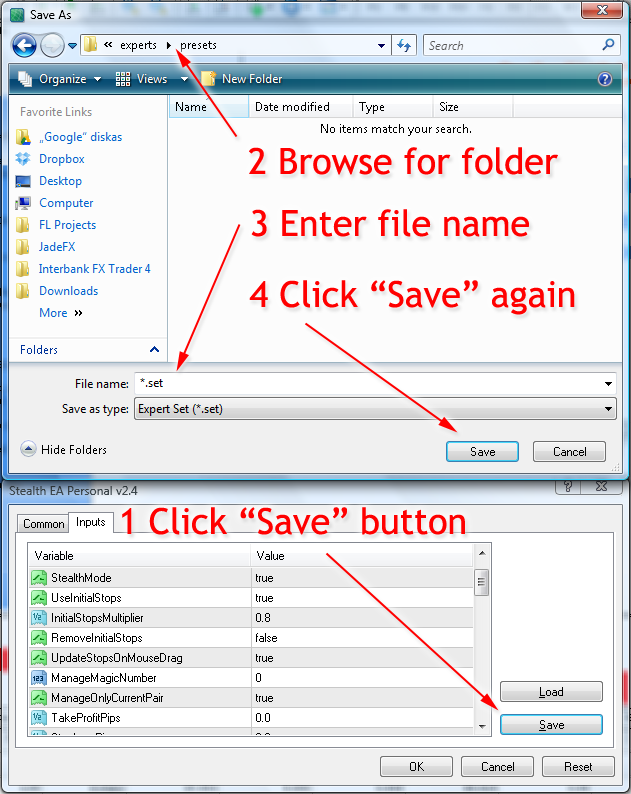
2. Click the “Save” Button: Once you are satisfied with all the parameter adjustments, click the “Save” button, located next to the “Load” button at the bottom of the “Inputs” tab. This will open a file explorer window, prompting you to choose a location and name for your new SET file.
3. Name and Save Your File: Choose a clear and descriptive name for your file. A helpful naming convention includes the EA’s name, the currency pair, the timeframe, and a brief description of the strategy. For example, `MyEA_EURUSD_H1_Aggressive.set` is much more informative than `settings1.set`. After naming the file, click “Save.” Your configuration is now stored and ready to be loaded at any time. This same process also works for an EA running on a live chart by right-clicking the chart, selecting “Expert Advisors,” then “Properties.”
How Do You Troubleshoot and Optimize the Use of SET Files?
Troubleshooting SET files involves verifying parameter accuracy against the EA version and checking file integrity, while optimization is achieved through manual editing and using files automatically generated by the Strategy Tester. Furthermore, understanding how to manage these files helps traders deploy strategies with greater precision. Advanced use extends beyond just loading settings; it involves a proactive approach to error handling and performance refinement.
What are common errors that occur when loading a SET file?
Loading a SET file into an Expert Advisor can sometimes fail due to a few recurrent issues. The most frequent problem is a mismatch between the SET file’s parameters and the input variables of the EA version you are using. If the EA has been updated with new inputs or has had old ones renamed or removed, a SET file created for a previous version will no longer be compatible. Another common source of trouble is file corruption. This happens if the file was not saved correctly or was damaged during transfer, rendering it unreadable by the MT4 platform. You might also encounter an error if the file path is incorrect. MT4 looks for presets in a specific folder, and if your file is saved elsewhere, it will not appear in the loading dialog box. These issues can prevent an EA from running or cause it to operate with unintended default settings.

Examining these potential pitfalls more closely helps build a solid troubleshooting process.
- Parameter Mismatch: An EA developer might add a new feature, like a “NewsFilter” input. An older SET file will not contain this parameter. When you load it, MT4 may either reject the file or simply ignore the missing input, causing the EA to use its hardcoded default value for the “NewsFilter,” which may not be what you want.
- File Corruption: A properly formatted SET file is a simple text file. You can check for corruption by opening it with Notepad or another text editor. If you see unreadable characters or a jumbled format instead of clear `Parameter=Value` lines, the file is likely damaged and needs to be replaced.
- Incorrect File Location: The correct directory for these files is within the MT4 Data Folder, under the path `MQL4Presets`. A common mistake is saving the SET file to the desktop or downloads folder, which makes it invisible to the platform’s “Load” function. Always double check the save location.
What is the difference between loading settings in MT4 versus MT5?
The fundamental process of loading a SET file is very similar between the MetaTrader 4 and MetaTrader 5 platforms, though some subtle differences in the user interface and file management exist. In both platforms, you attach an Expert Advisor to a chart, open the “Inputs” tab in the properties window, and use a “Load” button to select your desired `.set` file. The file format itself, a plain text file with `parameter=value` pairs, is also consistent between the two. However, the platforms are built on different programming languages (MQL4 and MQL5), meaning an EA and its corresponding SET file from one platform are not directly interchangeable with the other. The main distinctions are found in the directory structure and the appearance of the user interface.
While the core action is consistent, the platform specific details are worth noting for traders who use both environments.
- Interface and User Experience: MT5 presents a slightly more modern and organized interface. The EA properties window has cleaner tabs, but the “Load” and “Save” buttons function identically to those in MT4. The overall workflow remains intuitive on both platforms for any user familiar with one of them.
- Directory Paths: This is the most practical difference. MT4 stores its preset files in the `MQL4Presets` folder. In contrast, MT5 uses a separate `MQL5Presets` directory. When migrating or managing files, you must place them in the correct folder for the corresponding platform to recognize them.
- Parameter Complexity: MQL5 supports more advanced input types for EAs, such as dropdown menus (enumerations) and custom structures. This means a SET file generated from an MT5 EA might contain different formatting for these specific inputs compared to a simpler MT4 file, even though the basic principle is the same.
Can you manually edit a SET file with a text editor?
Yes, you can manually edit a SET file using any basic text editor like Notepad on Windows or TextEdit on Mac. This is possible because `.set` files are not complex, compiled files; they are simple plain text documents. Each line inside the file represents a single input parameter for the Expert Advisor, written in a straightforward `ParameterName=Value` format. This transparency allows for quick adjustments without needing to open MetaTrader. For instance, you could change a line from `TakeProfit=100` to `TakeProfit=150` just by editing the text and saving the file. This capability is useful for making small tweaks, creating multiple variations of a strategy, or fixing a typo in a specific value. However, this direct access also carries risks, as any formatting error can make the file unusable.

Opening a SET file for direct modification gives you a high degree of control, but it requires careful attention to detail.
- Understanding the Structure: The file is a list of key value pairs. The text on the left of the equals sign must exactly match the external variable name in the EA’s source code. The value on the right must be in the correct format, such as an integer for pips, a decimal for lot size, or `true`/`false` for a boolean setting.
- Potential for Errors: A simple mistake, like misspelling a parameter name or deleting a line entirely, will cause problems. If the EA cannot find a parameter from the file, it will revert to its internal default value for that setting. Entering text where a number is required will typically cause the file to fail loading altogether.
- Recommended Practices: Before making any edits, always create a backup copy of the original file. This gives you a safe version to restore if your changes cause unexpected behavior. After saving your edits, load the modified SET file onto a demo chart to confirm the EA accepts the settings and functions correctly before deploying it in a live environment.
What is the function of the default .set file created after an optimization?
After you run a strategy optimization in the MetaTrader 4 Strategy Tester, the platform automatically generates and saves a default `.set` file that contains the best performing combination of input parameters discovered during the test. The purpose of this file is to give you immediate access to the most profitable or otherwise optimal settings without requiring you to manually record and input them. When the optimization process cycles through thousands of potential input combinations, it tracks the results of each pass. Once completed, it identifies the single pass that yielded the best outcome based on your chosen optimization criterion, such as the highest net profit or profit factor. The platform then writes all the input values from that specific pass into a `.set` file. This automated feature streamlines the process of moving from backtesting and optimization to practical application.
This auto generated file serves as a direct bridge between historical testing and forward deployment.
- Automated Capture of Optimal Settings: The primary function is convenience and accuracy. The Strategy Tester saves you from the tedious and error prone task of manually copying dozens of parameters from the optimization results tab. It captures the exact winning combination in a ready to use format.
- Unique File Location: Unlike preset files you save manually, this automatically generated file is not placed in the `MQL4Presets` folder. Instead, you can find it inside the MT4 data folder at the path `testerfiles`. The file is typically named after the Expert Advisor that was optimized.
- Practical Application: Once created, you can move this file from the `testerfiles` directory to your `MQL4Presets` folder. From there, you can easily load these optimized settings onto a live or demo chart to run the EA with its best historical configuration. It also serves as a perfect baseline for a final, detailed single pass backtest to analyze the performance curve of that specific set.
https://media.geeksforgeeks.org/wp-content/uploads/20230925210229/os-file-attr-660.png
Loading a SET file in MT4 involves opening the “Expert Properties” window, either in the Strategy Tester for backtesting or from the settings of an Expert Advisor on a live chart, and then using the “Load” button to select your desired
how to load set files mt4
