
Research
Troubleshoot MT4 Error 130: The Definitive Fix for ‘Invalid Stops’
Dec
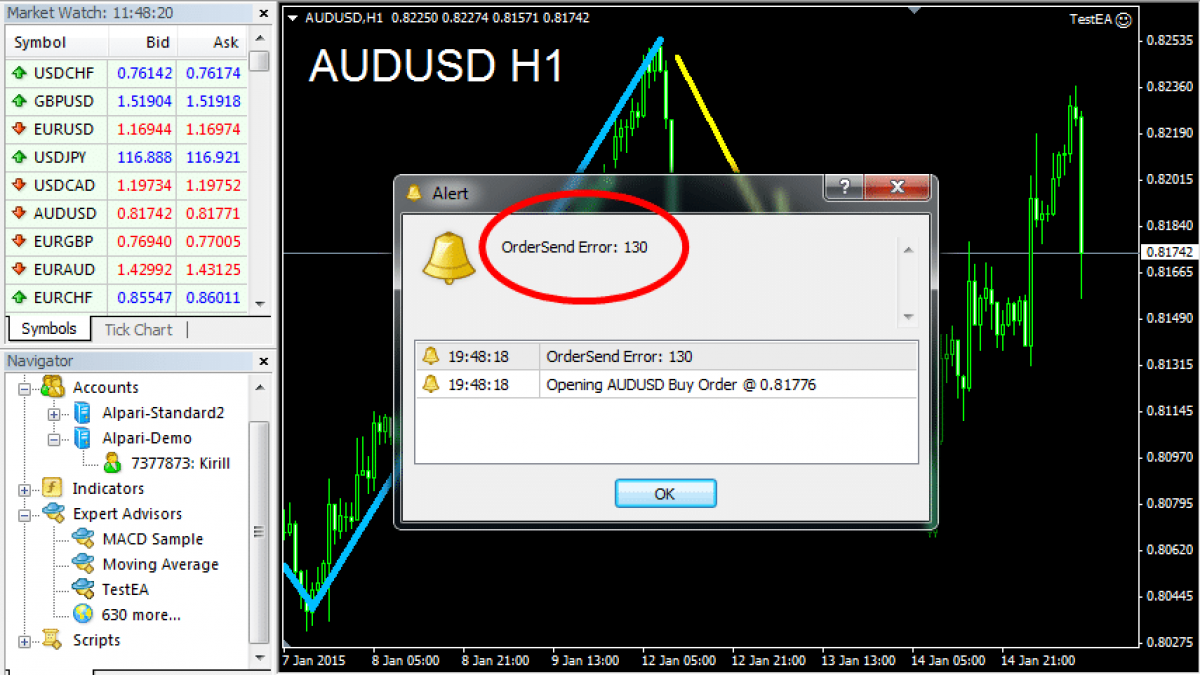
The definitive fix for MT4 Error 130, known as ‘Invalid Stops’, requires you to identify your broker’s minimum stop distance and then adjust your Stop Loss or Take Profit levels to be outside this specified range. This error is not a platform malfunction but a rule-based rejection. When you see this message, it simply means the protective stop order you are trying to place is too close to the current market price, violating the conditions set by your brokerage. Successfully placing your trade depends on respecting this minimum distance, which is a straightforward process once you know where to find the information and how to apply it.
The primary causes of the ‘Invalid Stops’ message stem from placing Stop Loss (SL) or Take Profit (TP) levels inside the broker’s required minimum distance from the current bid or ask price. This can happen with market orders, where your stops are too tight, or with pending orders, where the stops are too close to your specified entry price. Volatile market conditions can also temporarily widen this minimum distance, leading to unexpected rejections. Each financial instrument may have a different minimum requirement, so the settings that work for EUR/USD might not work for Gold (XAU/USD).
This error is a broker-specific rule that is enforced by the MT4 platform, not a problem with the platform itself. Think of the MT4 platform as a universal trading terminal that connects to various brokers. Each broker configures its own trading conditions, including spreads, commissions, and the minimum distance for stop orders, which is known as the ‘Stops Level’. The platform correctly reads and applies these rules. When your order violates the broker’s ‘Stops Level’, MT4 does its job by rejecting the order and displaying Error 130 to inform you of the specific reason.
Understanding this broker-imposed limit is the first step toward a permanent solution. Instead of guessing or getting frustrated by repeated rejections, you can learn a simple method to check the exact requirement for any instrument. The following guide provides a clear, step-by-step process to locate this critical value within your MT4 platform and correctly calculate your stop levels every time, allowing you to execute your trading strategy without interruption.
What is MT4 Error 130 ‘Invalid Stops’?
MT4 Error 130 ‘Invalid Stops’ is an order rejection code that appears when your Stop Loss or Take Profit level is set too close to the current market price, violating the broker’s predefined minimum distance requirement for placing stop orders.
To understand this better, let’s look at the specifics of this common trading issue. The error message is not a bug or a glitch in your MetaTrader 4 software. It is a protective mechanism and a rule set by your broker. Every broker determines a minimum distance, measured in points, that a Stop Loss or Take Profit order must be from the current market price. This distance is called the “Stops Level”. If you attempt to place an order where the SL or TP falls within this restricted zone, the broker’s server will automatically reject it, and the MT4 platform will display “Error 130: Invalid Stops” in your ‘Journal’ or ‘Experts’ tab. This rule is in place for several reasons, including managing risk during high volatility, preventing certain high-frequency trading strategies that could strain servers, and ensuring compliance with liquidity provider conditions. The core concept of “Invalid Stops” is therefore a boundary issue: your order is trying to exist in a space that the broker has marked as off-limits.

Is Error 130 a platform or broker issue?
No, Error 130 is not an issue with the MT4 platform itself; it is a broker-specific rule that the platform enforces. The MetaTrader 4 platform functions correctly by communicating your order to the broker’s server. The server then evaluates the order based on the trading conditions set by the broker. If your Stop Loss or Take Profit values do not meet the broker’s minimum distance requirement (the ‘Stops Level’), the server rejects the order and sends back the error code 130. MT4 simply displays this message to you.
Cụ thể hơn, you can think of the MT4 platform as a vehicle, and the broker’s rules as the traffic laws. The vehicle works perfectly, but if you try to drive it in a way that breaks a law, such as parking too close to a fire hydrant, you will get a ticket. In this analogy, the ‘Invalid Stops’ error is the ticket. Different brokers are like different cities; they have their own unique traffic laws. That is why you might be able to place a very tight stop with one broker but receive Error 130 when attempting the same trade with another.
- Broker’s Role: The broker sets the ‘Stops Level’ for each financial instrument. This value can differ between currency pairs, indices, and commodities. Brokers use this to protect themselves and their clients from extreme price spikes (slippage) during volatile periods, like news releases. A minimum distance gives a buffer for the order to be executed at a stable price.
- Platform’s Role: The MT4 platform’s job is to act as an intermediary. It sends your order request with the specified SL and TP to the broker. It then receives the response from the broker’s server. If the response is an error code, MT4 displays it in the terminal’s journal to inform you why the trade failed. The platform does not decide what is a valid stop; it only enforces the broker’s decision.
What are the primary causes of the ‘Invalid Stops’ message?
There are three primary causes for the ‘Invalid Stops’ message: setting a Stop Loss too close to the current price, placing a Take Profit too close, and setting up pending orders with stops inside the minimum distance zone. Each of these situations results from a violation of the broker’s ‘Stops Level’ requirement. This is the minimum gap required between the market price and your stop order.
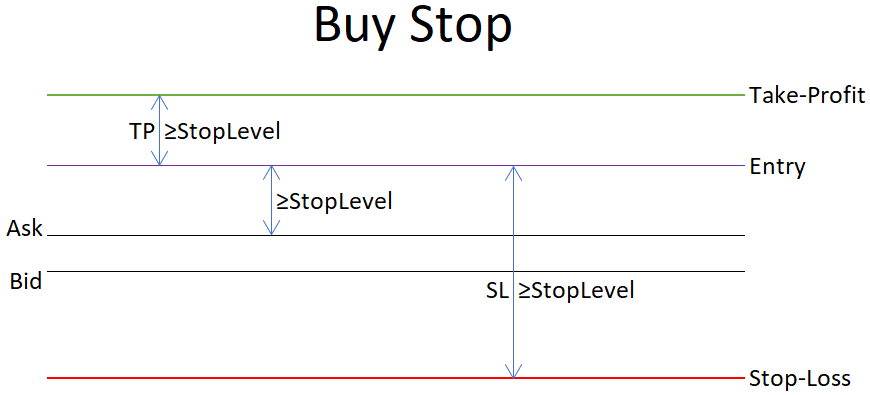
Let’s see how each cause works in practice:
1. Stop Loss Set Too Close to the Current Price: This is the most frequent reason. When you place a market order, your Stop Loss must be a certain distance away from the entry price.
– For a Buy Order: The current price for a buy order is the Ask price. Your Stop Loss must be placed below the Bid price. Error 130 occurs if the distance between your desired Stop Loss and the current Bid price is less than the broker’s ‘Stops Level’. For example, if the EUR/USD Bid price is 1.08500 and the broker’s Stops Level is 20 points, your Stop Loss must be at or below 1.08480. Setting it at 1.08490 would trigger the error.
– For a Sell Order: The current price for a sell order is the Bid price. Your Stop Loss must be placed above the Ask price. If the distance between your desired Stop Loss and the current Ask price is less than the ‘Stops Level’, the order will be rejected.
2. Take Profit Set Too Close to the Current Price: This cause is identical in principle to the Stop Loss issue but applies to your profit target.
– For a Buy Order: Your Take Profit must be placed above the current Ask price. The distance between your Take Profit level and the Ask price must be greater than the ‘Stops Level’.
– For a Sell Order: Your Take Profit must be placed below the current Bid price. The distance between your Take Profit level and the Bid price must exceed the broker’s ‘Stops Level’.
3. Pending Orders with Stops Inside the Minimum Distance Zone: This can be confusing for some traders. For pending orders (like Buy Limit, Sell Limit, Buy Stop, Sell Stop), the Stop Loss and Take Profit levels are evaluated based on their distance from the pending order’s entry price, not the current market price. If the gap between your requested SL/TP and your requested entry price is smaller than the ‘Stops Level’, MT4 will reject the pending order placement.
How Do You Fix MT4 Error 130?
The definitive method to fix MT4 Error 130 involves a two-step process: first, identifying your broker’s minimum ‘Stops Level’ for the specific instrument you are trading, and second, adjusting your Stop Loss and Take Profit values to respect that distance.
Để bắt đầu, this solution empowers you to trade with precision, as you will no longer be guessing where to place your stops. Instead of trial and error, you can use the information available directly within the MT4 platform to calculate valid order levels before you even click the buy or sell button. This proactive approach not only resolves the immediate error but also prevents it from happening in the future. The process is simple, requires no special tools, and can be completed in under a minute. Once you learn this method, you will be able to handle Error 130 with confidence across any broker and any financial instrument. Let’s walk through these steps to resolve the issue permanently.
How do you identify your broker’s minimum stop level?
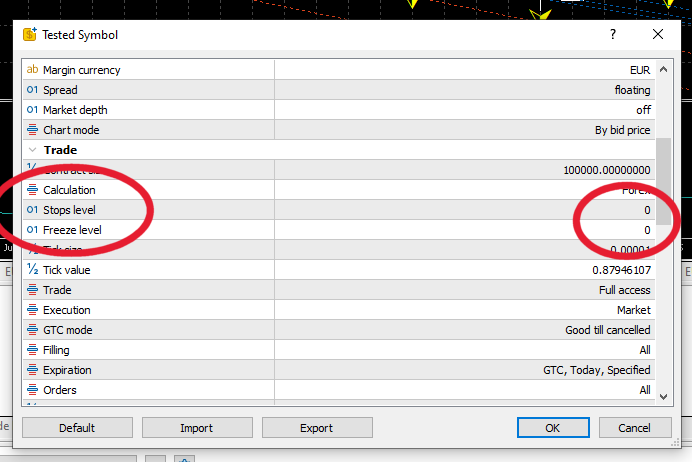
You can identify your broker’s minimum stop level by checking the ‘Stops Level’ value in the ‘Specification’ window for the specific trading instrument within your MT4 platform. This value tells you the exact minimum distance, in points, required between the market price and your stop or limit order. Finding this information is the key to solving Error 130. It is not hidden; it is a standard piece of contract information available for every symbol your broker offers.

Cụ thể hơn, here is a simple, step-by-step guide to locate this value:
1. Open the ‘Market Watch’ Window: If it is not already visible on the left side of your MT4 platform, you can open it by pressing `Ctrl+M` on your keyboard or by going to `View > Market Watch`. This window displays a list of available trading symbols and their live bid/ask prices.
2. Find Your Trading Instrument: Scroll through the list in the ‘Market Watch’ window to find the currency pair, commodity, or index you want to trade. For instance, you might be looking for `EURUSD` or `XAUUSD` (Gold).
3. Open the Specification Window: Right-click on the name of the instrument you have chosen. A context menu will appear. From this menu, select the option labeled ‘Specification’.
4. Locate the ‘Stops Level’: A new window will pop up, titled ‘Contract Specification’. This window contains all the detailed trading conditions for that specific instrument. Scroll down through the list of properties until you find the line item named ‘Stops Level’. The number next to it is the value you need. For example, you might see ‘Stops Level: 20’. This means your SL and TP must be at least 20 points away from the current market price. It is important to remember this value is in points, not pips. For a 5-digit broker, 20 points usually equals 2.0 pips.
What is the correct way to adjust Stop Loss and Take Profit to avoid this error?
The correct way to adjust Stop Loss and Take Profit is to first find the ‘Stops Level’ value and then place your orders at a distance greater than this value from the current bid or ask price, depending on the order type. Once you have identified the minimum required distance from the ‘Specification’ window, you can apply it with simple arithmetic to ensure every trade you place is valid. This proactive calculation eliminates the guesswork that leads to the ‘Invalid Stops’ error.

Để minh họa, let’s break down the exact calculations for both buy and sell orders. We will assume for these examples that you are trading EUR/USD on a 5-digit broker, and you have found the ‘Stops Level’ to be 30 points (which is equal to 3.0 pips). The current market prices are Bid: 1.07100 and Ask: 1.07105.
1. Adjusting a BUY Order:
– When you open a buy position, your trade enters at the Ask price (1.07105).
– Stop Loss (SL): Your SL must be placed below the current Bid price. The rule is: `SL ≤ Bid Price – Stops Level`.
– Calculation: `1.07100 – 30 points (0.00030) = 1.07070`.
– Action: You must set your Stop Loss at or below 1.07070. Placing it at 1.07080 would be too close and cause Error 130.
– Take Profit (TP): Your TP must be placed above the current Ask price. The rule is: `TP ≥ Ask Price + Stops Level`.
– Calculation: `1.07105 + 30 points (0.00030) = 1.07135`.
– Action: You must set your Take Profit at or above 1.07135.
2. Adjusting a SELL Order:
– When you open a sell position, your trade enters at the Bid price (1.07100).
– Stop Loss (SL): Your SL must be placed above the current Ask price. The rule is: `SL ≥ Ask Price + Stops Level`.
– Calculation: `1.07105 + 30 points (0.00030) = 1.07135`.
– Action: You must set your Stop Loss at or above 1.07135. A stop at 1.07120 would be invalid.
– Take Profit (TP): Your TP must be placed below the current Bid price. The rule is: `TP ≤ Bid Price – Stops Level`.
– Calculation: `1.07100 – 30 points (0.00030) = 1.07070`.
– Action: You must set your Take Profit at or below 1.07070.
After performing these simple calculations, re-enter the modified values into the ‘Stop Loss’ and ‘Take Profit’ fields in your order window and execute the trade. The order should now be accepted without any issues.
What Are Other Factors and Errors Related to Order Placement in MT4?
Beyond Error 130, order placement in MT4 is impacted by broker specific rules like the Freeze Level, distinct error codes like Error 129 for invalid prices, and unique requirements for different order types. Particularly, understanding these nuances helps traders create more robust strategies and troubleshoot a wider range of execution issues that might otherwise be confusing. Each broker configures their server with specific parameters, and being unaware of them can lead to repeated and frustrating trade rejections that go beyond a simple ‘Invalid Stops’ message.
How does a broker’s ‘Freeze Level’ differ from its ‘Stop Level’?
A broker’s ‘Freeze Level’ and ‘Stop Level’ both define price zones around the current market price, but they govern entirely different actions. The Stop Level, which directly causes Error 130, applies to the placement of new orders. It dictates the minimum distance in points that a Stop Loss (SL) or Take Profit (TP) must be from the current price for a market order, or from the entry price for a pending order. If you try to set a stop within this zone, your order is rejected.

Conversely, the Freeze Level applies to modifying or deleting existing orders that are already live. It creates a “no modification” zone close to the current market price. Once a trade’s entry price or its SL/TP level enters this zone, the broker temporarily prevents you from changing or canceling it. This mechanism is designed to protect the broker’s execution system during periods of high volatility, when the price is moving rapidly towards a trigger point. The platform essentially “locks” the order to prepare for its execution. This is a common source of confusion, as a trader might find their SL or TP suddenly un-editable just moments before it is hit.
The primary distinction lies in their purpose and the stage of the order lifecycle they affect.
- Stop Level governs creation: It is a rule checked before an order or its protective stops are accepted by the server.
- Freeze Level governs modification: It is a temporary state that applies only to active orders as the market price gets very close to them.
- Resulting feedback: Violating the Stop Level gives you Error 130. Entering a Freeze Level typically results in the modification buttons in your terminal being grayed out or a different error message upon trying to alter the order.
Does Error 130 affect pending orders differently than market orders?
Yes, Error 130 and the underlying Stop Level rules apply differently and more stringently to pending orders compared to market orders. For a standard market order, the platform performs a single check: are the proposed Stop Loss and Take Profit levels placed at a distance from the current market price that is greater than the broker’s specified Stop Level? If this condition is met, the order is accepted. The process is straightforward because the entry price is the current market price.
However, pending orders such as Buy Stops, Sell Stops, Buy Limits, and Sell Limits introduce a second layer of validation. These orders have two critical price points: the future entry price and the protective SL/TP levels. The platform must validate both against the Stop Level rule. First, the entry price of the pending order itself must be placed a sufficient distance away from the current market price. For instance, a Buy Stop must be placed at least ‘Stop Level’ points above the current ask price. Second, once that condition is met, the associated SL and TP levels for that pending order must respect the Stop Level relative to the order’s own entry price, not the current market price.
This dual requirement creates more opportunities for triggering Error 130 with pending orders.
- Market Order Check: The platform verifies one relationship: [SL/TP Price] vs. [Current Market Price].
- Pending Order Check: The platform verifies two relationships: [Pending Entry Price] vs. [Current Market Price], and then [SL/TP Price] vs. [Pending Entry Price].
- Practical Implication: A trader might correctly place a Stop Loss 50 pips away from their pending order’s entry price, but if that entry price itself is only 2 pips away from the current market price on a broker with a 5 pip Stop Level, the entire order will be rejected with an ‘Invalid Stops’ error, even though the SL/TP distance itself was valid.
How is MT4 Error 130 (‘Invalid Stops’) different from Error 129 (‘Invalid Price’)?
While both Error 130 and Error 129 prevent a trade from being executed, they stem from completely different causes. Error 130, ‘Invalid Stops’, is a client side issue related to distance and broker rules. It occurs when a trader or an Expert Advisor attempts to place a Stop Loss or Take Profit level too close to the current market price, violating the broker’s predefined ‘Stop Level’ parameter. The price itself might be perfectly valid, but its proximity to the protective stops is what triggers the rejection. This is a predictable error that can be avoided by checking the broker’s minimum distance requirements before placing a trade.

In contrast, Error 129, ‘Invalid Price’ or often seen as a ‘Requote’, is a server side issue caused by market conditions. It happens when the price of an instrument changes in the time between when you click to place your order and when that order actually reaches the broker’s server. This latency, however small, is enough for the market to move. The server receives your order with a price that is no longer available and rejects it, returning Error 129. This is most common in fast moving, volatile markets or when network connectivity is slow. It is not about the distance of your stops, but about the validity of the entry price itself at the moment of execution.
The fundamental difference can be traced back to the source of the problem.
- Error 130 (‘Invalid Stops’): The issue is the distance of SL/TP from the price, a violation of a static broker rule. The solution is to adjust your stop levels.
- Error 129 (‘Invalid Price’): The issue is the entry price itself becoming stale due to market movement or latency. The solution involves adjusting slippage settings or immediately re-submitting the order at the new price.
- Controllability: Error 130 is almost entirely within the trader’s control. Error 129 is largely a function of market dynamics and technology infrastructure.
Can you automate the prevention of Error 130 in an Expert Advisor (EA)?
Yes, it is entirely possible and highly recommended to automate the prevention of Error 130 within an Expert Advisor. A well coded EA should never encounter this error because it can programmatically check the broker’s rules before attempting to send any order. This is accomplished using a specific function built into the MQL4 programming language.
The key function is `MarketInfo(Symbol(), MODE_STOPLEVEL)`. When an EA calls this function, it queries the broker’s server and receives the minimum stop level distance in points for the specific financial instrument the EA is running on. For example, it might return a value of 5 for EURUSD on a 4 digit broker, meaning any stop must be at least 5 pips away. Before calculating and setting the Stop Loss and Take Profit values for a new trade, the EA’s logic should fetch this value first. It can then compare its intended SL/TP levels against this requirement. If the calculated stop is too close, the EA can automatically adjust it to the minimum allowed distance or choose not to place the trade at all, depending on its programmed strategy. This makes the EA robust and adaptable, allowing it to function correctly across different brokers who may have varying Stop Level requirements without needing any manual changes to the code.
This automated prevention follows a simple, logical sequence.
- Query: The EA’s code first calls `MarketInfo()` to get the current broker’s `MODE_STOPLEVEL`.
- Normalize and Validate: It converts this value to pips and compares it with the planned distance for its Stop Loss and Take Profit.
- Execute or Adjust: If the planned stops are valid, the order is sent. If they are invalid, the EA’s logic can either push the stop to the minimum required distance or log an alert and skip the trading opportunity.
http://45.55.161.186/wp-content/uploads/2015/01/ordersend-error-130-1200×675.png
The definitive fix for MT4 Error 130, known as ‘Invalid Stops’, requires you to identify your broker’s minimum stop distance and then adjust your Stop Loss or Take Profit levels to be outside this specified range
fix error 130 mt4
