
Research
Troubleshoot & Fix MT4 Error 131: The Definitive Guide to Invalid Trade Volume

Dec
To fix MT4 Error 131, you must adjust your trade size to meet the broker’s specific requirements for the financial instrument you are trading, which involves checking the symbol’s minimum volume, maximum volume, and volume step. This error, known as “Invalid Trade Volume,” is a common rejection message from the broker’s server. It indicates that the lot size you attempted to use is not allowed. By understanding the root cause and knowing where to find the correct parameters within the MT4 platform, you can quickly resolve the issue and place your trade successfully.
The most common causes for Error 131 include simple manual entry mistakes, misconfigured settings in an Expert Advisor (EA), or attempting to trade a new financial symbol without first checking its unique volume rules. Often, a trader might enter a typo or miscalculate the desired lot size. In automated trading, an EA might be programmed with a static lot size that is not valid for every symbol. This guide will walk you through identifying which of these situations applies to you.
The solution involves a straightforward diagnostic process directly within your MT4 terminal by accessing the “Specification” window for the specific symbol. This window contains all the necessary information, including the “Minimal volume,” “Maximal volume,” and “Volume step.” Once you have these three values, you can adjust your trade entry, whether you are trading manually or configuring an automated strategy, to align with your broker’s requirements and prevent the error from recurring.
Resolving this error is a fundamental skill for any trader using the MT4 platform. It prevents missed trading opportunities and reduces frustration. The following sections provide a detailed, step-by-step breakdown of what Error 131 means, why it happens, and exactly how to fix it for good. Let’s begin by defining the error more clearly.
What is MT4 Error 131 (Invalid Trade Volume)?
MT4 Error 131, or “Invalid Trade Volume,” is a trade rejection message indicating the lot size you specified in your order does not conform to the broker’s established rules for that particular financial instrument. This error is not a bug with your software but a protective measure from the broker’s server to stop orders that violate its contract specifications.
To understand this error better, let’s break down its components and what happens behind the scenes. Every time you place a trade, your MT4 terminal sends an order request to your broker’s server. This request contains several pieces of information, including the symbol, the price, and the trade volume (lot size). The server instantly checks these parameters against its rulebook for that symbol. If the volume is invalid, the server rejects the order and sends back error code 131.

What does “Invalid Trade Volume” specifically mean?
An “Invalid Trade Volume” means your requested lot size violates one of three specific rules: it is smaller than the minimum allowed volume, larger than the maximum allowed volume, or fails to adhere to the required volume step increment. Your broker defines these three parameters for every single tradable asset, and your order must satisfy all of them to be accepted. Failing to meet even one of these conditions will result in an immediate rejection with Error 131.
To illustrate, let’s explore each condition in more detail.
- Smaller than Minimum Volume: Every instrument has a “Minimal volume” requirement. For most major forex pairs, this is typically 0.01 lots (a micro lot). However, for some indices or commodities, the minimum might be 0.1 lots or even 1.0 lot. If you attempt to open a trade for 0.05 lots on an instrument where the minimum is 0.1, the broker’s server will reject it. This is a common issue for traders moving from forex to other asset classes without checking the specifications first.
- Larger than Maximum Volume: Brokers also set a “Maximal volume” limit for a single trade. This is done to manage risk. For example, a broker might cap a single EURUSD trade at 100 lots. If you try to execute an order for 120 lots, it will be rejected. This rule affects traders with very large accounts or those using strategies that require substantial position sizes.
- Not Conforming to the Volume Step: The “Volume step” is the smallest possible increment by which you can increase your trade size. For most forex pairs, the step is 0.01. This means you can trade 0.01, 0.02, 0.03 lots, and so on. But you cannot trade 0.015 lots. If an instrument has a volume step of 0.1, your valid trade sizes would be 0.1, 0.2, 0.3, etc. Trying to place a trade for 0.15 lots would trigger Error 131 because it does not align with the required increment.
Is MT4 Error 131 a broker-side or client-side issue?
The error is triggered by a broker-side rejection, but it is displayed on your client-side terminal; therefore, it originates from the broker’s rules but is presented to you through your platform. This distinction is helpful for troubleshooting. The problem is not with your MT4 software installation (the client) or your computer. Instead, the issue lies in the mismatch between the order parameters you sent and the rules enforced by the broker’s server.

Let’s see how this interaction works. Your MT4 platform is the “client.” It is the interface you use to send instructions. The broker’s system is the “server,” which receives and executes those instructions. When you click “Buy” or “Sell,” your client sends a request. The server receives this request and validates it. The server’s validation check asks: “Does this trade volume comply with our rules for this symbol?” If the answer is no, the server rejects the request and sends a specific error code back to your client. Your client then interprets code 131 and displays the message “Invalid Trade Volume” in your terminal’s “Journal” tab. So, while you see the error on your screen, the decision to reject the trade was made on the broker’s end.
What are the Common Causes of MT4 Error 131?
The primary causes of MT4 Error 131 are typically user-driven, stemming from incorrect lot size entry during manual trading, misconfigured settings in an Expert Advisor (EA), or unfamiliarity with the unique volume requirements of a new trading symbol. These situations account for nearly all instances of this error.
When you encounter Error 131, it is almost never a technical fault with the platform or the broker. It is simply a signal that the trade instructions you provided do not fit within the allowed parameters. By examining your own actions, whether manual or automated, you can quickly identify the source of the problem. Below, we will look at the most frequent scenarios that lead to this trade rejection.
What are the three main reasons for an invalid volume error?
There are three main reasons you will see an invalid volume error: incorrect manual lot size entry, misconfigured Expert Advisor (EA) settings, and trading a symbol with unique volume requirements for the first time. Each of these reasons relates to a different way of interacting with the market, but all lead to the same outcome: a rejected trade. Let’s look at each one.
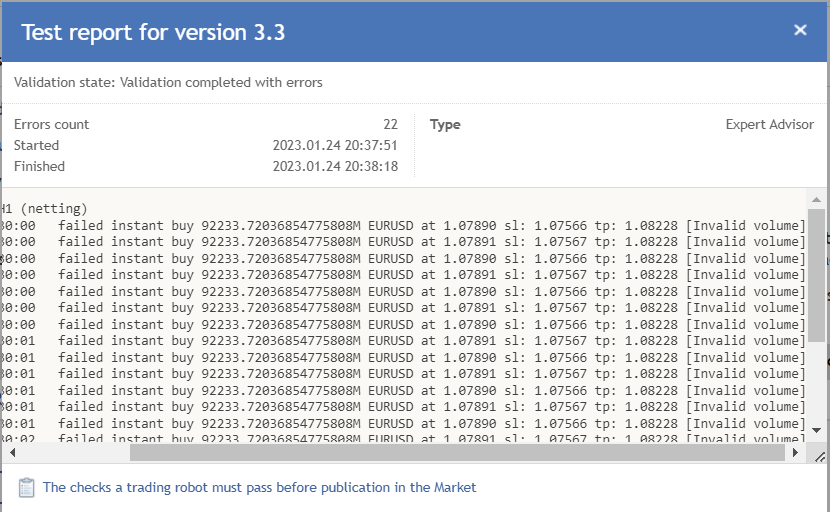
1. Incorrect Lot Size Entry: This is the most common cause for manual traders. It often happens due to a simple typo or a “fat-finger” error, where you accidentally type an extra digit or misplace a decimal point. For example, you might intend to trade 0.10 lots but accidentally type 0.001. If the minimum lot size for that symbol is 0.01, your trade will be rejected. Similarly, you might enter a value that violates the volume step, like typing 1.25 lots for a symbol that only allows increments of 0.10.
2. Misconfigured Expert Advisor (EA) Settings: For automated traders, the problem usually lies within the EA’s settings or its code. Many EAs have an input parameter where you can set the lot size. If you enter a value here that is invalid for the symbol the EA is trading, every trade it attempts to open will fail with Error 131. Some older or poorly coded EAs might even have a “hard-coded” lot size that cannot be changed, making them unusable on symbols with different rules.
3. Trading a Symbol with Unique Volume Requirements: Traders often get comfortable with the standard rules of major forex pairs, like EURUSD, which typically has a minimum of 0.01 and a step of 0.01. When they venture into other markets like stock indices (e.g., GER30), commodities (e.g., XAUUSD), or cryptocurrencies, they may not realize the rules are different. An index might have a minimum volume of 1.0 and a step of 1.0. Applying forex lot sizing habits to this new symbol will consistently produce Error 131 until the trader checks the specific rules for that instrument.
How does the “Volume Step” rule cause this error?
The “Volume Step” rule causes Error 131 by defining the only permissible increments for a trade size, making any value between these steps invalid. Think of it as a ladder where you can only stand on the rungs, not in the space between them. If the volume step is 0.1, the valid “rungs” are 0.1, 0.2, 0.3, and so on. Attempting to place a trade for a volume like 0.15 or 0.22 is like trying to stand in mid-air between rungs; the system will not allow it.
For instance, most forex pairs have a volume step of 0.01. This allows for very fine control over position sizing: 0.01, 0.02, 0.03… all the way up to the maximum. A trader can open a position for 1.27 lots without issue. Now, let’s consider an oil contract (like WTI) where the broker has set the volume step to 0.1. A trader new to this instrument might try to open a trade for 0.05 lots, which would be valid in forex, but here it is invalid. The trade is rejected. They might then try to open a trade for 1.25 lots. This would also be rejected. The only valid trade sizes would be multiples of 0.1: for example, 1.2 lots or 1.3 lots. The volume step is often the most overlooked of the three volume rules, leading to confusion for traders who have already confirmed their trade size is above the minimum and below the maximum.
How to Troubleshoot and Fix MT4 Error 131 Step-by-Step?
You can fix MT4 Error 131 by following a simple three-step process: first, open the ‘Symbol Specification’ window to find the correct volume rules; second, identify the minimal volume, maximal volume, and volume step; and third, adjust your trade size accordingly in the order window or EA settings. This methodical approach removes all guesswork and provides a definitive solution.
The key to resolving this error is knowing where to find the official trading parameters set by your broker. The MT4 platform makes this information easily accessible for every instrument. Once you know the rules, applying them is straightforward. Let’s walk through the exact steps you need to take to diagnose and permanently fix this issue.
What is the first step to diagnose the Invalid Trade Volume error?
The first step to diagnose the Invalid Trade Volume error is to check the ‘Symbol Specification’ window in your MT4 terminal. This window is the official source of truth for all trading conditions related to a specific financial instrument as dictated by your broker. It contains the exact minimum, maximum, and step volume requirements that your trade order must meet. You should never guess or assume these values, especially when trading a new symbol.
Here is how you can access this window. It is a very simple process.
1. Locate the “Market Watch” window on your MT4 platform. This is typically on the left side of your screen and displays a list of symbols and their live prices. If you do not see it, you can open it by going to the “View” menu at the top of the platform and selecting “Market Watch” or by pressing the shortcut Ctrl+M.
2. Find the symbol that is giving you the error in the list. For example, if you are having trouble trading Gold, find XAUUSD.
3. Right-click on that symbol. A context menu will appear with several options.
4. From this menu, select “Specification.” A new window will pop up, displaying a detailed table of all the contract specifications for that symbol. This is where you will find the information needed to fix the error.
What are the key values to check in the Symbol Specification window?
There are three key values to check in the Symbol Specification window to resolve Error 131: “Minimal volume,” “Maximal volume,” and “Volume step.” These three parameters directly govern the validity of your trade size. By comparing your intended lot size against these three rules, you will immediately see why your order was rejected.
Let’s examine what each of these values means and where to find them in the specification table.
- Minimal volume: This is the absolute smallest lot size your broker will accept for a single trade on this instrument. Look for this line in the table. If the value is 0.01 and you tried to trade 0.005, you have found the problem. Your trade size must be equal to or greater than this number.
- Maximal volume: This is the absolute largest lot size your broker will accept for a single trade on this instrument. If this value is 50.00 and you attempted to open an order for 100 lots, your trade was rejected for being too large. Your trade size must be equal to or less than this number.
- Volume step: This defines the incremental steps allowed for your trade volume. For example, if the value is 0.1, you can trade 0.1, 0.2, 0.3, etc., but not 0.15. Check to see if your attempted trade size is a perfect multiple of the volume step. If not, this is the source of the error.
How does the solution for manual trading compare to fixing it in an EA?
The solution for manual trading is an immediate adjustment in the order window, while fixing it in an Expert Advisor requires changing the EA’s input settings or, in some cases, modifying its source code. While both solutions are based on the same information from the Symbol Specification window, the implementation is different depending on how you are placing trades. The core principle remains the same: the trade volume must comply with the broker’s rules.

For manual trading, the fix is direct and simple. After you have checked the symbol specifications and know the correct minimum, maximum, and step values, you just need to go back to the “New Order” window. In the “Volume” field, type a new lot size that respects all three rules. For example, if you discovered the minimum volume is 0.1, you would change your intended trade from 0.05 to 0.1 or higher. The fix is applied instantly for that single trade.
For an EA, the process is slightly more involved because the EA is placing trades automatically. The fix depends on how the EA was designed. First, you should check the EA’s “Inputs” tab in its settings. A well-designed EA will have a parameter for “Lot Size” or “Risk.” You must change this input value to one that is valid for the symbol. If the EA calculates lot size dynamically, you may need to adjust a risk percentage or other variable. If changing the inputs does not work, the problem might be hard-coded into the EA’s MQL4 or MQL5 source code. In this case, you would need to either edit the code yourself or contact the developer for an updated version that correctly handles the volume requirements.
What are the Advanced Contexts and Related Issues of Trade Volume Errors?
Advanced contexts for trade volume errors involve broker specific rules, differences across asset classes, and distinctions from other platform alerts like invalid stops. These factors move beyond simple input mistakes and touch on the structural limitations imposed by brokers and the unique characteristics of financial instruments. For developers and experienced traders, knowing these nuances is key to building robust trading systems and avoiding unexpected execution failures.
How do volume restrictions for Forex pairs compare to those for Indices or Commodities?
Volume restrictions for Forex pairs are generally more flexible, often allowing for smaller minimums and finer increments compared to the stricter rules for indices or commodities. This difference stems directly from the nature and value of the underlying assets and how they are packaged into tradable contracts. You’ll notice that most Forex pairs have a minimum trade volume of 0.01 lots, known as a micro lot. The volume step, or the smallest possible increment, is also typically 0.01. This allows for very precise position sizing, which is suitable for traders with smaller accounts or those employing granular risk management strategies.

In contrast, instruments like major stock indices (e.g., US30, DAX40) or commodities (e.g., Oil, Gold) frequently have different specifications. It is common for an index like the US30 to have a minimum required volume of 1.0 lot and a volume step of 1.0. This means you can trade 1, 2, or 3 lots, but you cannot trade 0.5 or 1.1 lots. Why does this happen? The contract size for indices represents a much larger underlying value, and brokers structure them for larger capital commitments. A single lot of US30 might represent a notional value far greater than a standard lot of EUR/USD, so the broker sets a higher floor for entry. Traders accustomed to Forex flexibility can easily trigger Error 131 when switching to indices without first checking these specifications.
What is the difference between Error 131 (Invalid Volume) and Error 130 (Invalid Stops)?
The core difference is that Error 131 (Invalid Volume) concerns the size of your trade, while Error 130 (Invalid Stops) relates to the price levels of your protective orders. Think of it as a distinction between “how much” you want to trade versus “where” you want your safety nets placed. Both errors prevent an order from being executed, but they point to completely separate problems in your order parameters. An Invalid Volume error occurs because the quantity you entered violates the broker’s rules for that specific instrument. This could mean the volume is too small, too large, or does not adhere to the required step increment. For example, trying to trade 0.05 lots on an instrument with a step of 0.1 will result in Error 131.
On the other hand, Error 130, Invalid Stops, has nothing to do with your trade size. This alert appears when your specified Stop Loss (SL) or Take Profit (TP) levels are invalid. A common cause is setting the SL or TP too close to the current market price. Brokers have a “stop level” or a minimum distance, measured in pips, that SL and TP orders must be from the current bid or ask price. Placing an order inside this zone will trigger Error 130. Another cause could be setting a buy stop’s SL below the entry price or a sell stop’s TP above the entry price, which is logically incorrect.
Is it possible for a broker’s account type to cause Error 131?
Yes, a broker’s account type is a frequent and often overlooked cause of Error 131. Brokers offer different types of accounts tailored to various trading styles and capital levels, and each type can come with its own unique set of rules for trade volume. The most common examples are Standard, ECN, and Cent accounts. A trader might use a strategy that works perfectly on one account type but fails immediately on another due to these hidden differences. For instance, a Standard account typically measures volume in standard lots, where 1.0 lot equals 100,000 units of the base currency.

A Cent account, however, operates on a much smaller scale. On a Cent account, 1.0 lot might only represent 1,000 units of currency (a micro lot). A trader accustomed to placing trades of 50 or 100 lots on a Cent account could try the same input on a new Standard account. This would almost certainly trigger Error 131 because a 50 lot trade on a Standard account is an enormous position that likely exceeds the broker’s maximum volume limit (`SYMBOL_VOLUME_MAX`). The same logic applies to ECN accounts, which may have different step volume requirements or maximum exposure limits compared to a broker’s standard offering.
What MQL4 functions can prevent Error 131 in an Expert Advisor?
To programmatically prevent Error 131, MQL4 developers use the `SymbolInfoDouble()` function along with specific identifiers like `SYMBOL_VOLUME_MIN`, `SYMBOL_VOLUME_MAX`, and `SYMBOL_VOLUME_STEP`. These tools allow an Expert Advisor (EA) to query the broker’s server for the exact volume rules of a given instrument before attempting to place a trade. Instead of hardcoding volume values, which can fail if a trader changes brokers or account types, a well built EA dynamically checks these parameters to make its calculations compliant. This proactive approach is fundamental to creating robust and reliable automated trading strategies.
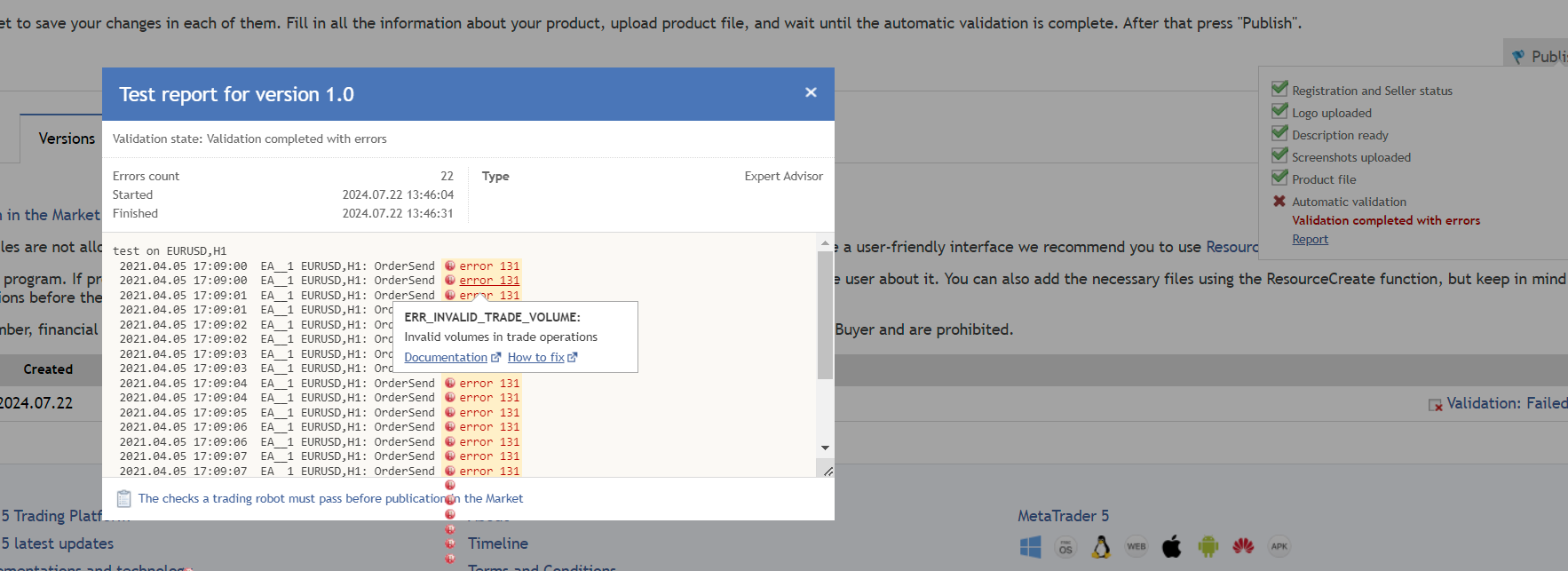
The process involves a few key checks. First, the EA uses `SymbolInfoDouble(Symbol(), SYMBOL_VOLUME_MIN)` to determine the absolute smallest trade size the broker permits. Any calculated volume below this value must be adjusted up or rejected. Second, it fetches the largest allowed trade size with `SymbolInfoDouble(Symbol(), SYMBOL_VOLUME_MAX)` to avoid exceeding the limit. Finally, and perhaps most importantly, it checks the required increment with `SymbolInfoDouble(Symbol(), SYMBOL_VOLUME_STEP)`. This value dictates the valid “steps” for volume. For example, if the step is 0.1, then trade sizes of 1.1, 1.2, and 1.3 are valid, but 1.15 is not. The EA must normalize any calculated trade volume to the nearest valid step before sending the order.
