
Research
MT4 Error 4109 Solved: The Quick Fix for “Trade is Not Allowed”
To solve MT4 Error 4109, you must first identify the cause, which is typically using an investor password, having live trading disabled, or trading outside market hours, and then apply a specific fix for that issue. This error message, “Trade is Not Allowed,” can stop a trading session in its tracks, causing confusion and frustration. The good news is that the solution is almost always straightforward. By systematically checking your login credentials, terminal settings, and the trading hours for your chosen instrument, you can resolve the problem within minutes and get back to your trading activities.
The “Trade is Not Allowed” message primarily appears because your MT4 terminal or your account privileges are not correctly configured for active trading. This isn’t a broker-side rejection of your strategy or a problem with market liquidity. Instead, it’s a local or account-level setting that is preventing the trade command from ever being sent to the server. Think of it as a safety switch that is currently in the “off” position, and your job is to find which switch it is and flip it back on.
The most common reasons for this error are logging in with a view-only investor password, disabling the AutoTrading feature in your terminal, or attempting to open a position on an asset when its market is closed. Each of these situations creates a condition where trading is forbidden. The investor password, by design, blocks all trading functions. The disabled AutoTrading button can restrict even manual trades. Finally, you cannot trade an asset if its exchange is not open for business, a common issue for traders of stocks or specific country indices.
Correctly diagnosing the source of the problem is the first step toward the solution. By following a clear, step-by-step process, you can quickly identify whether the issue is with your login, your platform settings, or market timing. This guide will walk you through each potential cause and provide the direct actions needed to fix Error 4109 and resume your trading. Let’s begin by understanding exactly what this error means.
What Does MT4 Error 4109 Mean?
MT4 Error 4109 is a general client-side terminal error that indicates the trading action you requested is forbidden either by your terminal’s settings or your account’s specific permissions. It is not an error from your broker’s server rejecting a trade due to price, size, or margin. Instead, the message originates directly from your own MetaTrader 4 software. It essentially tells you that your platform has a rule or setting in place that prevents it from sending your trade order to the server in the first place. You are trying to do something that your current setup does not permit.
To understand this better, it helps to distinguish between client-side and server-side errors. A server-side error, like “Invalid S/L or T/P” or “Not enough money,” comes from your broker after they have received and processed your order. In contrast, a client-side error like 4109 happens locally on your computer. Your MT4 platform checks its own settings before sending the order. If it finds a conflict, like trading being disabled, it generates Error 4109 and stops the process immediately. This is why the fix is always within your control.

The term “forbidden” can sound alarming, but it simply refers to a restriction. This restriction is not a penalty against you. It is often a feature working as intended, but perhaps not in the way you expect. For example, the investor password is a feature designed to allow someone to view your account without being able to place trades. If you accidentally log in with it, the “forbidden” trade action is the platform correctly enforcing that password’s limitations. Similarly, settings that disable automated trading are there to protect you from unwanted actions by Expert Advisors (EAs), but they can sometimes block manual trading as well. Recognizing that this error is a symptom of a local setting is the key to resolving it without unnecessary stress.
What are the Primary Causes of the “Trade is Not Allowed” Error?
There are three primary causes for MT4 Error 4109: you are logged in with an investor (read-only) password, live trading is disabled in your terminal settings, or you are trying to trade an instrument outside of its designated market hours. These three scenarios account for the vast majority of “Trade is Not Allowed” messages. Let’s look at each of these causes so you can quickly diagnose which one applies to your situation.
Are You Logged in with an Investor (Read-Only) Password?
One of the most frequent reasons for seeing Error 4109 is using the wrong password to log into your account. Every MT4 account comes with two passwords: a master password and an investor password. The master password grants full access to all account functions, including placing, modifying, and closing trades. The investor password, on the other hand, provides read-only access. It is designed so you can share your trading performance with others without giving them the ability to interfere with your account. When logged in with an investor password, you can view charts, see open positions, and check account history, but any attempt to execute a trade will be blocked, resulting in the “Trade is Not Allowed” error.
How can you tell if this is your problem? A quick way to check is to look at the top of your MT4 window. Often, the title bar will indicate if you are in “Investor” mode. Another clear sign is that the “New Order” button in the toolbar will be greyed out and inactive. If you can click it but still get the error upon trying to place a trade, look at the “Journal” tab in the Terminal window at the bottom of your screen. You will likely see an entry stating that the trade failed due to investor mode access. This distinction is fundamental; the master password is for doing, while the investor password is for viewing. Accidentally swapping them is a simple mistake that happens to many traders, especially if they have both passwords saved.
Is Live Trading Disabled in Your MT4 Terminal Settings?
Another common cause of Error 4109 is a specific setting within the MT4 platform itself that disables trading. This feature is primarily intended to control Expert Advisors (EAs), which are automated trading robots. However, its state can affect manual trading as well. In your MT4 toolbar, you will find a button labeled “AutoTrading” or “Live Trading.” This button acts as a master switch. When it is enabled, it typically shows a green play icon, indicating that the platform is ready to execute trades. When it is disabled, it shows a red square stop icon. If this button is red, your MT4 terminal will block all attempts to place a new trade, whether from an EA or from you manually clicking the “Buy” or “Sell” button.

This setting can also be found and controlled from the main options menu. If you navigate to `Tools > Options` and select the “Expert Advisors” tab, you will see a checkbox for “Allow automated trading.” If this box is unchecked, it has the same effect as pressing the red stop button on the toolbar. Why would this be disabled? Sometimes traders turn it off intentionally to prevent an EA from running amok, and then forget to turn it back on for manual trading. On other occasions, a platform update or reinstallation might revert this setting to its default “off” state. It is a protective measure that can easily be overlooked, making it a frequent source of the “Trade is Not Allowed” error.
Are You Trying to Trade Outside of Market Hours?
Finally, the “Trade is Not Allowed” error can appear if you attempt to trade a financial instrument when its underlying market is closed. While the forex market operates 24 hours a day, five days a week, many other instruments available on MT4 do not. Assets like stock CFDs (e.g., Apple or Google), indices (e.g., the DAX or S&P 500), and commodities (e.g., oil) have specific trading sessions that correspond to the business hours of their home exchanges. For example, you cannot trade a CFD on a New York Stock Exchange stock in the middle of the night in New York.
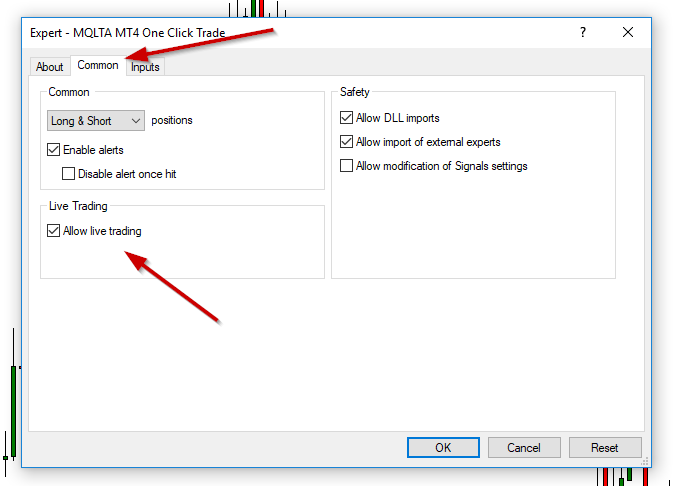
If you try to place an order for such an instrument when its market is closed, the broker’s server will reject the request, and your MT4 terminal will display Error 4109. The platform is correctly telling you that trading for that specific symbol is not allowed at this moment. This is different from the forex market, where a pair like EUR/USD is tradable almost continuously from Monday morning in Sydney to Friday afternoon in New York. To confirm if this is the cause, you need to check the specific trading hours for the asset you are interested in. This issue is particularly common for traders who are new to trading non-forex instruments or for those who trade a wide variety of assets across different time zones.
How Do You Quickly Fix MT4 Error 4109?
To quickly fix MT4 Error 4109, you should follow a three-step process: first, verify your account login and connection status; second, enable trading permissions within the MT4 options; and third, confirm the trading session for your chosen instrument is open. By working through these steps methodically, you will address all the common causes and restore your ability to trade. Here is a practical guide to get you through the fix.
Step 1: How to Verify Your Account Login and Connection?
The very first action is to confirm that you are properly connected to your trading account with the correct credentials. Often, the issue is simply using the wrong password. To do this, look at the bottom-right corner of your MT4 platform. You should see a connection status indicator with green and blue bars. Next to it, there will be a data speed shown, such as “54/2 kb.” If you see “No connection” or “Invalid account,” you have a connectivity or login problem.
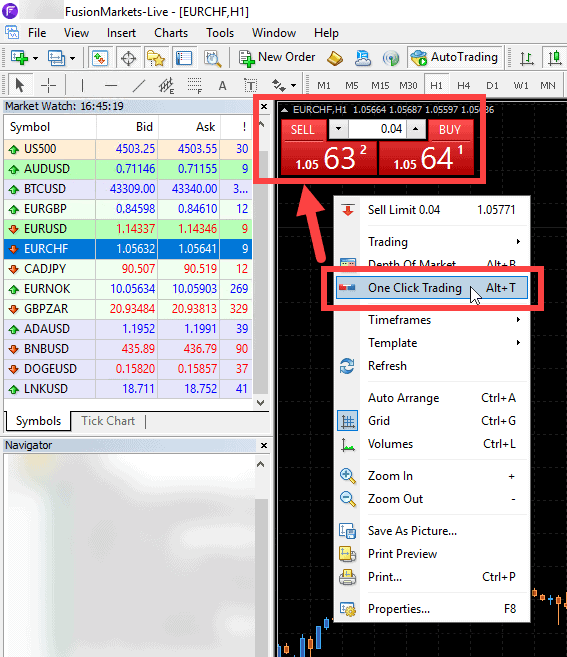
To resolve this, you need to log out and log back in carefully.
1. Go to the top menu and click `File`.
2. From the dropdown menu, select `Login to Trade Account`.
3. A login window will appear. Carefully re-enter your account number.
4. In the password field, make sure you are entering your master password, not the investor password. If you have it saved in an email or document, double-check that you are copying the correct one.
5. Confirm you have selected the correct server from the server dropdown menu. This must match the server provided by your broker for your account type.
6. Click `Login`.
After logging in, listen for the confirmation sound and check the connection status again. Also, check the “Journal” tab in the Terminal window for a message confirming a successful login. This simple act of re-logging with the master password resolves the error in many cases.
Step 2: How to Enable Trading Permissions in MT4 Options?
If you have confirmed your login is correct and are still facing the error, the next step is to check your platform’s trading permissions. This involves two quick checks. First, look at the main toolbar at the top of the MT4 window. Find the button labeled “AutoTrading” (it may also be called “Live Trading”). This button must be showing a green “play” symbol. If it shows a red “stop” symbol, click it once to enable trading. This is often the only thing needed to fix the problem.
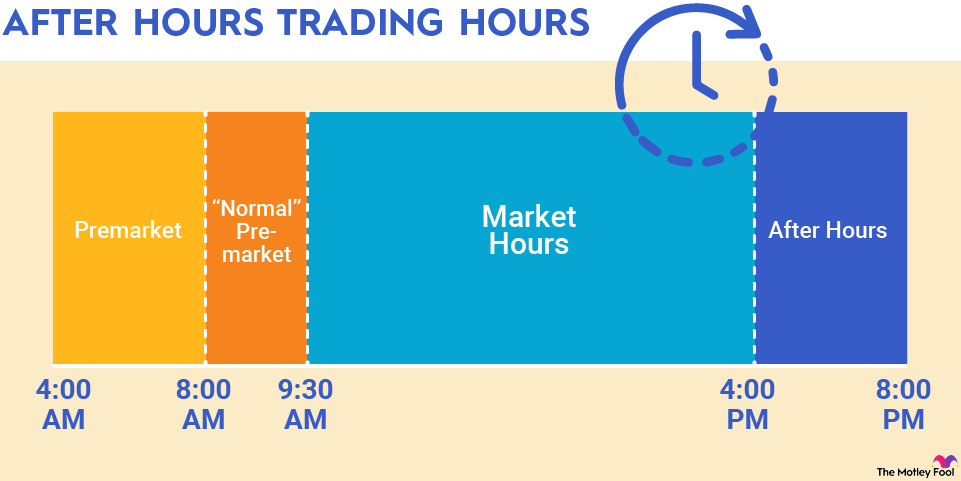
If the button was already green or changing it did not work, you need to check the main options menu for a more detailed setting.
1. Go to the top menu and click `Tools`.
2. Select `Options` from the dropdown menu.
3. In the new window that opens, click on the `Expert Advisors` tab.
4. You will see several checkboxes. Make sure the box next to `Allow automated trading` is checked. Even if you are trading manually, some broker setups and platform functionalities require this setting to be active.
5. You might also check the boxes for `Allow DLL imports` and `Allow WebRequest for listed URL`, as some custom indicators or tools may need these permissions to function correctly, though they are less commonly the cause of Error 4109.
6. Click `OK` to save the changes.
After enabling these settings, try to place your trade again. This step ensures that no internal platform setting is blocking your ability to execute orders.
Step 3: How to Confirm the Instrument’s Trading Session?
If you have completed the first two steps and the error persists, the issue is almost certainly related to the trading hours of the specific instrument you are trying to trade. You cannot trade an asset if its market is not open. Here is how to check the trading hours directly within MT4.

1. Go to the `Market Watch` window on the left side of your platform. If you cannot see it, open it by clicking `View > Market Watch` or using the shortcut `Ctrl+M`.
2. Find the symbol you want to trade in the list (e.g., US30, AAPL.cfd, or XAUUSD).
3. Right-click on the symbol.
4. From the context menu that appears, select `Specification`.
5. A new window will open containing detailed information about that instrument. Scroll down until you find the section labeled `Sessions` or `Trade`.
Here, you will see the exact trading hours for that instrument, usually listed by day of the week and in the server’s time zone. Compare these hours to the current server time, which is displayed at the bottom of the `Market Watch` window. If the current time is outside the listed trading hours, you will need to wait until the market opens to place your trade. This final step clears up any confusion about market availability.
Exploring Deeper Causes and Related MT4 Trading Errors
Beyond simple settings, the MT4 error 4109 can arise from broker-side account limitations, specific Expert Advisor configurations, or be mistaken for other distinct trading faults. Furthermore, understanding these underlying issues and related errors provides a more complete picture for troubleshooting. Distinguishing between a platform setting and a broker restriction is a key step in resolving trading interruptions quickly. Let’s examine these less common but important scenarios.
Is It Possible Your Broker Has Disabled Trading on Your Account?
Yes, it is entirely possible your broker has disabled trading on your account, which would trigger the “Trade is not allowed” message. While many traders first check their platform settings, the root cause can sometimes originate from the broker’s server. Brokers maintain control over account permissions for regulatory, risk management, and administrative reasons. If certain conditions are not met, they can place a temporary or permanent hold on trading activities, and the MT4 terminal will simply reflect this restriction with error 4109. You will notice this when all other settings on your end appear correct, yet no trade can be executed on any instrument.

Several specific situations can lead to a broker-imposed trading halt. A very common reason is an incomplete account verification process. Brokers are required by law to verify the identity and address of their clients (KYC protocols). If you have not submitted the necessary documents or if they were rejected, your account may be restricted to deposits and platform access but blocked from opening new positions. Another frequent cause is insufficient free margin. Even if your account has a positive balance, you might not have enough available capital to cover the margin requirement for a new trade, leading the broker’s system to reject the request automatically. Lastly, the broker may disable trading on a specific financial instrument due to low liquidity, extreme volatility, or after market hours.
Why Is My Expert Advisor (EA) Getting the “Trade is Not Allowed” Error?
Your Expert Advisor might receive this error because its individual trading permission is turned off, even if the main AutoTrading function for the entire platform is active. This is a common point of confusion for traders new to automated systems. MetaTrader 4 has a two-layer permission system for EAs to provide an extra layer of safety. The first is the global “AutoTrading” button in the main toolbar, which acts as a master switch for all EAs on your terminal. The second is a specific setting for each individual EA attached to a chart. If the global switch is on but the local permission for that specific EA is off, any trade it attempts to send will be blocked, resulting in error 4109 appearing in the Experts or Journal tab.
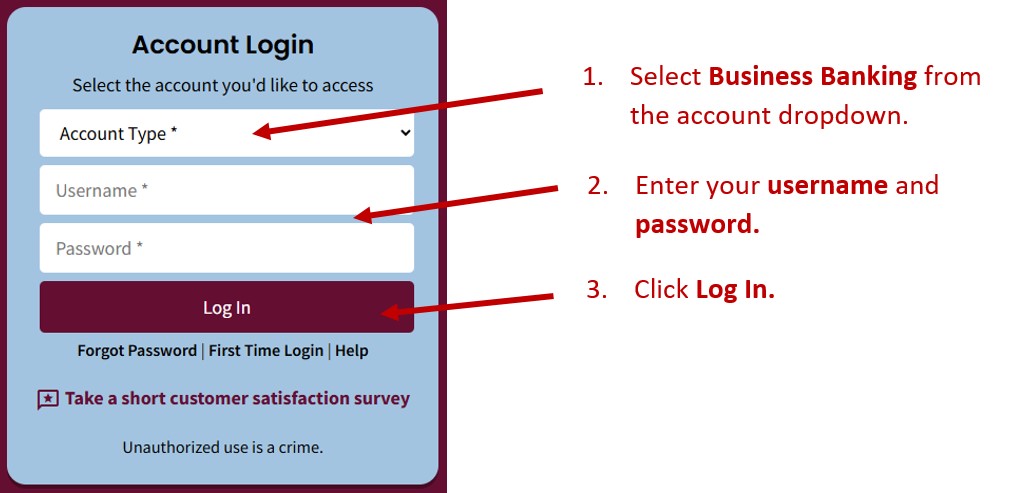
To fix this, you must check the EA’s individual properties. When you first attach an EA to a chart, or by right-clicking the chart and selecting “Expert Advisors” > “Properties,” a settings window appears. Within this window, navigate to the “Common” tab. Here you will find a checkbox labeled “Allow live trading.” This box must be checked for the EA to have the authority to execute trades. This feature is useful because it allows a trader to run an EA on a chart to see its signals or analytical outputs without giving it the power to manage money. Always confirm both the global AutoTrading button is green and the specific EA’s “Allow live trading” setting is enabled.
How is Error 4109 Different from Error 130 (Invalid Stops)?
Error 4109 is a permission-based issue indicating you are not allowed to trade at all, whereas Error 130 is a parameter-based issue related to incorrect stop loss or take profit levels for a specific trade. The two errors come from different stages of the trade execution process. Error 4109 is a fundamental “gatekeeper” error. It happens when the server first receives your trade request and asks the question, “Does this account have permission to trade?” If the answer is no for any reason, like disabled autotrading or a broker restriction, the process stops there. The system does not even look at the details of your trade, such as the entry price or stop levels.
In contrast, Error 130, or “invalid stops,” occurs after the system has already confirmed you have permission to trade. At this stage, the server is analyzing the specific parameters of your order. It rejects the trade because the stop loss or take profit values you have set are invalid according to the broker’s rules. For example, you might be placing a stop loss too close to the current market price, inside the broker’s minimum distance known as the “stop level.” Another cause is setting a buy stop order below the current price or a sell stop order above it, which are logically incorrect placements. Differentiating between the two is simple: if you cannot place any trade of any kind, it is likely a permission issue like 4109. If you can place trades without stop levels but get an error when you add them, it is likely a parameter issue like 130.
Can Using the MT4 Journal Tab Help Diagnose Error 4109?
Yes, using the MT4 Journal tab is an excellent advanced method for diagnosing the context surrounding error 4109. The Journal is a detailed log that records all activities and events occurring within your trading terminal. It timestamps every action, from successfully connecting to the server and logging into your account to every trade attempt and any resulting errors. When you encounter a trading problem, the Journal should be one of the first places you look for clues. It often provides more specific information than the generic error message that might pop up in an alert window.
When you attempt a trade and it fails with error 4109, you should immediately open the Terminal window (Ctrl+T) and click on the “Journal” tab at the bottom. Scroll to the time of the failed trade. You will see the record of the attempt followed by the “trade is not allowed” message. Sometimes, the lines immediately before the error provide the real reason. For instance, you might see a message like “login failed” or “no connection,” indicating the problem is with your account access, not a trading setting. For automated trading, an EA might print a custom message to the Journal, such as “Trading disabled by user setting,” right before the 4109 error appears, telling you exactly where the problem is in its code or input parameters. The Journal transforms a vague error into a clear diagnostic trail, showing the sequence of events that led to the failure.
