
Research
Troubleshoot Your EA: The Ultimate Checklist for Fixing Missed Trades
Dec
The most common reasons your Expert Advisor (EA) is not trading are incorrect platform settings, mismatched EA parameters, account or connection issues, and specific error codes hidden in the platform logs. When an EA fails to open a trade, the problem usually falls into one of these four categories. A methodical approach, starting with the most basic settings on your MetaTrader platform and working toward more specific issues like input parameters or server messages, is the best way to diagnose the problem. This process of elimination helps you quickly identify and fix the root cause without guesswork.
You should first check if your MetaTrader platform’s core settings are correctly configured, as this is often the source of the problem. Simple oversights, such as the master “AutoTrading” button being turned off or the specific EA not being enabled on its chart, can prevent all automated activity. These are foundational settings that must be correct before any EA can function, making them the logical starting point for any troubleshooting process.
Next, verify that your EA’s specific input parameters align with both your strategy and your broker’s requirements. Every EA has a unique set of inputs that control its behavior, including lot size, slippage, and a Magic Number. An incorrect value in any of these settings can silently stop the EA from executing trades, even if the trading logic itself is sound and the platform settings are correct.
Finally, you can find definitive clues by inspecting the “Experts” and “Journal” tabs within your MetaTrader terminal. These logs record every action the EA attempts and every response from the broker’s server. Learning to read these logs allows you to move beyond speculation and see the exact error code that is preventing your trades. This checklist will guide you through each potential issue, from general platform settings to detailed error messages.
What Are the Primary Reasons Your EA Is Not Opening Trades?
The primary reasons your EA is not opening trades typically fall into four categories: incorrect MetaTrader platform settings, mismatched EA input parameters, poor server connection or account limitations, and specific errors found within the platform’s logs. A trading robot depends on a chain of conditions being met, and a failure in any one link can halt its operation entirely. By checking each category in a logical sequence, you can efficiently find the point of failure.
To pinpoint the exact cause, let’s examine each of these areas systematically. We will start with the broadest settings at the platform level and progressively narrow our focus to the EA itself, the connection, and the detailed error messages that provide the final clues. This structured checklist is designed to solve the vast majority of issues that cause an EA to miss trades.

Are Your MetaTrader Platform Settings Correctly Configured?
Your MetaTrader platform has several master switches that must be correctly set before any Expert Advisor can place a trade. These global settings are frequently overlooked but are the most common reason an EA appears to be inactive. Think of them as the main power supply; if they are off, nothing downstream will work. The three most important checks are the AutoTrading button, the chart-specific EA status icon, and the permission for DLL imports if your EA requires them.
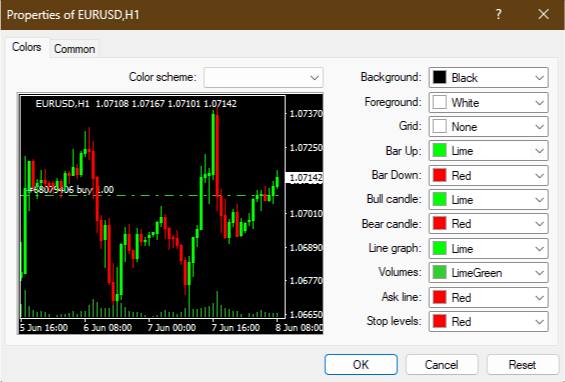
Let’s see how you can verify each one.
- The Global “AutoTrading” Button: Look at the toolbar at the top of your MetaTrader 4 or MetaTrader 5 platform. You will find a button labeled “AutoTrading” (or “Algo Trading” in MT5). This button acts as a master switch for all EAs running on your platform. If this button shows a red stop icon, it means automated trading is disabled globally. No EAs will be allowed to send trade orders. To fix this, simply click it. The icon should turn into a green play symbol, indicating that automated trading is now enabled platform-wide.
- The Chart’s Smiley Face Icon: Each EA runs on a specific chart. In the top-right corner of that chart, you will see a small icon next to the EA’s name. A smiling face means the EA is active and running correctly on that chart. However, if you see a sad face or an “X,” it means the EA is not active for that specific chart, even if global AutoTrading is on. To fix this, right-click on the chart, select “Expert Advisors,” then “Properties.” In the “Common” tab, make sure the box for “Allow live trading” is checked.
- Allow DLL Imports: Some advanced EAs use external program files called DLLs (Dynamic Link Libraries) to perform complex calculations or connect to outside services. If your EA relies on DLLs, you must give MetaTrader permission to use them. To do this, go to “Tools” in the top menu, then “Options,” and select the “Expert Advisors” tab. Here, you need to check the box for “Allow DLL imports.” Be cautious with this setting and only enable it for EAs from trusted developers, as it gives the program more access to your computer.
Do Your EA’s Input Parameters Match Your Trading Strategy?
Even when the platform settings are correct, an EA will not trade if its own internal settings, known as input parameters, are configured improperly. These inputs are the specific rules and variables that dictate how the EA behaves. An error here can prevent the EA from meeting its own criteria for entering a trade or can cause the broker’s server to reject the trade request. You must review these settings carefully to make sure they match your strategy and your broker’s trading conditions.
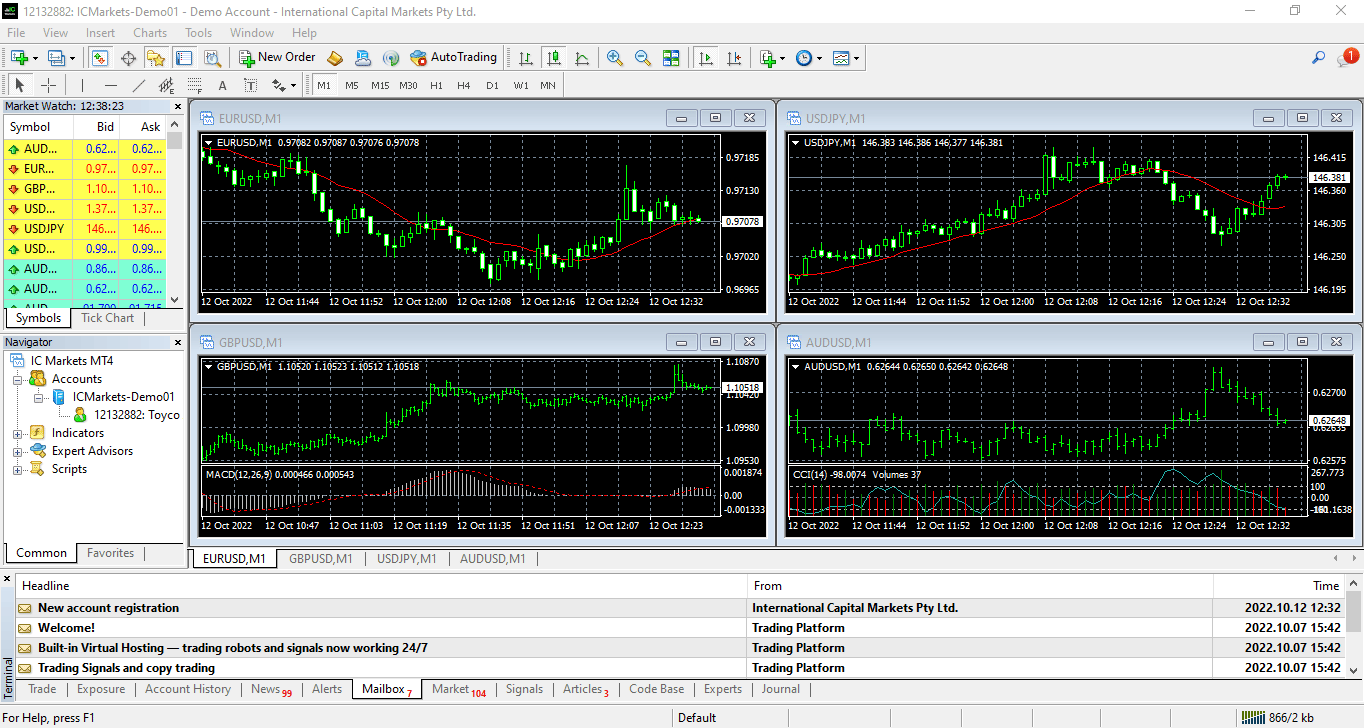
To get started, check these key parameters.
- Magic Number: The Magic Number is a unique ID that the EA assigns to all of its trades. This is how it distinguishes its own trades from trades you place manually or trades opened by other EAs on the same account. If you are running multiple EAs, you must give each one a different Magic Number. If two EAs share the same Magic Number, one might mistakenly try to manage or close the trades of the other, leading to chaotic and unintended behavior. Always set a unique number for each EA instance.
- Slippage Settings: Slippage is the difference between the price you expect when you place an order and the actual price at which the order is filled. In fast-moving markets, prices can change in milliseconds. Your EA’s slippage parameter tells the broker the maximum price difference you are willing to accept. If you set this value too low (e.g., 1 or 2 points) during volatile news events, the market may move past your price before the order can be filled. The broker will then reject the order to protect you from a bad fill, and the EA will miss the trade.
- Lot Size and Risk Parameters: Every broker has rules about minimum and maximum trade volumes. For most standard accounts, the minimum lot size is 0.01. If your EA is set to open a trade with a lot size of 0.001, the broker will reject it. Similarly, if the EA calculates a lot size that is too large for your account’s available margin, the trade will be rejected due to insufficient funds. Always check that your fixed lot size or risk percentage settings result in a valid trade volume that your account can support.
Is Your Connection to the Broker Server and Account Status Healthy?
Your EA can be perfectly configured, but it cannot trade without a stable connection to your broker’s server and a valid, funded trading account. These external factors are a common source of missed trades. Issues like a dropped internet connection, incorrect login credentials, or insufficient margin will prevent any orders from reaching the market. Fortunately, MetaTrader provides clear indicators of your connection and account status that you can check quickly.
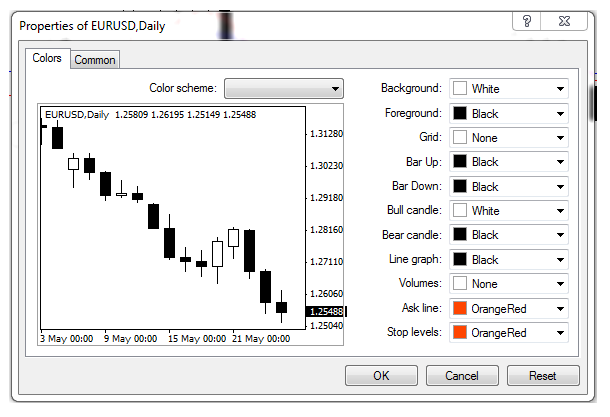
Below are the main areas to inspect.
- Check the Connection Status Bar: In the bottom-right corner of your MetaTrader terminal, there is a connection status indicator. It displays the data transfer speed between your platform and the server. If you see green bars and a data speed (e.g., “54/2 kb”), your connection is active and healthy. If you see “No connection” or “Invalid account,” there is a problem. “No connection” suggests an issue with your internet or a server-side problem with the broker. “Invalid account” means your login number, password, or selected server is incorrect. Try rescanning for servers or re-entering your login details.
- Look for Errors in the “Journal” Tab: The “Journal” tab in the Terminal window (press Ctrl+T to open) logs all platform and account events. This is where you will find messages directly from the server. If you have connection problems, you will see repeated “login failed” or “no connection” messages. This log provides a real-time record of your platform’s communication with the server, making it a valuable tool for diagnosing connectivity issues.
- Verify You Have Sufficient Margin: A trade cannot be opened if you do not have enough “Free Margin” in your account. Margin is the amount of money required by your broker to keep a trade open. If your planned trade requires more margin than you have available, the broker’s server will automatically reject the order. You can check your Free Margin in the “Trade” tab of the Terminal window. This issue is common on small accounts or on accounts that already have several trades open.
How Do You Systematically Read MetaTrader Logs to Find Errors?
To systematically read MetaTrader logs, you need to navigate to the ‘Experts’ and ‘Journal’ tabs in the Terminal window, look for red error messages or specific error codes, and then cross-reference those codes to identify the exact issue. These logs provide a precise, step-by-step account of what your EA is doing and how the broker’s server is responding. Instead of guessing why a trade failed, the logs give you the exact reason in the form of a message or a numerical code. Learning to interpret this information is the most powerful troubleshooting skill you can develop.
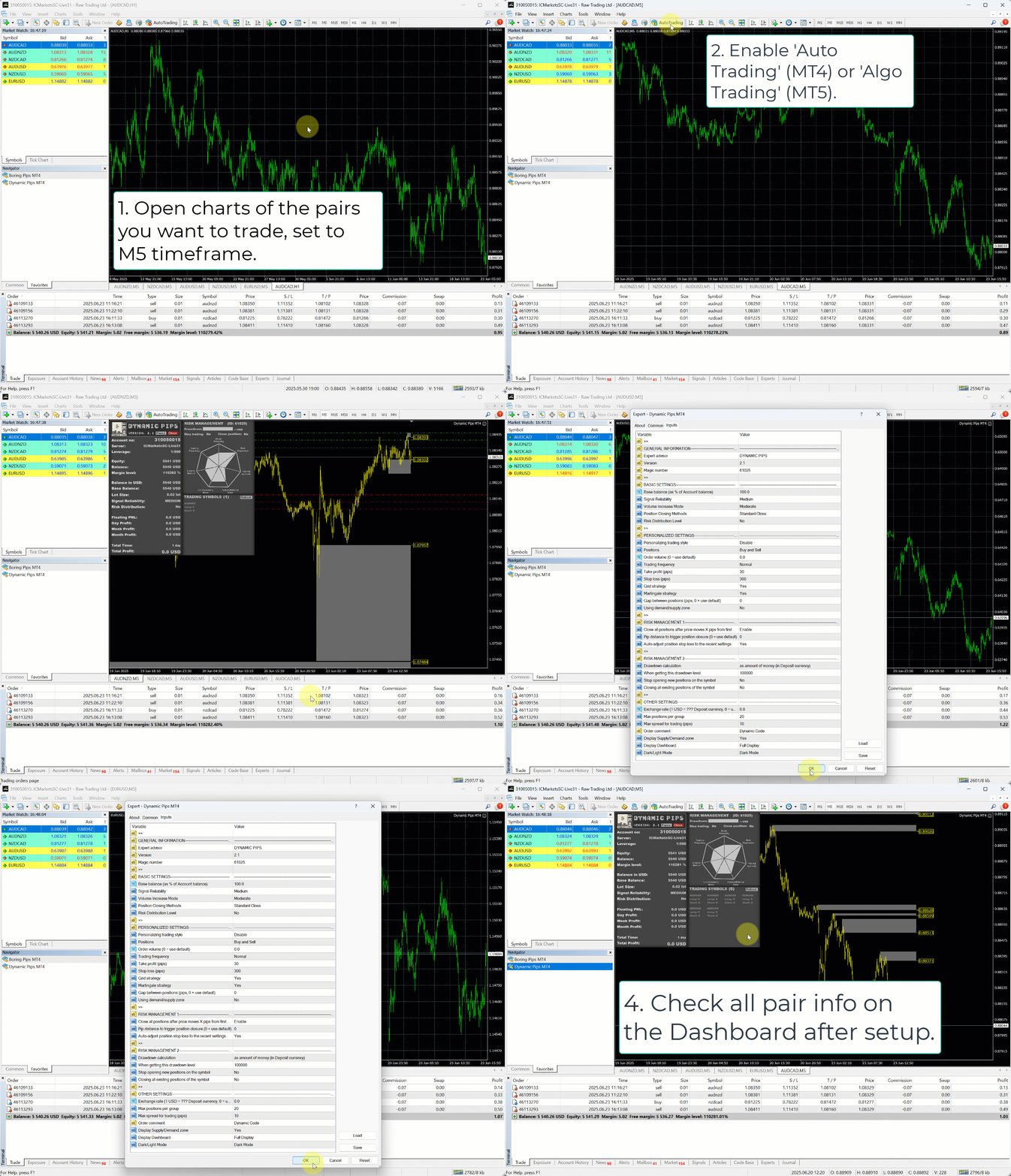
Let’s walk through the process of using these logs.
1. Open the Terminal and Locate the Tabs: First, open the Terminal window in MetaTrader by pressing Ctrl+T or going to View > Terminal. At the bottom of this window, you will see a series of tabs. The two most important for troubleshooting are “Experts” and “Journal.”
2. Understand the Difference Between Tabs: The “Experts” tab shows messages generated specifically by your EA. You will see when it was initialized, what its settings are, and when it attempts to perform a trading action like sending an order. The “Journal” tab shows everything happening with your account at the server level, including login attempts, connection status, and server responses to trade requests. The “Experts” tab tells you what the EA tried to do, while the “Journal” tab tells you what the server allowed it to do.
3. Identify Common Error Codes: When an order fails, MetaTrader often returns a specific error code. Searching for these codes in the logs is the fastest way to a solution. Here are some of the most common codes and what they mean:
– Error 130 (ERR_INVALID_STOPS): This means the Stop Loss or Take Profit level you set is too close to the current market price. Brokers have a minimum distance for stop levels, and your EA’s values violated that rule.
– Error 131 (ERR_INVALID_TRADE_VOLUME): The lot size is incorrect. It might be smaller than the broker’s minimum (like 0.001), larger than the maximum, or not a valid step (like 0.015 when only steps of 0.01 are allowed).
– Error 134 (ERR_MARKET_CLOSED): The EA tried to place a trade when the market for that currency pair was closed, for instance, over the weekend.
– Error 129 (ERR_INVALID_PRICE): The price moved too much between the moment the EA sent the order and the moment the server received it. This is a slippage-related error.
What Advanced Factors and Environmental Discrepancies Can Inhibit EA Performance?
Beyond simple settings, your Expert Advisor’s performance can be hindered by disparities between testing and live environments, specific broker rules, software conflicts on your platform, and the configuration of your trading server. These advanced factors often explain why a seemingly profitable EA fails to execute trades correctly in a real account.
What Is the Difference Between an EA Failing in Backtesting vs. Live Trading?
An EA may perform flawlessly in backtesting but fail in live trading because the testing environment is an idealized simulation that does not replicate real market conditions. The Strategy Tester uses historical data with perfect execution, which is a world away from the dynamic and unpredictable nature of a live server. This discrepancy is a frequent source of frustration for automated traders who see promising backtest results evaporate in real time. The core issue lies in the data and execution models used.
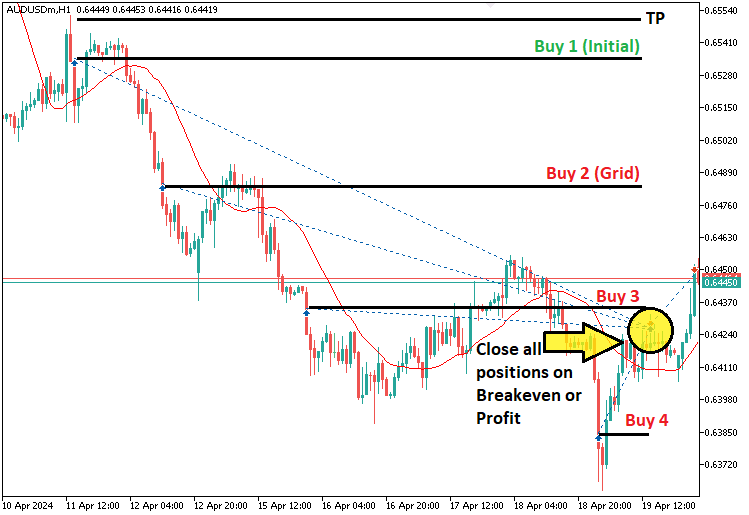
You’ll notice that the controlled environment of a backtest masks several real world challenges. These differences can completely alter an EA’s performance.
- Data Quality and Spread: Backtests often use M1 data to simulate ticks, which misses price movements within that minute. Live trading operates on real tick data. Furthermore, backtests might apply a fixed, low spread, while live accounts experience variable spreads that widen during news events or periods of low liquidity, potentially preventing a trade from meeting its entry conditions.
- Slippage and Latency: In the Strategy Tester, orders are filled instantly at the exact requested price. In a live market, there is a delay, or latency, between your EA sending an order and the broker’s server executing it. This delay can lead to slippage, where your trade is filled at a worse price than anticipated, especially in a fast moving market.
- Order Execution: A backtest assumes every single order is accepted and filled. A live broker might reject an order due to insufficient margin, price changes, or other server side issues. These real world execution variables are completely absent from a standard backtest report.
How Do Broker-Specific Rules like FIFO or Hedging Affect an EA?
Broker specific regulations, such as FIFO and hedging restrictions, can directly prevent an EA from executing trades as designed. These rules are not part of the EA’s code but are enforced at the broker level, leading to rejected orders or unexpected trade closures. An EA built for a broker that allows hedging will malfunction on a platform that enforces netting or FIFO rules, a common scenario for traders in certain jurisdictions like the United States. It’s a conflict between the EA’s logic and the account’s legal framework.
Let’s see how these rules impact your trading logic. Understanding them is key to choosing the right EA for your broker.
- FIFO (First-In, First-Out): This regulation mandates that for a specific currency pair, the first trade you opened must be the first one you close. If your EA is designed to manage multiple positions independently, such as closing a more recent profitable trade while leaving an older one open, the FIFO rule will block this action. The broker’s server will reject the close order.
- Hedging Restrictions: Hedging is the practice of holding a long and a short position in the same currency pair at the same time. Many EAs use this as part of their strategy. However, brokers in some regions operate on a “netting” basis, where opening an opposing trade simply reduces the size of the original position instead of creating a new one. An EA attempting to open a hedge trade on such an account will fail.
- EA Logic Failure: When an EA sends a trade command that violates these rules, the broker’s server rejects it. The EA’s log will show an error code, but the reason might not be obvious unless you are aware of your account’s specific rules. This causes the EA to miss trades or be unable to manage existing positions according to its strategy.
Could Another EA or Custom Indicator on the Same Chart Be Causing a Conflict?
Yes, another EA or a poorly coded custom indicator running on the same trading platform can absolutely cause conflicts that prevent your primary EA from functioning correctly. The MetaTrader platform is a shared environment, and different programs can interfere with each other’s operations, leading to missed trades, frozen charts, or erratic behavior. These conflicts are often subtle and can be difficult to diagnose without checking the platform’s logs and resource usage carefully. Think of it as too many programs trying to use the same limited resources at once.
Software conflicts can manifest in several ways. Have you checked if other tools are interfering with your EA?
- Conflicting Magic Numbers: A Magic Number is a unique identifier an EA assigns to its trades. This is how it distinguishes its own trades from manual trades or trades opened by other EAs. If two different EAs are running with the same Magic Number, one EA might mistakenly try to manage or close trades opened by the other, leading to complete strategic failure.
- Excessive Resource Consumption: A badly programmed indicator or another EA might consume an excessive amount of your computer’s CPU or memory. This can cause the entire trading platform to lag or freeze. When the platform is lagging, it cannot process new price ticks promptly, causing your EA to be late in analyzing the market and miss its trade entry signals.
- Interference with Chart Events: Some scripts or indicators can interfere with the underlying chart events that EAs rely on. For example, a script that constantly refreshes the chart or modifies chart objects could disrupt the EA’s `OnTick()` function, which is the primary driver for its decision making process. This interference can stop the EA from seeing the market data it needs to operate.
#### Is Your Virtual Private Server (VPS) Configured for Optimal EA Operation?
Your Virtual Private Server (VPS) configuration is a frequent source of problems that can stop an EA from trading effectively. A VPS is a remote computer that runs your trading platform 24/7, but if it is not properly configured or resourced, it can become a bottleneck. Issues like high latency, insufficient computing power, or network restrictions can degrade performance or sever the connection to your broker entirely. This turns the advantage of a VPS into a liability. The problem is no longer with your EA’s code, but with the machine it runs on.
An underperforming VPS can silently sabotage your trading. Let’s look at the common culprits.
- High Latency: Latency is the time it takes for data to travel from your VPS to the broker’s trade server. A high latency (e.g., over 100ms) means your trade orders are delayed. In a fast moving market, this delay can result in significant slippage or a missed entry, as the price will have moved by the time your order reaches the server.
- Insufficient RAM and CPU: Running a trading platform, especially with multiple charts and EAs, requires adequate memory (RAM) and processing power (CPU). If your VPS plan is too small, the platform can become unresponsive or crash, particularly during periods of high market volatility when data flow increases. This causes your EA to miss trades because its host machine cannot keep up.
- Firewall and Connectivity Issues: A misconfigured firewall on the VPS or the provider’s network can block the trading platform’s connection to the broker. Similarly, intermittent network outages or scheduled maintenance from the VPS provider can cause your EA to go offline without warning. Verifying that the platform has a stable and uninterrupted connection is essential for consistent operation.
