
Research
Troubleshoot: Why Autotrading Disables Itself & How to Permanently Enable It

Dec
Autotrading typically disables itself due to three primary categories of issues: interruptions in connectivity like a poor internet connection, incorrect platform settings such as the main “AutoTrading” button being off, or critical system and account errors like a margin call. These problems can stop an Expert Advisor (EA) or trading bot from functioning without direct user intervention. Correctly diagnosing the specific cause is the first step toward finding a lasting solution. The platform often provides error messages or log entries that point directly to the source of the shutdown, making troubleshooting a methodical process.
The most frequent reasons for autotrading failure stem from unstable internet connections, Virtual Private Server (VPS) disruptions, and user-configured settings within the trading platform. When the connection to the broker’s server is lost, even for a moment, the platform can no longer receive price data, causing the automated strategy to halt. Similarly, simple oversights like forgetting to check “Allow live trading” in the EA’s properties will prevent it from executing trades.
To permanently enable autotrading and prevent unexpected shutdowns, you should implement a multi-step solution that involves correctly configuring platform settings, utilizing a reliable VPS, and learning how to read terminal logs to diagnose errors. A VPS provides a stable, 24/7 environment for your trading platform, removing dependencies on your local computer’s power and internet connection. This setup is the industry standard for serious automated traders who require constant uptime.
Systematic troubleshooting is key to resolving these issues. By checking the platform’s global settings, the individual EA’s permissions, and the account status, you can eliminate the most common sources of failure. The following sections will provide a detailed breakdown of each potential problem and offer clear, actionable steps to fix them.
What are the Common Reasons Autotrading Disables Itself?
The common reasons autotrading disables itself are grouped into three main areas: connectivity problems with your internet or VPS, incorrect platform-specific settings that prevent the trading bot from operating, and system-level errors or account issues that override the EA’s functions.
To understand why your automated trading suddenly stops, let’s look closer at each of these categories. Each one contains specific triggers that can turn off your Expert Advisor without warning. Identifying the right category helps you find the solution much faster.

Is a Poor Internet Connection or VPS Issue the Cause of Disabling?
Yes, a poor internet connection or a problem with your Virtual Private Server (VPS) is a very common cause for autotrading to disable itself. Automated trading systems, like Expert Advisors (EAs) on MetaTrader platforms, require a constant and stable connection to the broker’s server to function. They need this connection to receive live price data (ticks) and to send trade orders. If this connection is broken, even for a short period, the platform loses its link to the market, and the EA will stop working. You’ll often see a “No connection” or “Invalid account” status in the bottom-right corner of the terminal when this happens.

Here is a more detailed look at how these connectivity issues cause shutdowns:
- Local Internet Interruptions: Your home or office internet can be unreliable. It might drop for a few seconds or minutes due to provider maintenance, router problems, or local network congestion. When this happens, your trading platform disconnects. Once the internet returns, the platform may reconnect, but the autotrading function often remains disabled as a safety measure. The platform does not automatically re-enable it, requiring you to do it manually.
- VPS Downtime or Reboots: A VPS is a remote computer that runs 24/7, designed to host your trading platform. While much more reliable than a local PC, a VPS is not immune to problems. The VPS provider might perform scheduled maintenance that requires a server reboot. If your trading platform is not configured to start automatically upon reboot, it will remain closed, and your EA will be offline. Unplanned downtime due to hardware failure or network issues at the data center can also cause the same problem.
- High Latency or Packet Loss: Sometimes, the internet connection is not completely lost but becomes very slow or unstable. This is known as high latency or packet loss. The platform may struggle to maintain a stable connection with the broker’s server, leading to frequent disconnects and reconnects. During these periods of instability, the EA may fail to execute trades correctly or may be disabled by the platform to prevent trading based on delayed or incomplete market data.
What Platform-Specific Settings Can Accidentally Disable Autotrading?
Platform-specific settings that can accidentally disable autotrading include the main “AutoTrading” button being turned off, the “Allow live trading” option being unchecked in the Expert Advisor’s properties, and DLL imports being disabled when the EA requires them. These settings act as safety switches, and if they are not configured correctly, they will prevent any automated strategy from running. Many traders, especially those new to automated systems, overlook these simple but essential configurations, leading to frustration when their EA does not perform as expected. It is a common user error that is thankfully easy to fix once you know where to look.

Let’s break down these settings found in popular platforms like MT4 and MT5:
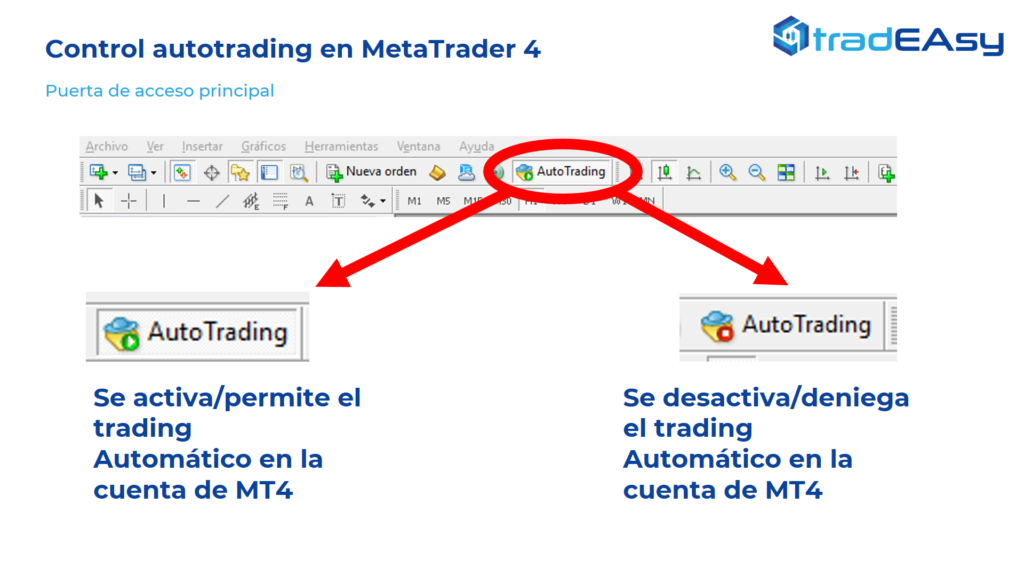
- The Global “AutoTrading” Button: This is the master switch for all automated trading on your terminal. In MT4 and MT5, this button is prominently displayed on the main toolbar. If this button is red, it means all EAs are disabled globally, regardless of their individual settings. It must be green for any automated trading to occur. Sometimes, a user may click it by accident, or a platform update might reset it to its default “off” state. This should always be the first thing you check.
- EA-Specific “Allow Live Trading” Setting: Each EA has its own set of properties and permissions. When you attach an EA to a chart, a settings window appears. Within this window, under the “Common” tab, there is a checkbox labeled “Allow live trading.” If this box is not checked, the EA will be active on the chart (you might see its interface), but it will not have permission to open, modify, or close any trades. This setting allows you to run an EA for analysis or backtesting purposes without giving it control over your live funds.
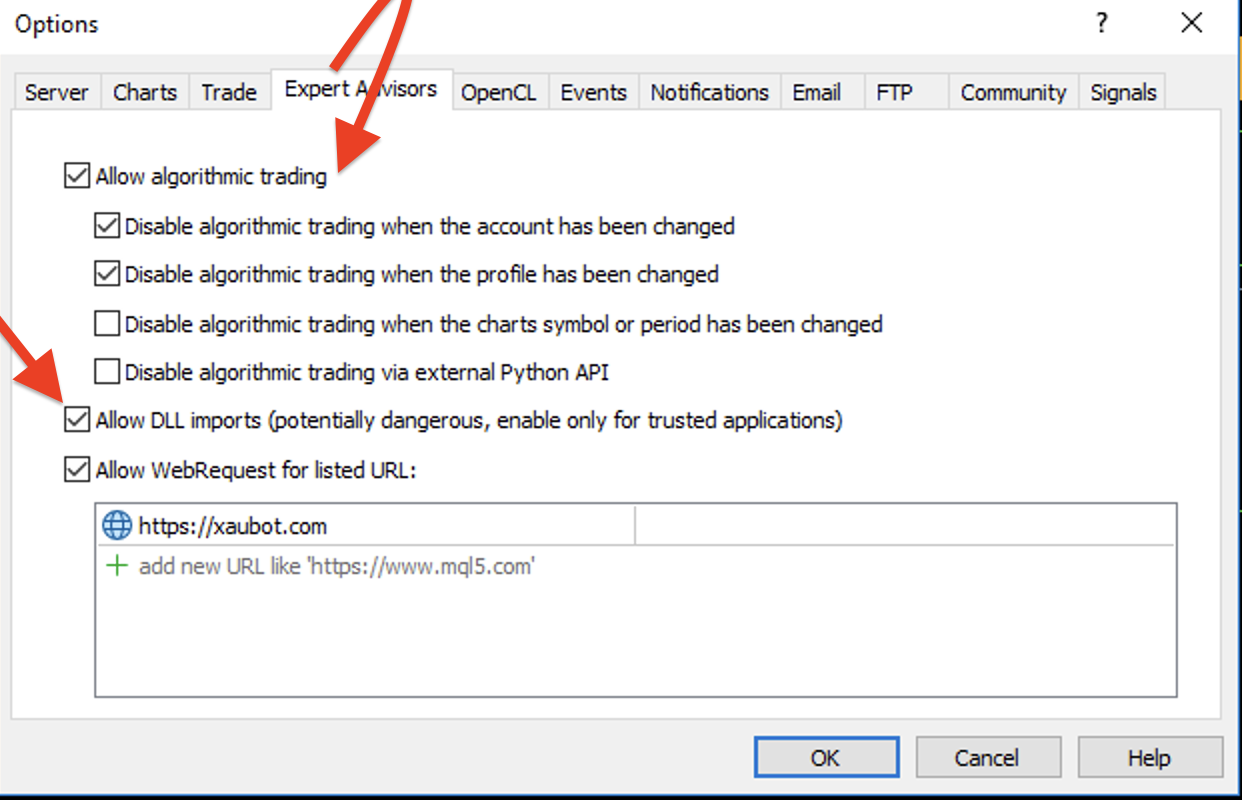
- “Allow DLL Imports” Requirement: Some more advanced EAs use external programming libraries known as DLLs (Dynamic Link Libraries) to perform complex calculations, connect to external news feeds, or implement licensing systems. For these EAs to work, you must enable DLL imports. This is also found in the EA’s properties window, right below the “Allow live trading” option. If an EA requires DLLs and this setting is disabled, the EA will fail to initialize properly and will not trade.
What are the Common System Errors or Account Issues that Stop Autotrading?
Common system errors or account issues that stop autotrading include receiving a margin call, using incorrect account credentials, platform updates changing settings, or having an EA that is not authenticated for your account number. These events often take priority over the EA’s instructions, forcing the platform to halt automated trading to protect the account or comply with broker rules. Unlike simple settings errors, these issues are often more serious and require immediate attention from the trader. The trading platform’s log files are usually the best place to find specific error messages related to these problems.

Here are some of the most frequent system and account issues that can bring your autotrading to a halt:
- Margin Calls and Stop Outs: This is a critical account-level event. A margin call occurs when your account equity falls below the required margin to keep your trades open. If the situation worsens, the broker will trigger a “stop out,” automatically closing your positions to prevent further losses. When a margin call happens, many platforms and brokers will automatically disable EAs to prevent them from opening new positions that would immediately be in violation of margin requirements.
- Invalid Account Credentials: If you change your trading account password or investor password, you must update it in your trading terminal. If the platform tries to connect with old, incorrect credentials, it will fail to log in. You will see an “Invalid account” message in the status corner, and of course, no trading, automated or manual, can happen. Sometimes this happens after a broker performs a server migration, and you need to re-login.
- Forced Platform Updates: Trading platforms like MT4 and MT5 occasionally release mandatory updates. These updates can sometimes reset user settings, including the global “AutoTrading” button or individual EA configurations. After an update, you may find that autotrading has been turned off, and you will need to re-enable it manually.
- EA Authentication Errors: Many commercial EAs are licensed to a specific trading account number. If you try to run the EA on a different account than the one it was licensed for, it will not work. The EA will typically generate an error in the “Experts” tab of the terminal, stating that it is not authorized for that account. This is a security feature used by EA developers to prevent unauthorized use of their software.
How Can You Permanently Enable Autotrading and Prevent Shutdowns?
You can permanently enable autotrading and prevent shutdowns by following a precise configuration process, hosting your trading platform on a Virtual Private Server (VPS) for 24/7 uptime, and regularly checking terminal logs to proactively identify and resolve errors. This three-pronged approach addresses the main points of failure: user settings, local hardware/connection dependency, and unnoticed technical glitches. By combining these methods, you create a robust and resilient environment for your automated trading strategies, minimizing the chances of unexpected interruptions. Let’s start with the first step of the solution.
Below are the detailed steps and explanations for each part of this strategy, designed to give you maximum control and reliability over your automated trading.
What is the Step-by-Step Process to Correctly Enable and Configure Autotrading?
The step-by-step process to correctly enable and configure autotrading is a simple three-part checklist: first, confirm the main “AutoTrading” button is on; second, check the specific EA’s properties to “Allow live trading”; and third, verify that a smiley face icon appears on the top right of the chart. Following these three steps in order ensures that both the global platform settings and the individual EA settings are correctly aligned to permit automated trading. This checklist is your first line of defense against the most common configuration errors and should be the first thing you do whenever an EA is not working as expected. Think of it as a pre-flight check before letting your automated strategy run.
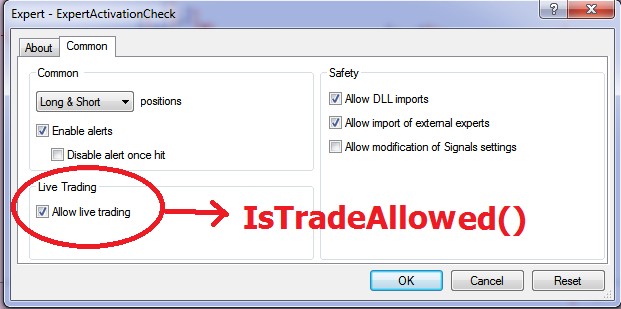
Here is a more detailed breakdown of each step:
1. Global Autotrading Button is ON: Locate the “AutoTrading” button in the main toolbar of your MT4 or MT5 terminal. It might also be labeled “Algo Trading” in newer versions. This button must be clicked so that it shows a green play icon. If it shows a red stop icon, it means all automated trading is disabled across the entire platform. Clicking this button is the master command that allows any EAs on any chart to begin functioning. If it is red, no other settings matter.
2. EA Settings: “Allow live trading” is Checked: Once the global button is green, go to the specific chart where your EA is loaded. Right-click anywhere on the chart and select “Expert Advisors” from the context menu, then click on “Properties.” A settings window for that EA will pop up. In this window, navigate to the “Common” tab. You must ensure the checkbox next to “Allow live trading” is ticked. If your EA uses external libraries, you may also need to check “Allow DLL imports.” Click “OK” to save these settings.
3. The Smiley Face Icon is Visible: After you have completed the first two steps, look at the top-right corner of the chart. You should see the name of your EA, and next to it, an icon. If the configuration is correct, this icon will be a smiley face ( ). A smiley face is the platform’s visual confirmation that the EA is active, has the necessary permissions, and is running without major errors. If you see a sad face ( ) or an ‘x’ icon, it means something is still wrong. A sad face often indicates that live trading is not allowed in the EA’s properties, even if the global button is on.
How Do You Configure a Virtual Private Server (VPS) to Ensure 24/7 Uptime?
To configure a Virtual Private Server (VPS) for 24/7 uptime, you must first choose a reputable provider specializing in low-latency trading, then connect to the VPS using Remote Desktop, install your trading platform directly onto it, and finally, load your EA and leave the platform running continuously. A VPS is essentially a remote computer in a professional data center that you rent. It is always on, has a stable, high-speed internet connection, and is immune to power outages or internet issues at your home. This makes it the most effective solution for “permanently” enabling autotrading because it removes your local computer as a point of failure.
Setting up a trading VPS involves these basic steps:
- Choose a Low-Latency VPS Provider: Select a VPS provider that has servers located in the same data center, or at least the same city, as your broker’s trading server. This minimizes latency, which is the time it takes for data to travel between your VPS and the broker. Low latency is important for fast trade execution. Many specialized forex VPS providers advertise their proximity to major brokerage servers.
- Connect to Your VPS: Once you subscribe, the provider will give you an IP address, a username, and a password. On your Windows computer, you can use the built-in “Remote Desktop Connection” application to log into your VPS. On a Mac, you can download the Microsoft Remote Desktop app from the App Store. This will open a window on your computer that shows you the desktop of the remote server.
- Install Your Trading Platform: The VPS will look and feel like a new, clean Windows computer. From within the remote desktop session, open a web browser, go to your broker’s website, and download the installer for your trading platform (e.g., MT4 or MT5). Install the platform on the VPS just as you would on your own PC.
- Configure and Run Your EA: Launch the newly installed trading platform, log in to your trading account, and set up your charts and Expert Advisors exactly as you would on your local machine. Follow the three-step checklist (global button on, allow live trading, check for smiley face) to ensure everything is active. Once it is running, you can simply close the Remote Desktop Connection window. Your platform and EA will continue to run 24/7 on the remote server, completely independent of your own computer.
How Can You Check Terminal Logs to Diagnose and Resolve Disabling Errors?
You can check terminal logs to diagnose disabling errors by opening the “Terminal” window in your platform (usually with Ctrl+T) and examining the “Experts” and “Journal” tabs. These logs provide a detailed, time-stamped record of every action your EA attempts and every message the platform or server generates. The “Experts” tab specifically logs EA activities, including initialization, trade attempts, and any errors it encounters. The “Journal” tab provides a broader log of all terminal events, such as connections, login attempts, and order modifications. Reading these logs is the most direct way to find the exact error code or message that is causing your autotrading to shut down.
Here is a guide on how to use these logs for troubleshooting:
- Locating the “Experts” Tab: The “Experts” tab is your primary tool for debugging an EA. It will tell you if the EA loaded successfully. If there’s a problem, it will often print a specific error message. For example, you might see “OrderSend error 130,” which means invalid stops (your Stop Loss or Take Profit is too close to the market price). Or you might see an error like “cannot load library ‘somefile.dll’,” which tells you that the “Allow DLL imports” setting is disabled or a file is missing. Look for the last entry before your EA stopped working.
- Reviewing the “Journal” Tab: The “Journal” tab gives you a wider context. It logs every event related to your trading terminal and account. For example, if you see repeated “connecting to…” followed by “no connection” messages, you have a clear sign of an internet connectivity problem. If you see an “Invalid account” message, you know your login credentials are the issue. This tab is also where you will find messages about margin calls or failed trade executions that might not appear in the “Experts” tab.
- Interpreting Common Error Codes: Over time, you will become familiar with common MetaTrader error codes. For instance, “Error 131” means an invalid trade volume, “Error 129” means an invalid price, and “Error 4109” can mean that trading is disabled by the broker for that instrument. By searching for the specific error code you find in the logs, you can quickly get information online about its meaning and how to resolve it. This turns guesswork into a precise diagnostic process.
Exploring Advanced Autotrading Stability and Platform Comparisons
Platform architecture, broker policies, and API management are key factors determining autotrading stability, with newer platforms like MT5 generally offering better performance and reliability compared to older counterparts like MT4. Furthermore, examining specific platform nuances and external influences provides a clearer picture of why an automated system might unexpectedly stop working. Let’s see how these elements play a role in keeping your trading bot active.
What is the Difference in Autotrading Stability Between MT4 and MT5?
The core architectural differences between MetaTrader 4 and MetaTrader 5 directly influence the stability of Expert Advisors (EAs). MT5 is a 64-bit, multi-threaded platform, allowing it to use more system memory and process tasks across multiple CPU cores simultaneously. This design makes it inherently more stable and faster, especially when running complex EAs or performing extensive backtests on large historical datasets. In contrast, MT4 is a 32-bit, single-threaded application. This means it is limited to using a single CPU core and about 2GB of RAM. If an EA is resource-heavy or you run multiple charts and indicators, MT4 can easily become overloaded, leading to freezes, lagging, or the platform shutting down the bot.

The programming languages also differ. MT5 uses MQL5, a more advanced object-oriented language compared to MQL4. MQL5 allows for cleaner, more efficient, and more robust code. This reduces the chances of programming errors that could cause an EA to malfunction or stop executing trades.
Let’s break down the core architectural advantages of MT5.
- Multi-threading Capability: You’ll notice MT5 distributes the workload for strategy testing and optimization across all available CPU cores. MT4 is restricted to a single core, which often results in performance bottlenecks and slower execution for demanding automated strategies.
- 64 bit Architecture: As a 64 bit application, MT5 can access virtually unlimited system memory. This removes the 2GB RAM limit found in MT4, which is a common source of crashes when traders backtest complex EAs over long periods.
- Enhanced Programming Language: The MQL5 language promotes better coding habits and provides more built in functions for debugging and analysis. This helps developers create EAs that are less prone to logical errors and unexpected behavior.
Can Your Broker Interfere With or Disable Your Autotrading Bot?
Yes, a broker can interfere with or disable your autotrading bot, although it is not a common practice among reputable brokers for standard strategies. Interference typically occurs when a bot’s activity is perceived as harmful to the broker’s server stability or violates their terms of service. For example, some brokers have policies against certain high frequency trading (HFT) or scalping strategies that send an excessive number of orders or modifications per second. This can strain their servers, and they may temporarily disable the responsible EA to protect their infrastructure.
During highly volatile news events, such as interest rate announcements or employment data releases, brokers might take protective measures. They could widen spreads, increase slippage, or even switch accounts to “close only” mode. While not directly disabling the bot, these actions can prevent it from opening new trades according to its logic. In more direct cases, if a bot is using a prohibited strategy like latency arbitrage, the broker has the right to disable it and may even suspend the trading account.
What are the common ways a broker might impact your bot’s operation?
- Server Strain Policies: Many brokers monitor accounts for unusually high order frequency. If your bot generates thousands of requests in a short time, it could be flagged and temporarily disconnected to maintain server performance for all clients.
- News Event Restrictions: To manage their own risk, brokers may alter trading conditions during major news. This can disrupt an EA’s strategy, especially if it relies on tight spreads or immediate execution, effectively halting its normal operation.
- Non Compliant Strategies: Trading strategies that exploit system loopholes or are explicitly forbidden in the client agreement are a direct cause for intervention. Brokers actively look for such patterns and will shut down bots that employ them.
What are the Best Practices for Managing API Key Permissions to Prevent Disconnection?
For traders whose bots connect to cryptocurrency exchanges via an Application Programming Interface (API), proper key management is essential for continuous operation. An API key is a unique identifier that authorizes your bot to interact with your exchange account. If the permissions are incorrect or the key expires, the connection will be severed, and your bot will stop working. A common error is failing to grant the necessary permissions. For example, a bot needs “trade” or “execute” permissions to place orders. If it only has “read” permissions, it can view your balance but cannot perform any trading actions, leading to operational failure.

Another frequent cause of disconnection is an expired API key. Many exchanges require you to set an expiration date for security reasons. If you forget to renew the key before it expires, the bot will lose access instantly. Additionally, using IP whitelisting is a strong security practice that also affects connectivity. Whitelisting restricts the API key to work only from a specific IP address, like your Virtual Private Server (VPS). If the VPS IP address changes for any reason and you do not update the whitelist, the exchange will block all requests from the new IP, disabling your bot.
How can you proactively manage your API keys for uninterrupted trading?
- Set Correct Permissions: When creating an API key, only enable the permissions your bot requires. For trading, this is typically read access and trading access. Never enable withdrawal permissions for a bot’s API key to minimize risk.
- Monitor Expiration Dates: Keep a calendar or set reminders for when your API keys are scheduled to expire. Renew them well in advance to avoid any lapse in connection and trading activity.
- Use IP Whitelisting: Bind your API key to the static IP address of your server. This prevents the key from being used elsewhere if it is ever compromised and ensures a stable connection as long as your server’s IP remains unchanged.
How Does Autotrading Uptime Compare Against Manual Trading Execution for Reliability?
When comparing reliability, autotrading systems generally offer superior uptime and consistency over manual trading execution. An automated system, hosted on a reliable VPS, can operate 24/7 without needing breaks, sleep, or getting distracted. It executes trades based on its programmed logic with precision, removing the emotional and psychological pressures that affect human traders. This continuous operation ensures that no trading opportunities are missed due to human limitations, whether it is during late night market sessions or periods of personal unavailability.
Manual trading, on the other hand, is inherently limited by human endurance and psychology. A manual trader cannot monitor the markets constantly and is susceptible to fatigue, which can lead to poor judgment, missed entries, and execution errors. Emotions like fear and greed can cause a trader to deviate from their strategy, while an automated system adheres strictly to its rules. The reliability of an automated system is a technical challenge centered on software, hardware, and internet connectivity. The reliability of a manual trader is a biological and psychological challenge, making it far less consistent over the long term.
When we compare the two approaches, the differences in operational consistency become clear.
- Operational Consistency: A bot executes its strategy without hesitation or emotional bias every single time its conditions are met. A manual trader’s execution can be inconsistent due to mood, stress, or external distractions.
- Endurance and Availability: Autotrading systems provide a constant market presence, capable of capturing opportunities across all global trading sessions. A human trader’s availability is limited, leading to missed signals and trades outside of their active hours.
- Error Handling: While a bot can encounter technical glitches, manual trading is prone to human errors. These include “fat finger” mistakes where the wrong order size is entered, misinterpreting a chart signal, or engaging in revenge trading after a loss.
