
Research
How to Correctly Allow DLL Imports in MT4 & Fix Common EA Errors
Dec
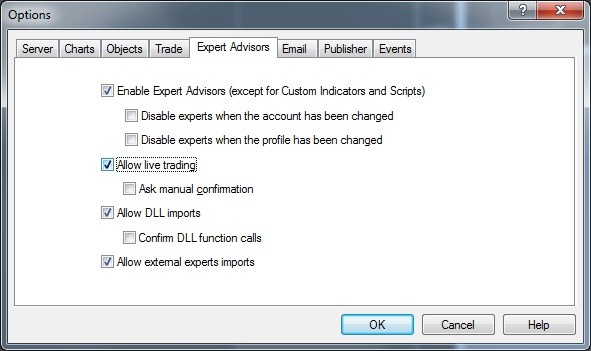
To correctly allow DLL imports in MT4, you need to open your trading terminal, navigate to the ‘Tools’ menu, select ‘Options,’ and then go to the ‘Expert Advisors’ tab to check the box labeled ‘Allow DLL imports.’ This action is a fundamental step for running many advanced Expert Advisors (EAs) that depend on external code libraries to function. These EAs often perform tasks beyond the native capabilities of the MQL4 programming language, such as implementing complex licensing systems or connecting to third-party data services. Without enabling this setting, the terminal will block these external calls, causing your EA to fail.
Some EAs require DLL imports because these external libraries provide functionalities that are not built into the MT4 platform itself. For example, developers use DLLs for sophisticated mathematical calculations, custom indicator logic that is too resource-intensive for MQL4, or for creating secure software license verification systems. An EA might also use a DLL to connect to an external news API, allowing it to make trading decisions based on real-time economic events. Essentially, DLLs extend the power of an EA beyond its standard programming limits.
The most common errors related to DLL imports, such as ‘Cannot load library…’ (Error 126) or ‘DLL calls are not allowed,’ usually stem from two main issues: either the DLL file is not placed in the correct folder, or the security settings within MT4 are not configured properly. Error 126 typically means the MT4 terminal cannot find the file, while the ‘not allowed’ message indicates that the permission to use DLLs has not been granted in the platform’s options. Both errors will prevent your EA from initializing or running correctly.
By learning the proper procedure to enable these settings and understanding where to place the necessary files, you can resolve most common EA failures. This guide will provide clear steps and solutions to get your trading tools working as intended. Let’s start with a foundational look at what DLLs are and why they are used.
What Are DLL Imports and Why Are They Necessary for Some EAs?
DLL imports are functions that allow MetaTrader 4 (MT4) to use external Dynamic Link Libraries, which are files containing code and data that can be used by multiple programs at once to perform specialized tasks. For Expert Advisors (EAs), this means they can access pre-written code for functions that are either impossible or inefficient to write in the native MQL4 language. These libraries act as extensions, giving EAs enhanced capabilities that are often needed for advanced trading strategies and security.
To understand this better, let’s explore the function of this setting and the specific tasks DLLs perform for an EA.

What is the function of the ‘Allow DLL imports’ setting in MT4?
The ‘Allow DLL imports’ setting in MT4 is a security feature that gives you control over whether an Expert Advisor (EA) can execute functions from external library files. This option acts as a master switch. When it is turned off (which is the default setting), the MetaTrader terminal actively blocks any attempt by an EA to call a function stored in an external DLL file. This is a protective measure designed to prevent potentially malicious or untrusted code from running on your machine and accessing your system or trading account information.
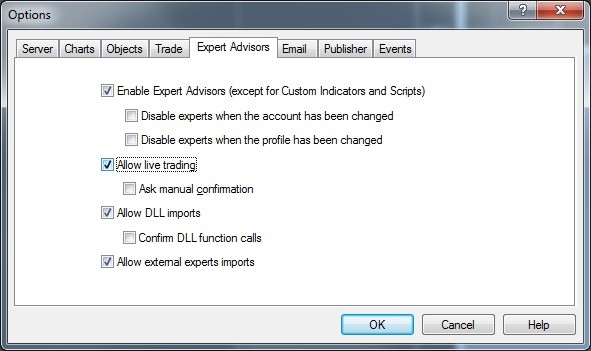
By checking this box, you are explicitly granting permission for your EAs to communicate with and use these external code libraries. Think of it as a gatekeeper. Your terminal is a secure environment, and any code running inside it is generally considered safe. A DLL is an outsider. The ‘Allow DLL imports’ setting is you telling the gatekeeper that you trust this outsider and are allowing it to come inside and interact with your EA. Without this permission, the gatekeeper will deny access every time, and your EA will not be able to perform the functions that rely on that external code. This is why many advanced or commercially sold EAs will not work until this setting is enabled.
What types of functions do EAs typically use DLLs for?
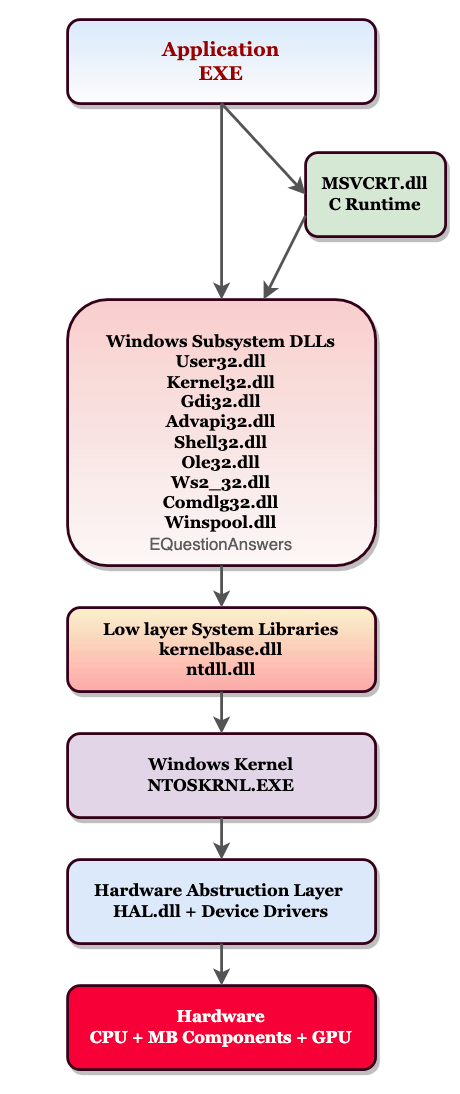
EAs typically use DLLs for several types of functions, including license verification, complex mathematical calculations, integration with external APIs, and custom data processing. These tasks often require programming languages and libraries that are more powerful or specialized than what MQL4, MT4’s native language, can offer. A DLL, often written in a language like C++ or C#, can handle these demanding jobs and then pass the results back to the EA.
Here are some of the most common applications:
- License Verification: Many commercial EA developers use DLLs to protect their software from piracy. The DLL can contain a robust licensing system that communicates with a remote server to validate a license key. This level of security is difficult to achieve using MQL4 alone, making DLLs a standard tool for developers who sell their EAs.
- Advanced Mathematical Modeling: Trading strategies that rely on machine learning, statistical arbitrage, or complex quantitative analysis require heavy mathematical computations. MQL4 is not optimized for this. A DLL can perform these calculations much faster, allowing the EA to analyze market data with greater depth and speed without slowing down the trading terminal.
- API Integration with External Data: An EA might need to pull data from external sources, like a news feed from a financial website, economic calendar events, or sentiment data from social media. A DLL can manage the web requests (HTTP connections) to these external APIs, parse the received data (often in JSON or XML format), and provide it to the EA in a simple format to use for trading decisions.
- Custom Indicator Calculations: Some custom indicators involve logic that is very complex or processor-intensive. By moving these calculations into a DLL, the indicator’s performance can be improved, preventing the MT4 chart from lagging or freezing, especially when running on multiple charts.
How Do You Enable DLL Imports in MT4?
You can enable DLL imports in MT4 by following a simple process of accessing the main menu, opening the ‘Options’ window, navigating to the ‘Expert Advisors’ tab, and checking the correct box. This is a global setting for the entire MT4 terminal, meaning once you enable it, any EA on any chart will have permission to use DLLs, provided the box remains checked. This process is straightforward and only takes a few seconds to complete.
Let’s walk through the exact steps to get this done correctly and discuss the related settings you need to be aware of.
What are the exact steps to access the Expert Advisors settings tab?
To access the settings and enable DLL imports, you will navigate through the main menu of your MT4 terminal. The user interface is standard across most brokers, so these steps should be consistent. Follow this sequence carefully to reach the correct configuration window where you can make the necessary changes for your Expert Advisor to function properly. Have you tried looking for this menu before? It is located in a logical place once you know where to start.
Here is the exact step-by-step guide:
1. Launch your MetaTrader 4 Platform: First, open the MT4 trading terminal on your computer. Make sure you are logged into your trading account.
2. Click on the ‘Tools’ Menu: At the top of the screen, you will see a menu bar with options like ‘File,’ ‘View,’ ‘Insert,’ and so on. Click on ‘Tools.’
3. Select ‘Options’ from the Dropdown: A dropdown menu will appear after you click ‘Tools.’ Find and click on the ‘Options’ item. This action will open a new pop-up window containing all the terminal’s configuration settings. Alternatively, you can use the keyboard shortcut Ctrl+O.
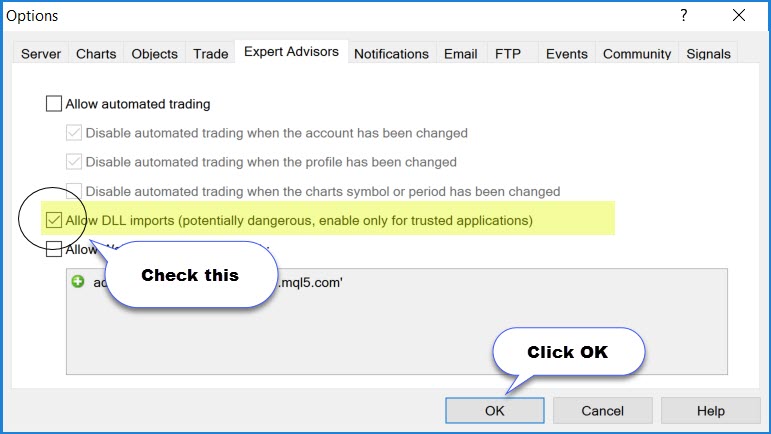
4. Navigate to the ‘Expert Advisors’ Tab: In the ‘Options’ pop-up window, you will see a series of tabs across the top, such as ‘Server,’ ‘Charts,’ ‘Objects,’ and ‘Expert Advisors.’ Click on the ‘Expert Advisors’ tab to display the relevant settings for EAs and automated trading.
5. Enable ‘Allow DLL imports’: Within this tab, you will find a list of checkboxes. Locate the option labeled ‘Allow DLL imports (potential danger, enable only for trusted applications)’ and click the box next to it to place a checkmark.
6. Click ‘OK’ to Save: After checking the box, click the ‘OK’ button at the bottom of the window to save your changes and close the ‘Options’ window. The setting is now active.
Is checking ‘Allow DLL imports’ the only step required?
No, checking ‘Allow DLL imports’ is not always the only step required, as you should also review the ‘Confirm DLL function calls’ and ‘Allow WebRequest for listed URL’ settings for full functionality and security. While enabling DLL imports is the main step, these other two options directly affect how the DLLs operate and whether your EA can perform all of its intended functions, especially if it needs to connect to the internet. Ignoring these can lead to different types of errors or interruptions.

Let’s see what each of these related settings does:
- ‘Confirm DLL function calls’: If you check this box, MT4 will show you a pop-up message asking for your confirmation every single time the EA tries to call a function from the DLL. For an EA that runs constantly and makes many calls per minute, this will generate an endless stream of pop-ups, making automated trading impossible. You should generally leave this box unchecked if you trust the source of your EA. It is a security feature for testing but is not practical for live use.
- ‘Allow WebRequest for listed URL’: This setting is essential for any EA that uses a DLL to connect to the internet. Many EAs do this for license verification, news updates, or to pull other external data. If your EA needs this functionality, you must check this box. Additionally, you must add the specific website addresses (URLs) the EA needs to connect to in the list below this option. If the correct URL is not on the list, the web request will fail, and your EA will not work correctly, even with DLL imports allowed.
What Are the Most Common Errors When DLL Imports Fail?
The most common errors when DLL imports fail include ‘Cannot load library…’ (Error 126) and ‘Invalid function call’ or ‘DLL calls are not allowed,’ each pointing to a specific configuration issue. These messages are often displayed in the ‘Experts’ or ‘Journal’ tab at the bottom of the MT4 terminal. Recognizing which error you are seeing is the first step toward fixing the problem, as each one tells you something different about what is going wrong with your Expert Advisor’s setup.
Let’s look at what these error messages mean and how to fix them so you can get your EA running without further interruptions.
What does the ‘Cannot load library…’ error (Error 126) mean?
The ‘Cannot load library…’ error, also known as Error 126, means that the MT4 terminal cannot find the required DLL file at the location specified in the EA’s code. This is a file path or location issue. The Expert Advisor knows it needs a specific DLL file to run, it tries to load it, but the file is either missing from the expected folder or the filename is incorrect. The terminal is essentially telling you, “I was told to find a file named ‘example.dll’ in the Libraries folder, but it is not there.”

To fix this very common error, you need to make sure the DLL file is present and correctly placed. Here are the solutions:
- Place the DLL in the Correct Folder: The DLL file must be located in the `MQL4Libraries` folder within your MT4 data directory. To find this folder, go to your MT4 terminal, click ‘File’ -> ‘Open Data Folder.’ A new window will open. From there, navigate into the ‘MQL4’ folder, and then into the ‘Libraries’ folder. Copy and paste your DLL file into this location.
- Verify the File Name: The name of the DLL file must be an exact match to what the EA is expecting, including capitalization and the `.dll` file extension. A simple typo, like `MyEA.dll` instead of `myea.dll`, can cause Error 126. Check the EA’s documentation or contact the developer to confirm the exact filename.
- Check the DLL Version (32-bit vs. 64-bit): MetaTrader 4 is a 32-bit application. It cannot load a DLL file that was compiled for a 64-bit system. If you have the wrong version of the DLL, MT4 will not be able to load it. Make sure you have the 32-bit (often labeled as x86) version of the DLL file from your EA provider.
How do you fix the ‘Invalid function call’ or ‘DLL calls are not allowed’ message?
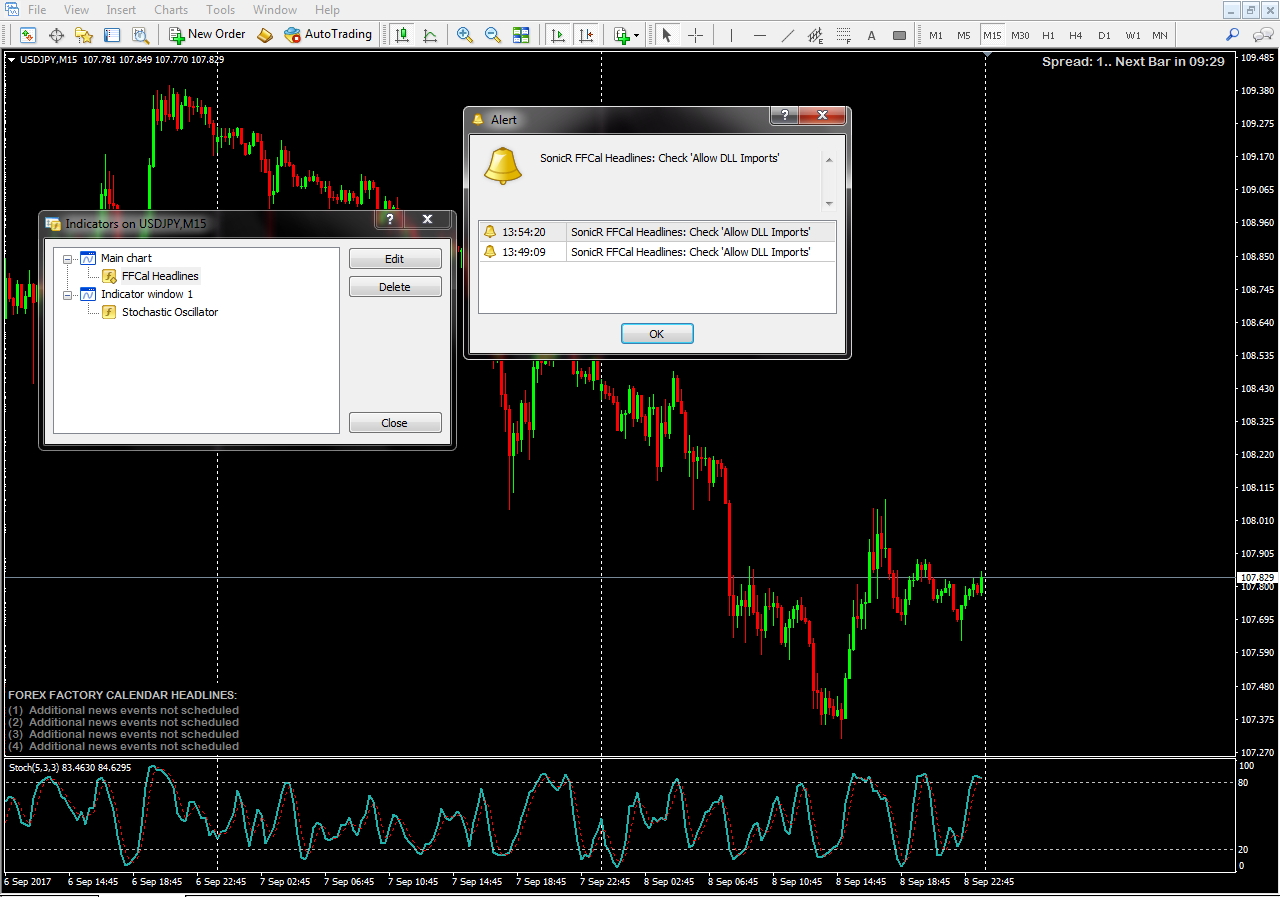
You can fix the ‘Invalid function call’ or ‘DLL calls are not allowed’ message by enabling the main security setting in MT4, as this error directly indicates that ‘Allow DLL imports’ is disabled. Unlike Error 126, this is not a problem with a missing file. The MT4 terminal can see the DLL file, but it is actively blocking the Expert Advisor from using it because you have not given it permission. The EA tries to execute a function from the library, and the terminal’s internal security steps in and says “No, this is not allowed,” then logs the error message.
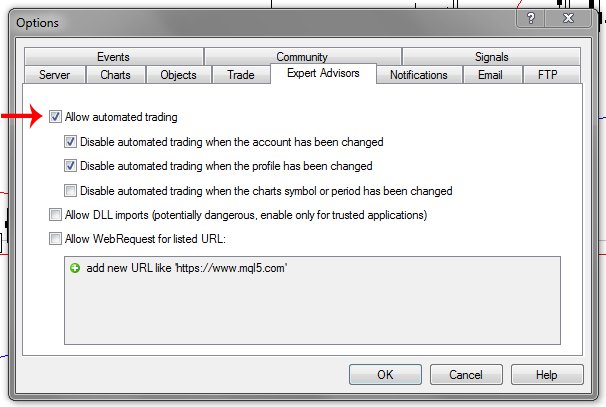
The solution is simple and direct: you need to grant permission.
- Enable the Global Setting: The fix for this error is to follow the exact steps outlined in the ‘How Do You Enable DLL Imports in MT4?’ section of this guide. You must go to ‘Tools’ -> ‘Options’ -> ‘Expert Advisors’ and check the box for ‘Allow DLL imports.’ Once you click ‘OK,’ the setting will be saved.
- Restart the Expert Advisor: After enabling the setting, you may need to refresh your EA for the change to take effect. You can do this by removing the EA from the chart and re-attaching it, or by changing the chart’s timeframe back and forth. This forces the EA to re-initialize, and this time it will be able to successfully call the DLL functions because the permission has been granted.
What Are the Advanced Considerations and Security Best Practices for DLLs?
When using DLLs with MetaTrader, you must prioritize security by sourcing them from reputable developers and understand how different operating environments, like a VPS, can affect their performance. Additionally, you should be aware of the differences between MT4 and MT5 and know about potential alternatives for specific functionalities. Let’s look at the key details you should know.
Is it always safe to allow DLL imports for any EA?
No, it is absolutely not always safe to allow DLL imports for any Expert Advisor. Allowing a DLL gives it extensive permissions to interact with your computer, creating a substantial security risk if the file is from an untrustworthy source. A malicious DLL can contain code designed to harm your system or steal your personal information. Think of it as giving a stranger a key to your house; you would only do so if you trusted them completely.
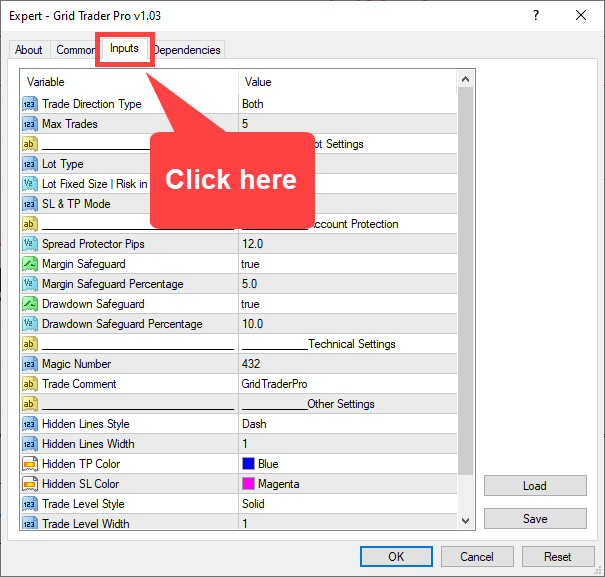
The primary danger is malware. A DLL can contain viruses, spyware, or keyloggers that record your keystrokes, potentially capturing login credentials for your trading account or other sensitive data. It could also corrupt files on your computer or interfere with your operating system, leading to instability and crashes. Because the DLL operates with the permissions of the MetaTrader application, it can perform many actions without your direct knowledge. To protect yourself, you need to weigh the functional benefits against these security risks.
To mitigate these dangers, follow a few simple guidelines:
- Only use EAs and their associated DLLs from developers with a long-standing, positive reputation in the trading community. Look for reviews and user feedback.
- Never download EAs or DLLs from unofficial forums, torrent sites, or suspicious email attachments.
- Scan any new DLL file with updated antivirus software before placing it in your MetaTrader folder and enabling it.
How does the process for enabling DLLs in MT4 differ from MT5?
While the core principle of enabling DLLs is similar in both MetaTrader 4 and MetaTrader 5, there are subtle differences in the user interface and security approach. MT5 generally has a more streamlined options menu and places a greater emphasis on security by default compared to its predecessor. For many users, these changes are minor, but knowing them can prevent confusion when switching between platforms.
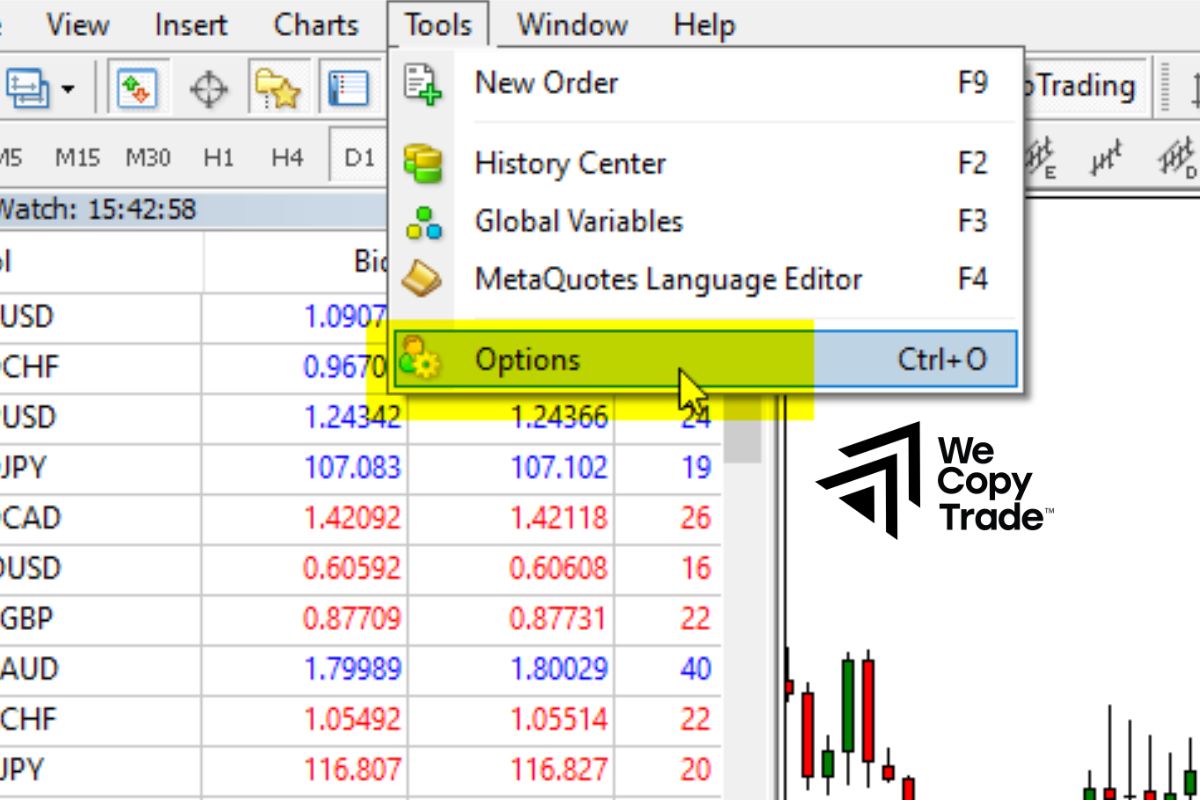
In MT4, you typically navigate to `Tools > Options > Expert Advisors` tab. There, you find the “Allow DLL imports” checkbox. MT5 follows a nearly identical path, but you will notice the menu looks more modern. The option is also located under `Tools > Options > Expert Advisors`. However, MT5 introduced a more granular control system where you can also add specific URLs for the `WebRequest` function, which is a related but separate feature.
The main functional differences lie in the platform architecture and security philosophy:
- MT4 is a 32-bit application, meaning it requires 32-bit DLLs. This is a common source of errors on modern 64-bit systems.
- MT5 is a 64-bit application, so it requires 64-bit DLLs. This alignment with modern operating systems often results in better performance and stability.
- MT5’s default settings are often more restrictive, reflecting a heightened awareness of security in modern software development. You may find you need to be more deliberate in granting permissions.
What are common reasons a DLL fails on a VPS but works on a local PC?
It is a frequent and frustrating issue when an EA and its DLL work perfectly on your home computer but fail to operate on a Virtual Private Server (VPS). This problem usually stems from differences in the software environment, system architecture, or security policies between your local machine and the VPS. A VPS is a clean, minimal operating system, which means it might be missing components that are standard on your personal computer.
One of the most common culprits is a missing Microsoft Visual C++ Redistributable package. Many DLLs are created using Microsoft’s Visual C++ and depend on its runtime libraries to function. Your PC likely has many versions of this package installed from various applications, but a fresh VPS will not. You must identify which version the DLL requires (e.g., 2015, 2017, 2019) and install it on the VPS. Another major issue is the 32-bit versus 64-bit mismatch. MT4 is a 32-bit program, so it needs 32-bit DLLs. If you place a 64-bit DLL in its library or vice versa, it will not load.
Beyond dependencies, the VPS environment itself can cause failures:
- Some VPS providers implement strict security protocols that may block a DLL’s functions, especially if it attempts to make network connections.
- The VPS might be running a different version of Windows Server that has compatibility issues with the DLL.
- User Account Control (UAC) settings or other permissions on the VPS could be preventing the MetaTrader terminal from loading the DLL properly.
Are there any alternatives to DLLs for advanced EA functionality?
Yes, for certain types of advanced functionality, there are alternatives to using DLLs, although they do not cover every use case. The most notable alternative built directly into the MQL4 and MQL5 languages is the `WebRequest` function. This feature allows an Expert Advisor to communicate with external web services over the internet using HTTP requests.

The `WebRequest` function is not a direct replacement for a DLL. DLLs are best suited for intensive, local computational tasks, like running complex mathematical models, integrating machine learning libraries, or performing high-speed calculations that would be too slow in MQL. In contrast, `WebRequest` is designed specifically for network communication. You can use it to fetch data from an API, such as economic calendar events, news headlines, or signals from an external provider. An EA could also use it to send notifications to services like Telegram or Discord.
This method offers a distinct security advantage. Instead of allowing a DLL file to run arbitrary code on your machine, you only permit the EA to communicate with specific URLs that you must whitelist in the MetaTrader options. This greatly reduces the attack surface for malicious actors. If your EA’s primary “advanced” need is to connect to the internet for data, `WebRequest` is a much safer and often simpler solution than relying on an external DLL.
https://c.mql5.com/mql4/forum/2011/10/mt4-allow-live-trading.jpg
To correctly allow DLL imports in MT4, you need to open your trading terminal, navigate to the ‘Tools’ menu, select ‘Options,’ and then go to the ‘Expert Advisors’ tab to check the box labeled ‘Allow DLL imports
allow dll imports mt4
