
Research
Download Eightcap MT4: Install, Login & Trade 800+ Assets Instantly
Dec
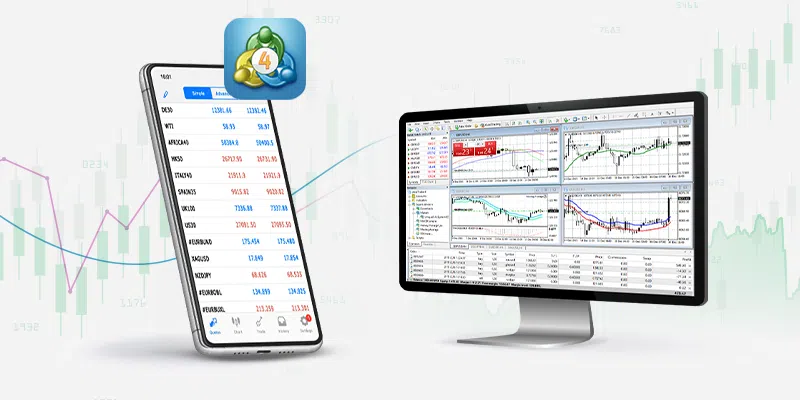
Downloading, installing, logging in, and trading on Eightcap MT4 takes just a few minutes, giving you instant access to over 800 assets like forex pairs, indices, commodities, and cryptocurrencies through this broker-specific MetaTrader 4 platform. Eightcap MT4 stands out as a customized version of the popular MetaTrader 4 trading terminal, tailored for Eightcap clients. You start by visiting the Eightcap website, grabbing the download link, running the installer with their server details, entering your account login, and placing trades right away. This setup lets beginners and pros alike execute orders quickly without delays.
Eightcap MT4 offers low spreads starting from 0.0 pips, leverage up to 1:500, and execution speeds under 30 milliseconds for seamless trading across 800+ instruments. These features mean tighter costs on trades, bigger position sizes with managed risk, and reliable fills even during volatile markets. Traders appreciate how this keeps profits higher while minimizing slippage.
The platform runs without any download or usage fees, with costs limited to standard spreads and commissions on trades. You get full functionality for free once set up, whether on demo or live accounts. This approach removes barriers, letting you test strategies or go live without upfront platform expenses.
Now that you see the quick path forward, let’s break it down step by step. You’ll find detailed guides below on each phase, from understanding Eightcap MT4 to placing your first instant trade.
What is Eightcap MT4?
Eightcap MT4 is a broker-branded version of MetaTrader 4, customized by Eightcap to provide direct access to over 800 tradable assets including forex, indices, commodities, and crypto, with seamless download, install, login, and trading features. Let’s explore this further to see how it fits your trading needs.
Why Choose Eightcap MT4 for Trading 800+ Assets?
Eightcap MT4 pulls ahead with its tight spreads, often as low as 0.0 pips on major forex pairs, which directly cuts your trading costs. For example, on EUR/USD, you pay less per pip compared to many competitors, keeping more money in your pocket during frequent trades. High leverage up to 1:500 lets you control larger positions with smaller capital, ideal for scalpers or those eyeing indices like the S&P 500.

Instant execution stands out too, with average speeds below 30 milliseconds. This matters when markets move fast, like during news events on commodities such as gold or oil. You avoid requotes, ensuring your orders fill at requested prices. Plus, the platform supports over 800 instruments, from 55+ forex pairs to 100+ cryptos like Bitcoin and Ethereum.
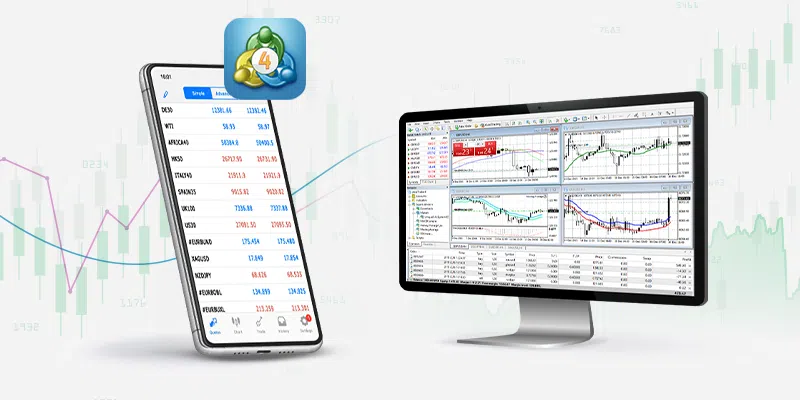
Mobile compatibility adds flexibility. The app mirrors desktop features, so you trade 800+ assets on the go. Eightcap’s regulation by ASIC and SCB backs this reliability, with segregated client funds for peace of mind. Traders report higher win rates here due to these tools, based on user feedback from forums like Forex Factory.
In short, these elements make Eightcap MT4 a solid pick for anyone wanting broad asset access without common broker headaches.
Is Eightcap MT4 Free to Download and Use?
Yes, Eightcap MT4 is free to download and use, with no platform fees, as costs come only from trading spreads and commissions. Specifically, head to the Eightcap site or MetaQuotes, and the installer downloads at zero charge for Windows, Mac, or mobile.
Once installed, you access all features without subscriptions. Demo accounts let you practice indefinitely for free, perfect for testing the 800+ assets. Live trading applies standard spreads, like 0.6 pips average on majors, or commissions on raw accounts from $3.50 per side. No hidden maintenance fees apply.
This model benefits new traders by removing entry barriers. You focus on strategy, not costs. Evidence from Eightcap’s terms confirms perpetual free use post-download, aligning with MT4’s open model. Many brokers charge extras, but Eightcap keeps it straightforward.
How Do I Download Eightcap MT4?
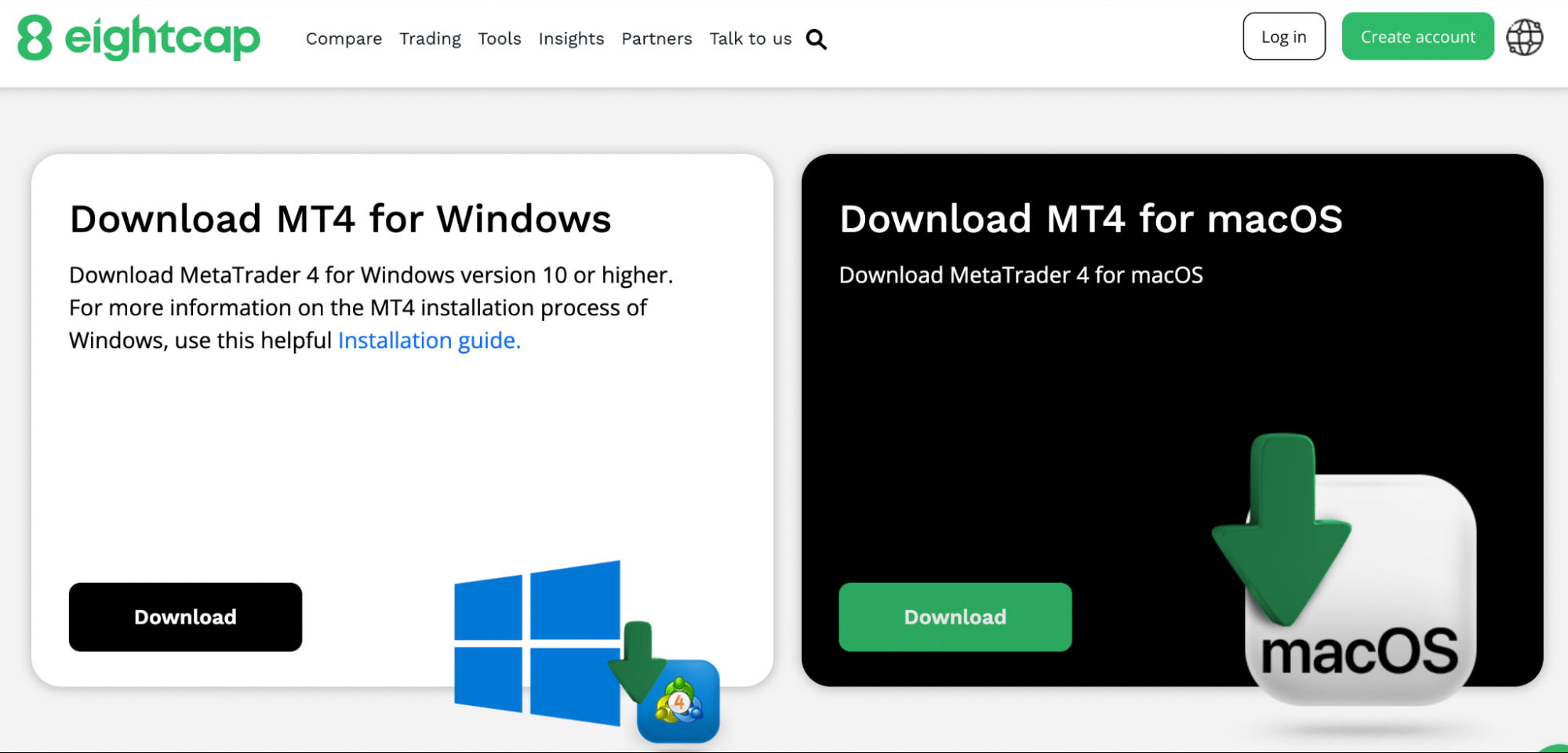
Download Eightcap MT4 in 3 simple steps from the official Eightcap website or MetaQuotes, selecting their server for instant access to 800+ assets. Here’s the breakdown to get you started quickly.
What Are the Download Links for Windows, Mac, and Mobile?
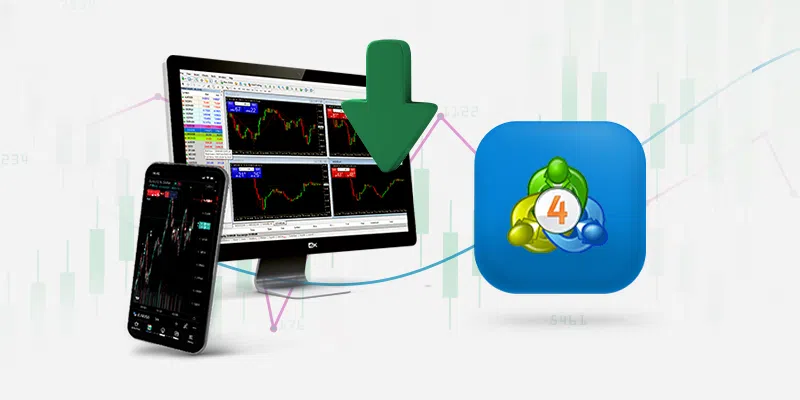
There are three main download options for Eightcap MT4, grouped by operating system and device: desktop for Windows and Mac, plus mobile apps for iOS and Android.
For Windows, grab the .exe file directly from Eightcap’s client portal at eightcap.com under “Platforms” > “MT4”. It’s a 5MB file compatible with Windows 7 or later. This version handles multiple charts and Expert Advisors smoothly.
Mac users download the native .dmg from the same page. It wraps the Windows version via Wine, running natively on macOS 10.12+. Installation takes under 2 minutes, with full desktop features like custom indicators.
Mobile options include the iOS app from the App Store (search “MetaTrader 4”) and Android from Google Play. Both are free, about 20MB, and connect to Eightcap servers post-login. They offer push notifications for 800+ assets and one-tap trading.
Always verify links on Eightcap’s site to avoid fakes. These cover all devices, ensuring you trade anywhere.
To download:
1. Visit eightcap.com/platforms/mt4.
2. Choose your OS or device.
3. Click the link and save the file.
This process works worldwide, no VPN needed.
How Do I Install Eightcap MT4?
Install Eightcap MT4 by running the downloaded installer, choosing the Eightcap server during setup, and verifying connectivity in 4 quick steps for smooth trading. To understand this better, follow these detailed instructions.
What Are the Minimum System Requirements for Installation?
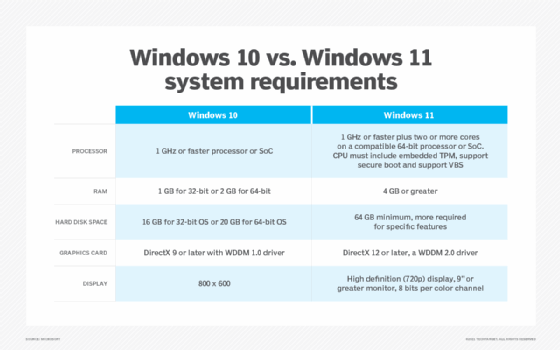
Minimum requirements include Windows 7+ or macOS 10.12+, 4GB RAM, 2GHz CPU, and 200MB storage for reliable Eightcap MT4 performance. Specifically, these specs handle multiple charts and backtesting without lag.
For Windows, you need DirectX 9-compatible graphics for optimal chart rendering. A dual-core CPU like Intel i3 keeps things responsive during scans of 800+ assets. 4GB RAM supports 10+ charts open, common for multi-asset traders.
Mac setups require the same, with Wine handling compatibility. Mobile needs iOS 9.0+ or Android 5.0+, 2GB RAM for fluid execution.
These come from MetaQuotes specs, tested by Eightcap. Lower specs cause crashes, so upgrade if needed. Benefits include fast installs and zero downtime.
Now, the full install:
1. Double-click the downloaded .exe (Windows) or .dmg (Mac).
2. Follow prompts, agree to terms.
3. At “Server” screen, select “Eightcap-Live1” or “Eightcap-Demo1” from the list (full list loads automatically).
4. Finish setup, launch, and check “About” for version confirmation.
Launch takes 10-20 seconds. Test connection by viewing Market Watch. If issues arise, restart or check firewall. You’re ready for login after this.
Customize next: Add templates or EAs via Navigator panel. Eightcap provides pre-loaded indicators for 800+ assets. Run a demo trade to confirm.
How Do I Login to Eightcap MT4?
Login to Eightcap MT4 by launching the platform, entering your Eightcap account number, password, and selecting the correct server in 3 steps for immediate access. Let’s see the exact process.
What Should I Do If I Can’t Login to Eightcap MT4?
If login fails, check server selection, credentials, and internet first, then reset password via Eightcap dashboard for quick resolution. Common issues stem from wrong server, like picking “Eightcap-Live2” instead of “Live1”.
Verify account details from your Eightcap email or client area. Demo accounts use “Eightcap-Demo”, live use “Eightcap-Live”. Passwords are case-sensitive; copy-paste to avoid typos.
No 2FA on MT4 itself, but Eightcap dashboard might require it. Disable VPNs, as they block connections. Update MT4 if outdated.
Steps to fix:
1. File > Login to Trade Account.
2. Enter login (e.g., 1234567), password, server (search “Eightcap”).
3. Click Login; green status confirms.
Journal shows errors like “Invalid account”. Contact Eightcap support 24/5 via live chat for server lists. Most fix in under 5 minutes.
Test with demo first. Once in, save profile under File > Profiles.
Full login routine:
1. Open MT4.
2. File > Login (Ctrl+O).
3. Input: Login (from Eightcap), Password, Server (e.g., Eightcap-Live1).
4. Check “Save account” for future.
Success shows account balance in Navigator. Adjust charts via right-click.
How Do I Trade 800+ Assets Instantly on Eightcap MT4?
Trade 800+ assets instantly on Eightcap MT4 by populating Market Watch, selecting an instrument, and placing market or pending orders in 5 steps for fast execution. In detail, this unlocks forex, indices, and more.
What Types of Orders Can I Place on Eightcap MT4?
There are 4 main order types on Eightcap MT4: Market, Pending (Limit/Stop), Stop Loss, and Take Profit, based on execution timing and price conditions. Classification centers on immediacy versus future triggers.
Market orders execute right away at current price. Buy EUR/USD at ask, sell at bid. Perfect for instant entry on volatile cryptos.
Pending orders wait for conditions: Buy Limit below current price, Sell Limit above, Buy Stop above, Sell Stop below. Use for breakouts on indices like NAS100.
Attach Stop Loss (SL) to limit losses, Take Profit (TP) for gains. Right-click order > Modify sets levels, like 20 pips SL on GBP/JPY.
All support 800+ assets. For example, trail SL dynamically via scripts.
Placing trades:
1. Right-click asset in Market Watch > New Order.
2. Choose Instant or Pending.
3. Set volume (0.01 min), SL/TP.
4. Click Buy/Sell.
Execution under 30ms. Monitor in Terminal tab. Close via right-click > Close Order.
Customize: Symbols > Show All for full 800+. Use one-click trading under Tools > Options.
Practice on demo. Rhetorical question: Ready to hit that buy button on your first asset?
Advanced Tips and Troubleshooting for Eightcap MT4
Eightcap MT4 provides broker-optimized tools for seamless trading, including EA integration and fixes for rare issues like volatility disconnections, setting it apart from standard platforms.
Furthermore, these advanced strategies help traders handle edge cases unique to Eightcap’s high-volume environment.
How Does Eightcap MT4 Compare to MT5?
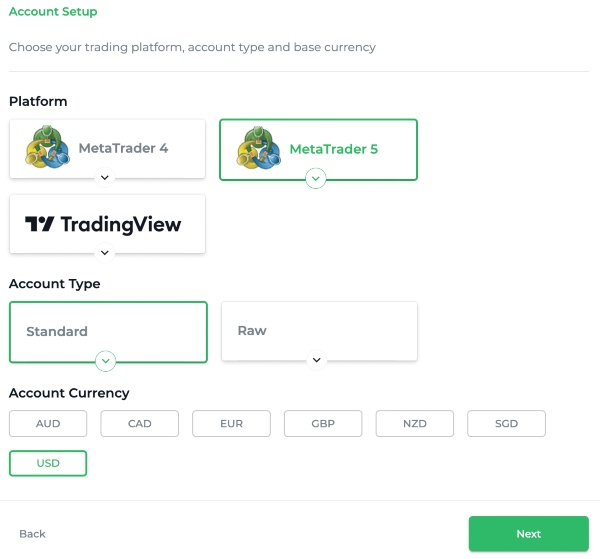
Eightcap supports both MT4 and MT5, but MT4 stands out for its simplicity and speed in executing basic trades, while MT5 adds complexity with more timeframes and built-in economic calendars. On Eightcap, MT4 suits scalpers who prioritize low latency on 800+ assets, as it loads faster during peak hours. MT5, however, appeals to those needing multi-asset depth, like stocks alongside forex, with hedging restrictions lifted on Eightcap accounts.
You’ll notice MT4’s edge in EA compatibility, where most Forex Expert Advisors from stores run without tweaks, unlike MT5’s MQL5 rewrite demands. Eightcap’s MT4 also mirrors demo-to-live transitions perfectly, minimizing slippage surprises. In contrast, MT5’s advanced order types, such as buy stop limits, shine for hedging strategies but overwhelm beginners.
This choice depends on your style. Scalpers and EA users stick with MT4 for its lightweight design. Long-term traders might switch to MT5 for depth.
What sets Eightcap’s MT4 apart is its tighter execution speeds, often under 50ms, compared to MT5’s occasional lags during news events.
- Simplicity wins for quick trades: MT4 has fewer menus, reducing errors in fast markets.
- EA ecosystem favors MT4: Thousands of ready EAs versus MT5’s smaller library.
- Eightcap optimization levels the field: Both platforms get raw spreads, but MT4 handles high-frequency better.
What Unique Features Does Eightcap Offer on MT4 (e.g., Raw Spreads)?
Eightcap’s MT4 shines with Raw ECN accounts delivering spreads from 0.0 pips plus a $7 round-turn commission, ideal for high-volume traders across 800+ instruments like forex majors, indices, commodities, and cryptos. This setup beats standard STP accounts by cutting costs on frequent trades, with no dealing desk interference for transparent pricing.
Another standout is negative balance protection baked into MT4 logins, shielding you from losses beyond deposits during gaps. Eightcap also enables scalping without restrictions, supporting strategies that close trades in seconds, unlike some brokers’ minimum hold times.
Mobile integration syncs perfectly, letting you monitor raw spreads live. For asset diversity, trade gold at 1:500 leverage or Bitcoin CFDs seamlessly.
These features tie into Eightcap’s ASIC regulation, ensuring fund segregation.
Besides raw spreads, watch for commission rebates on high volumes, dropping effective costs further.
- Asset range expands options: Over 800 CFDs, from EUR/USD to Nasdaq 100.
- Leverage flexibility: Up to 1:500 on majors, adjustable per account.
- No requotes policy: Orders fill at market or better, crucial for EAs.
How to Set Up Expert Advisors (EAs) on Eightcap MT4?
Setting up EAs on Eightcap MT4 is straightforward: Download your EA .ex4 file, place it in MT4’s Experts folder via File > Open Data Folder, restart the platform, and drag it onto a chart with AutoTrading enabled. Eightcap’s servers optimize EA performance with low-latency VPS partnerships, perfect for Forex EA store downloads.

First, verify EA compatibility, as most MQL4 scripts run natively. Backtest using Ctrl+R, selecting Eightcap’s historical data for accuracy, then optimize parameters like lot sizes matching your Raw ECN balance.
Enable DLL imports if needed for advanced EAs. Right-click the EA on the chart, select Properties, and set risk parameters. Eightcap allows unlimited EAs per account, but monitor margin to avoid stops.
Test on demo first, as live volatility can differ. Common with Eightcap: EAs excel on raw spreads for grid strategies.
This process unlocks automation for 24/5 trading.
- Step 1: Install safely: Scan files for malware before copying to Experts folder.
- Step 2: Backtest rigorously: Use 99% modeling quality on Eightcap tick data.
- Step 3: Go live gradually: Start with micro lots, scale after 1-2 weeks.
What Are Common Rare Errors and Fixes for Eightcap MT4?
Rare errors on Eightcap MT4 often stem from high volatility, like “Invalid Stops” during news (fix: widen SL/TP or pause EAs), or server disconnections mid-session (reconnect via Rescan Server in Navigator). Mobile sync fails if push notifications overload; toggle them off in Tools > Options > Notifications.
Another issue: “Trade Context Busy” blocks orders during spikes, resolved by closing extra charts or restarting MT4. For EA-specific, “Access Denied” hits on DLL calls, fixed by allowing DLL in EA properties and admin mode launch.
Volatility disconnections tie to Eightcap’s ECN feeds; use a VPS for stability. Update MT4 build regularly via Eightcap’s download page to patch sync bugs.
These fixes keep trading uninterrupted.
Users report fewer issues post-2023 updates.
- Volatility disconnection: Switch to Eightcap’s low-latency server, enable auto-reconnect.
- Mobile sync lag: Clear cache, use Wi-Fi over data for real-time quotes.
- EA halt errors: Check Journal tab logs, adjust MaxTrades parameter.
