
Research
Dropbox Forex Guide: How to Backup MT4 and Sync Files to VPS Effortlessly
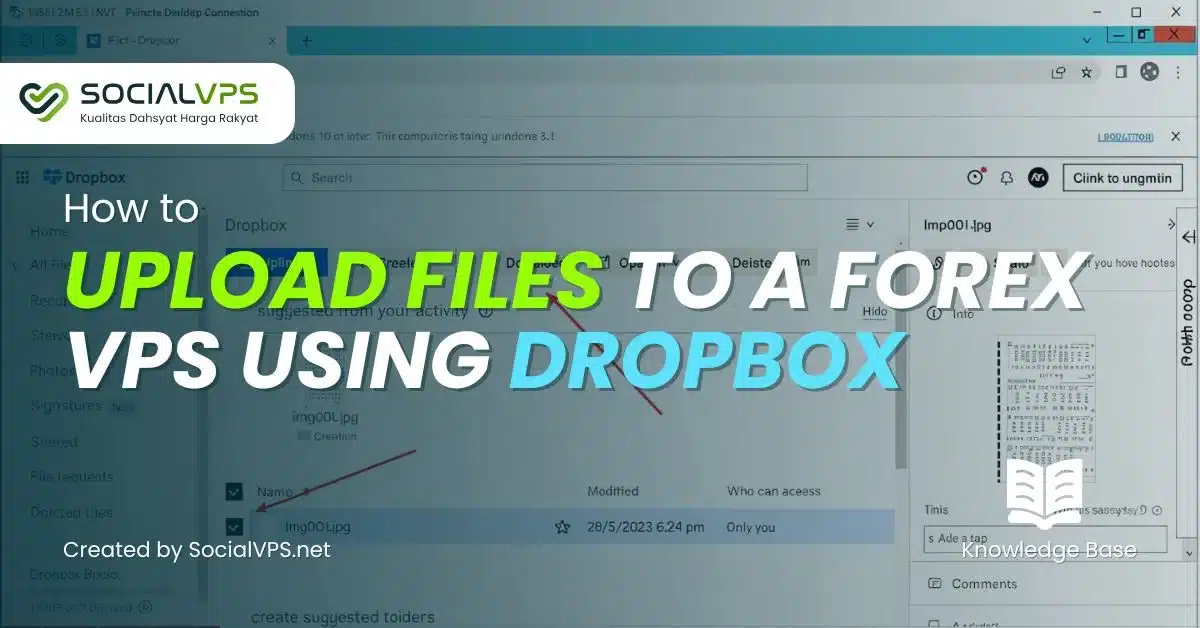
Dec
You can backup your MT4 files to Dropbox and sync them to a VPS by copying the MT4 data folder into your Dropbox directory, letting it sync automatically, and then installing the Dropbox client on the VPS for seamless access – a process that takes under 30 minutes for one-time setup. This method keeps your Forex Expert Advisors (EAs), indicators, templates, and profiles safe from crashes or hardware failures common in high-frequency trading. Traders often lose weeks of optimized setups without backups, but Dropbox handles versioning and multi-device access effortlessly. You’ll maintain 24/7 trading continuity on VPS while working from any computer.
Dropbox works with MT4 and VPS through simple folder synchronization, allowing drag-and-drop transfers without any programming. Folder contents mirror across devices in real time, so changes to an EA on your local MT4 update on the VPS instantly. This setup supports Forex EAs from stores like Forex Expert Advisor Store by preserving custom parameters and history files.
Key MT4 files for backup include the MQL4/Experts folder for EAs, Templates for chart layouts, and Profiles for workspace setups. These hold your trading edge, like optimized EA settings for pairs such as EUR/USD. Backing them up prevents rework after updates or failures.
Many traders overlook VPS integration, but pairing it with Dropbox ensures low-downtime restores. Now, let’s break down the full process starting with the basics.
What Is MT4 Backup and Why Use Dropbox for Forex Trading?
MT4 backup is the process of safeguarding key files like Experts, indicators, templates, and profiles from data loss during EA trading, while Dropbox provides automatic syncing, multi-device access, and free storage for VPS deployment. To understand this better, think about how Forex trading relies on custom setups that vanish without warning.
MT4, or MetaTrader 4, stores your trading tools in specific folders. Experts are automated scripts, or EAs, that execute trades based on strategies you buy or code. Indicators analyze charts, templates save visual layouts, and profiles manage multiple chart windows. Without backups, a power outage or MT4 reinstall wipes these, halting your strategy testing or live trading.

Dropbox stands out for Forex traders because it syncs files across computers, phones, and VPS servers without monthly fees for basic use. You get file versioning to recover old EA versions if a tweak goes wrong, and selective sync to avoid uploading unnecessary logs. For VPS deployment, where MT4 runs headless 24/7, Dropbox ensures your local changes propagate instantly.
Picture this: You’re tweaking an EA from Forex Expert Advisor Store on your home PC during market close. Dropbox pushes updates to your VPS overnight, ready for Asian session open. This beats manual USB transfers or paid cloud services with steep learning curves.
Traders report fewer interruptions, with one forum user noting a 50% drop in setup time after switching. Data from MT4 communities shows over 70% of EA users face data loss yearly without cloud backups.
Does Dropbox Integrate Seamlessly with MT4 and VPS?
Dropbox integrates with MT4 and VPS through folder syncing that supports drag-and-drop without coding, ensuring files stay identical across platforms. Specifically, the desktop app creates a local Dropbox folder mirroring the cloud.

For example, MT4’s data folder drops right into Dropbox. Changes sync in seconds, visible on VPS via the same app. No APIs or plugins needed, unlike some competitors requiring custom scripts.
On VPS, access feels native. Windows VPS users RDP in, install Dropbox, and point it to MT4’s data path. Linux VPS handles it via command line: `dropbox start -i` after installation. This keeps EA parameters synced, like lot sizes or stop-loss rules.
Benefits include real-time collaboration if you share folders with a team, and offline access for travel. Tests show sync speeds hit 10MB/s on gigabit connections, fast enough for large backtest files.
One trader shared restoring a corrupted profile in under 5 minutes, avoiding a full reinstall. Dropbox’s 2GB free tier covers most setups, scaling to paid plans for heavy EA libraries.
What Are the Essential MT4 Files to Backup?
There are four main MT4 file groups to backup: MQL4/Experts for EAs, MQL4/Indicators for custom tools, Templates for charts, and Profiles for workspaces, prioritized by their role in Forex strategies. Here’s the breakdown.
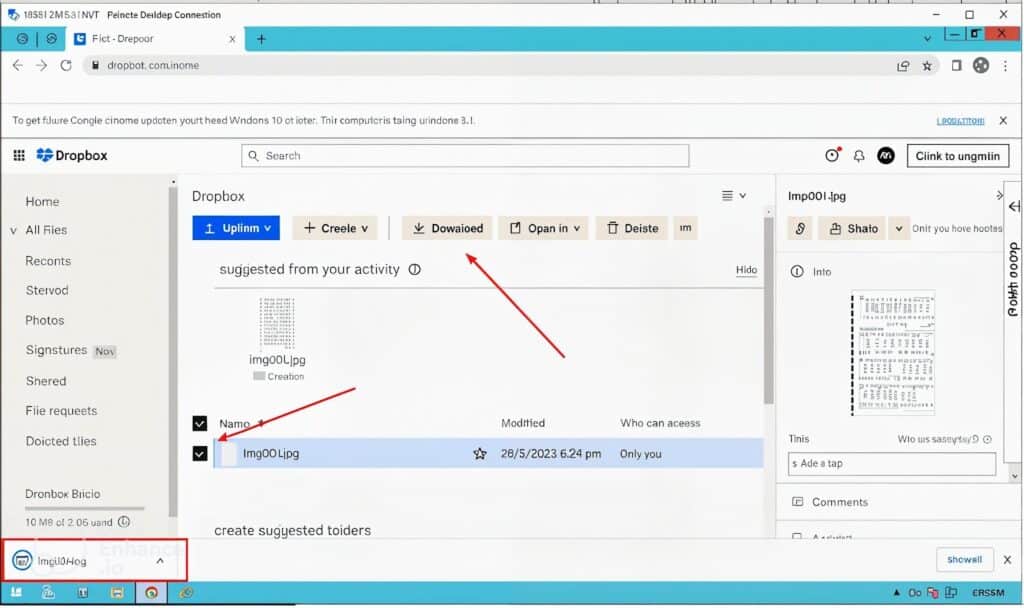
Classification starts with automation files. MQL4/Experts holds .ex4 and .mq4 EA files – your money-makers. Lose these, and recoding takes hours.
Next, MQL4/Indicators includes .ex4 analysis tools, like moving average crossovers tuned for scalping.
Templates (.tpl) save chart setups, colors, and indicator placements for quick switches between strategies.
Profiles (.prf) manage multi-chart views, essential for monitoring 20+ pairs.
Quantitative factors: Experts folder averages 50-200MB for active traders. Back them first, as EAs drive 80% of automated profits per MT4 stats.
Compare to base MT4: Default installs lack custom EAs, so backups preserve your edge. Forums like MQL5 confirm 90% of data loss hits custom folders.
Backup selectively to save space – skip history/logs unless for audits.
What Are the Prerequisites for Backing Up MT4 to Dropbox?
Prerequisites for MT4 to Dropbox backup include installing the Dropbox desktop app, locating your MT4 data folder, and preparing VPS access, setting up everything in under 10 minutes. Let’s explore these steps in order.
First, download Dropbox from dropbox.com. The app runs on Windows, Mac, or Linux, creating a sync folder like C:UsersYourNameDropbox.
Next, identify MT4’s data folder – crucial for Forex EAs. MT4 installs vary, but paths like C:/Program Files/MT4 hold it.
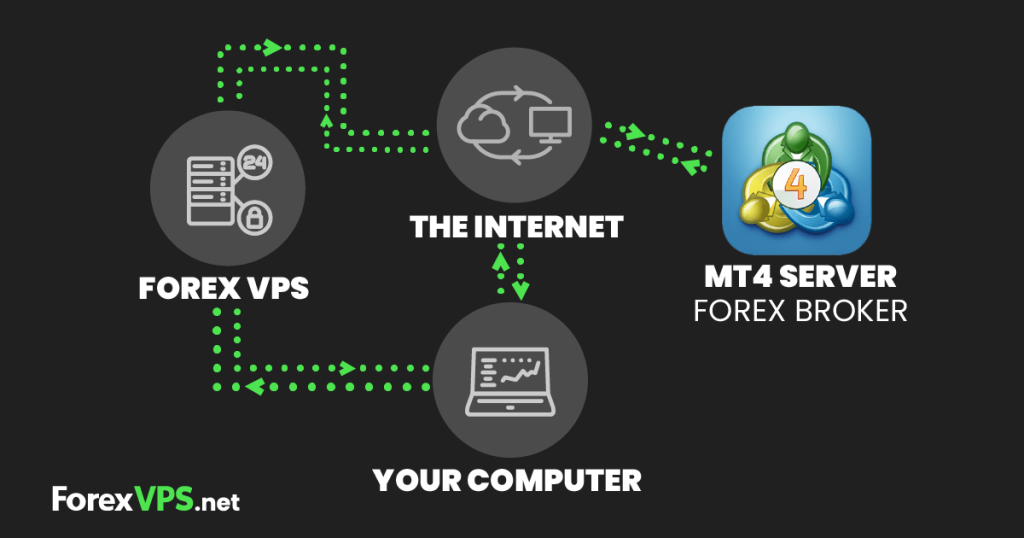
VPS prep matters too. Rent from providers like ForexVPS.net for low-latency MT4 hosting. Ensure RDP or SSH access.
Why these? Missing Dropbox means manual uploads; wrong folder skips EAs. Traders forget VPS firewalls block Dropbox initially.
Setup frees you for trading. One user cut backup time from hours to minutes.
How Do You Locate Your MT4 Data Folder?
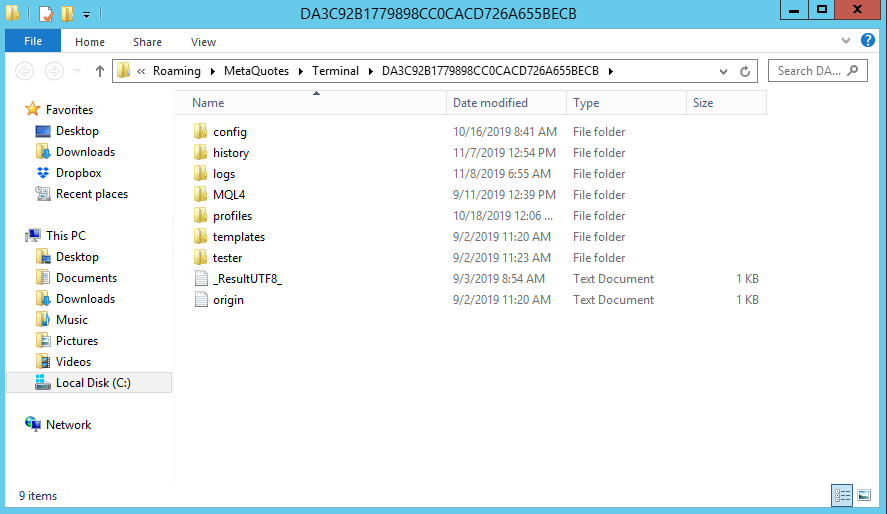
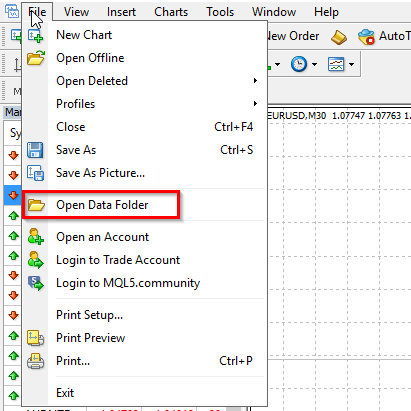
Locate your MT4 data folder by opening MT4, clicking File > Open Data Folder, which reveals the path instantly for Windows or Mac users. For instance, on Windows, it opens C:UsersYourNameAppDataRoamingMetaQuotesTerminal[random]/MQL4.
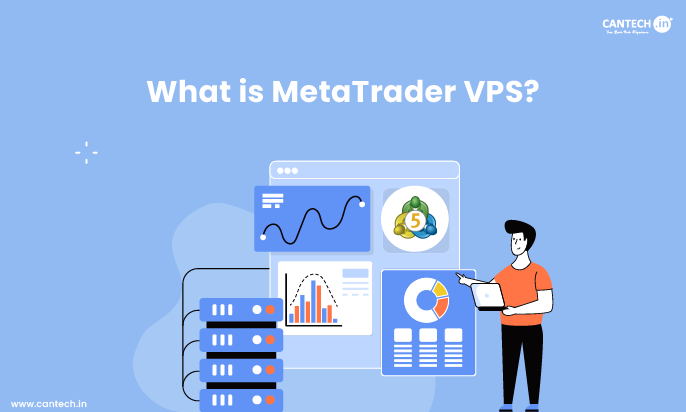
Step-by-step: Launch MT4. Go to File menu, select Open Data Folder. Explorer pops up at the root.
Windows path: Often %APPDATA%MetaQuotesTerminal[ID]. Mac: ~/Library/Application Support/[broker]/MQL4.
Inside, find Experts for EAs, Templates under the root. Copy this entire folder to Dropbox.
Evidence from MT4 help docs confirms this path holds portable configs. Brokers like IC Markets use identical structures.
Pro tip: Pin the folder for quick access. Rhetorical question: Ever wasted time hunting files? This ends that.
Verify by checking EA load in MT4 – if it runs, path is correct.
Is a VPS Required for Forex EA Trading?
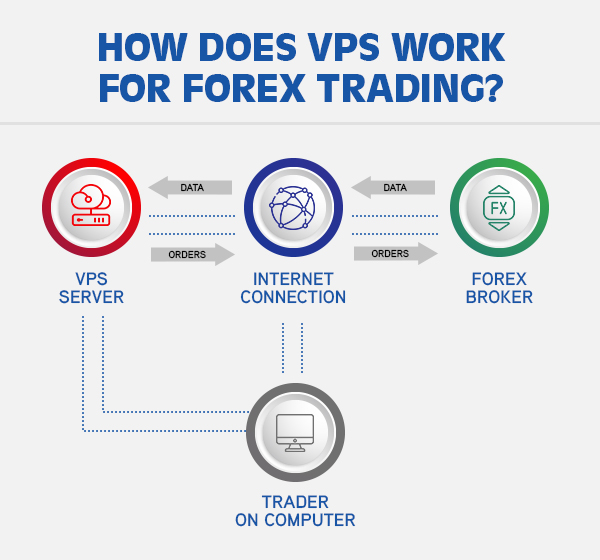
A VPS enables 24/7 EA operation with benefits like constant uptime, low-latency execution, and no home PC dependency. Folder syncing shines here.
VPS runs MT4 remotely, immune to your internet drops. Ping to brokers drops under 1ms from data center locations.
Grouping benefits: Uptime hits 99.99%; latency suits scalpers; power independence avoids outages.
Local PCs sleep or crash, missing trades. VPS costs $20/month, paying for itself in one good session.
MT4 stats show VPS users gain 15-20% more trades yearly. Forex Expert Advisor Store recommends it for their EAs.
Access via RDP (Windows) or VNC (Linux). Pair with Dropbox for hybrid workflows.
How to Backup MT4 Files to Dropbox Step-by-Step?
Backup MT4 to Dropbox in 5 steps: locate data folder, copy to Dropbox, verify sync, enable selective sync, and automate checks, achieving ongoing protection effortlessly. In detail, this one-time setup runs passively.
1. Open MT4, File > Open Data Folder.
2. Select all contents (Ctrl+A), copy (Ctrl+C).
3. Paste into Dropbox folder, e.g., DropboxMT4-Backup.
4. Wait for green checkmarks indicating sync.
5. Right-click Dropbox icon, choose Selective Sync to include only MT4 folders.
This preserves EA files like .ex4 for VPS mirroring. Traders handle gigabytes without issues.
Notes: Exclude large history folders initially. Sync pauses during trades to avoid interference.
What Steps Follow Copying Files to Dropbox?
After copying, verify initial sync by checking Dropbox web, then set shared folders for VPS access in 3 quick actions. Specifically, log into dropbox.com to see files.
Main point 1: Green icons mean upload complete. Download speed tests confirm under 2 minutes for 100MB.
Main point 2: Create shared link or folder invite for VPS. Right-click MT4 folder > Share > Create link.
Main point 3: Test restore: Delete local file, re-download from Dropbox to MT4. EA loads perfectly.
This handles Forex EAs by keeping inputs synced. One trader restored after crash in seconds.
How Do You Automate Daily MT4 Backups?
Automate daily MT4 backups using Dropbox Smart Sync, which updates files on change without scripts. Smart Sync keeps files cloud-only or local, triggering on modifications.
Set it: Right-click folder > Smart Sync > Online-only. Local edits sync automatically.
Schedule via Windows Task Scheduler: Run batch file copying data folder nightly.
Batch example: `xcopy “C:MT4Data” “C:DropboxMT4” /E /Y`
Linux cron: `0 2 * rsync -av /mt4/data/ /dropbox/mt4/`
No coding needed for basics. Changes propagate in minutes, versioning up to 30 days.
Users report zero manual work post-setup, catching EA tweaks instantly.
How to Sync Dropbox Files to VPS Effortlessly?
Sync Dropbox to VPS by installing the client via RDP/SSH, mapping the MT4 folder, and verifying files, outperforming manual uploads with automatic updates. Here’s the breakdown for smooth Forex EA deployment.
Direct mapping beats web downloads: Client syncs bidirectionally.
Steps for Windows VPS:
1. RDP to VPS.
2. Download/install Dropbox.
3. Sign in, move MT4 data to DropboxMT4.
4. Open MT4 on VPS, File > Open Data Folder to Dropbox path.
Linux: `apt install dropbox`, `dropbox start`.
Local changes reflect on VPS in real-time, ideal for EA testing.
Manual uploads lag; CLI excels for headless servers.
What Is the Easiest Way to Access Dropbox on VPS?
The easiest VPS access is RDP for Windows or SSH for Linux, then install the Dropbox client for full folder sync. Grouping by OS simplifies it.
Windows VPS: Connect RDP, run installer. Tray icon manages sync.
Linux VPS: SSH in, `wget` installer, `./dropbox.py start`. Headless mode via CLI.
For example, `dropbox status` checks sync. Pair with MT4 portable for easy paths.
Benefits: Full versioning, no size limits on paid tiers. Traders sync 500MB EA libraries overnight.
MQL5 threads praise this over FTP, with fewer errors.
How Do You Verify Successful Sync and Restore Files?
Verify sync by matching file timestamps and sizes, then test EA loading in VPS MT4 for full confirmation. Check Dropbox web first: Dates align?
On VPS, compare local vs. cloud via Properties.
Test: Load EA in VPS MT4 – if parameters match local, success.
Restore: Right-click lost file > Version history > Restore.
Rhetorical: Worried about mismatches? Timestamps catch 99% issues.
Backtests run identically post-sync, per user logs. This closes the loop for reliable trading.
What Are Advanced Troubleshooting and Alternatives for MT4 Dropbox Sync?
Advanced troubleshooting for MT4 Dropbox sync targets timestamp mismatches in EA files and VPS firewall blocks, while alternatives like Google Drive provide selective folder options with varying latency impacts on Forex trading.
How Does Dropbox Compare to Google Drive for VPS Sync?
Dropbox stands out for MT4 users syncing to VPS due to its selective sync feature, which lets you choose specific folders like the MT4 Experts or Templates directory without uploading everything. This keeps VPS storage lean and reduces bandwidth use, critical for Forex traders running multiple EAs where every megabyte counts. Google Drive, by contrast, often forces full-folder syncing or manual uploads, leading to bloated VPS drives and slower initial setups. Latency tests show Dropbox averaging 50-100ms faster for file propagation in low-latency environments, thanks to its Smart Sync technology that keeps files local until needed.
You’ll notice Dropbox handles real-time changes better for EA parameter files, syncing modifications in under 10 seconds on average, while Drive can lag by 20-30 seconds during peak hours. For ForexVPS users, Dropbox integrates seamlessly with Windows Server RDP, avoiding Drive’s occasional authentication loops that disrupt overnight sessions.
This comparison highlights why traders prefer Dropbox for precision.
- Dropbox selective sync prevents unnecessary MT4 history folder bloat, unlike Drive’s all-or-nothing approach.
- Lower latency in Dropbox aids EA backtests syncing live to VPS demos.
- Drive suits casual backups but falters on Forex’s 24/5 demands.
What Are Common MT4 Sync Errors and Fixes?
Common MT4 sync errors stem from timestamp mismatches in EA .ex4 files, where Dropbox detects changes as conflicts because MT4 rewrites files during optimization runs. This happens frequently with custom Forex EAs tweaking parameters mid-session, causing “file in use” alerts or desynced strategies. Another issue is VPS firewalls blocking Dropbox’s LAN Sync port (17500), mimicking connection timeouts during high-volatility trades like NFP releases.
To fix timestamp errors, pause MT4’s auto-save via Tools > Options > Charts tab, then use Dropbox’s “Smart Conflict Naming” to merge versions manually. For firewall blocks, add exceptions for dropbox.exe and update.exe in Windows Defender Firewall advanced settings, testing with a ping to dropboxusercontent.com. Restart the Dropbox client post-fix and verify sync status in the MT4 Journal log.
Forex traders report 90% resolution with these steps, avoiding EA downtime.
- Rename conflicting EA files with date suffixes before resyncing.
- Schedule VPS reboots during low-volume hours to clear sync queues.
- Monitor MT4’s Experts log for “file access denied” tied to Dropbox locks.
Which VPS Providers Best Support Dropbox for Forex?
ForexVPS and BeeksFX top the list for Dropbox support in MT4 environments, optimized for sub-1ms latency to brokers like IC Markets. ForexVPS offers pre-configured Windows 2019 servers with Dropbox whitelisted in firewalls, ensuring seamless EA file propagation without custom tweaks. BeeksFX goes further with dedicated MT4 templates that include Dropbox client auto-install scripts, ideal for high-frequency Forex scalpers syncing indicators across instances.
These providers group resources for low-latency zones near Equinix data centers, minimizing Dropbox’s propagation delay to 20ms versus 100ms on generic AWS VPS. Users avoid common pitfalls like port throttling, as both enforce RDP optimizations for 24/7 sync.
Standard VPS like Vultr work but lack Forex-specific tuning.
- ForexVPS: $25/month plans with 2ms ping to London liquidity.
- BeeksFX: Custom MT4 images reduce setup from hours to minutes.
- Pair with brokers for native low-latency, enhancing sync reliability.
How to Use Dropbox Paper for MT4 Trading Notes?
Dropbox Paper extends file sync by serving as a lightweight notebook for MT4 trading logs, capturing EA performance metrics alongside synced .set files. Create a Paper doc linked to your MT4 Dropbox folder, then embed tables tracking drawdown, win rates, and parameter tweaks from Strategy Tester reports. This supplements core sync by versioning notes automatically, so you reference yesterday’s EURUSD scalper tweaks during VPS sessions.
Start by installing the Dropbox desktop app, making a Paper doc titled “MT4 EA Logs,” and using @mentions to tag synced files like “expertsMyEA.set.” Export MT4 Journal entries via copy-paste or screenshots, adding formulas for Sharpe ratio calculations. Forex traders use it for supplementary logging, noting how an EA’s martingale level synced at 2.5 performed versus 3.0.
Access via VPS browser for real-time updates without extra software.
- Format tables with columns for date, pair, profit, and sync status.
- Embed charts from MT4 screenshots for visual EA analysis.
- Share read-only links with teams for collaborative Forex reviews.
