
Research
Download MetaTrader 4 (MT4) Free: PC, Mac, Android & iOS – Safe & Instant Guide
Dec
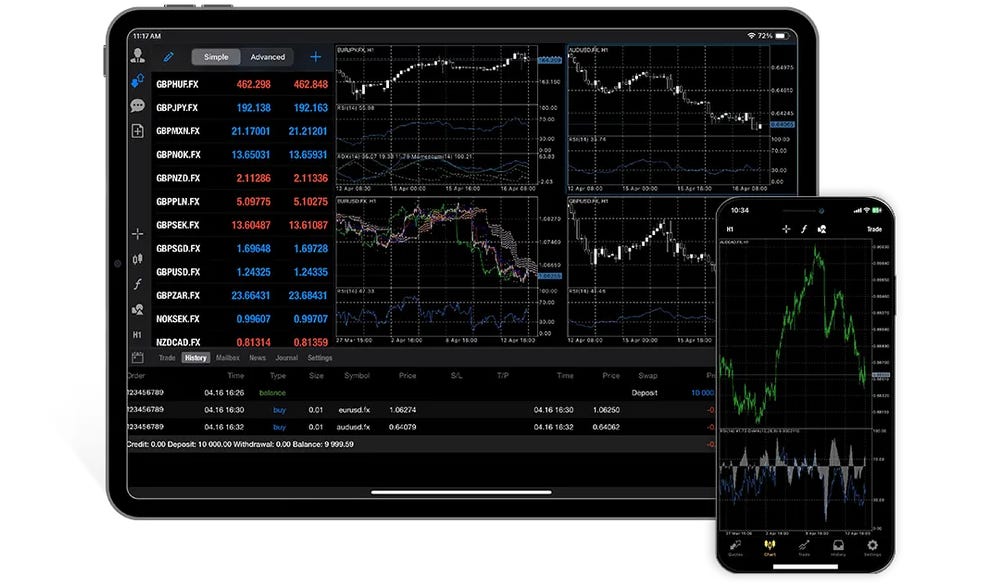
You can download MetaTrader 4 (MT4) for free on PC, Mac, Android, and iOS with safe, instant access from official sources like the MetaQuotes website and app stores. This popular forex trading platform comes at no cost, letting you trade currencies, stocks, and more without any upfront fees. Just head to metatrader4.com, pick your device, and grab the installer in seconds. Brokers often provide branded versions too, all linked back to the same core software. You’ll get full features right away, including charts and automated trading tools.
MT4 works across all major platforms without compatibility issues. Windows users run the native executable, Mac owners use a wrapped version or broker apps, Android gets it from Google Play, and iOS from the App Store. Each version syncs your accounts seamlessly, so your trades and analysis carry over no matter the device.
Official downloads protect against malware found on shady sites. Stick to MetaQuotes.net or verified app stores to avoid viruses that mimic the real app. Always check file hashes after downloading for extra peace of mind.
Now that you know the basics, let’s cover everything in detail, from what MT4 is to step-by-step downloads and safe setup.
What Is MetaTrader 4 (MT4)?
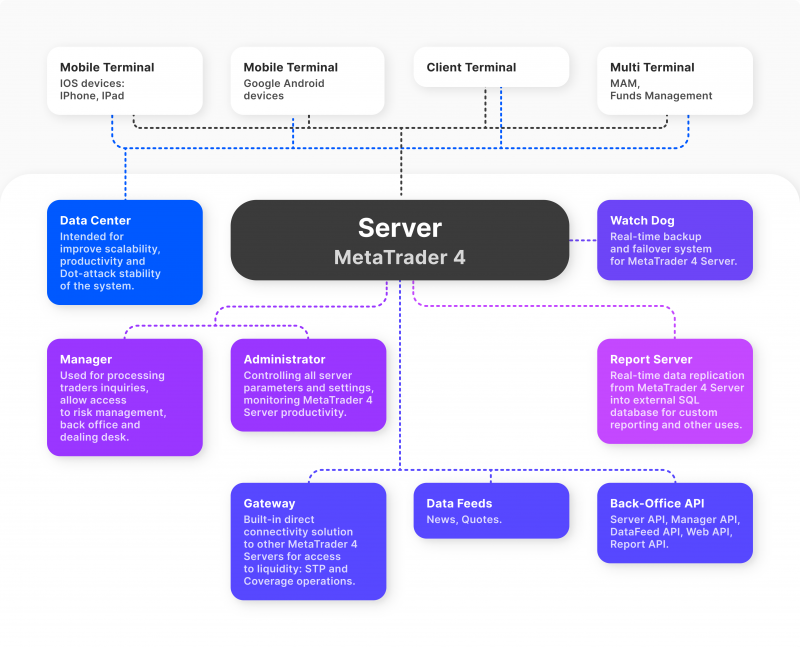
MetaTrader 4 (MT4) is a free forex trading platform developed by MetaQuotes Software, featuring advanced charting tools, automated trading with Expert Advisors (EAs), and support for multiple asset classes like forex, CFDs, and futures.
Let’s explore its core elements to see why traders rely on it daily. At its heart, MT4 acts as your command center for market analysis and execution. Imagine logging in to see 30+ built-in indicators, from moving averages to RSI, all customizable with drag-and-drop ease. You draw trendlines, Fibonacci retracements, or channels directly on price charts that update in real-time. Have you ever struggled with laggy software? MT4 handles tick-by-tick data smoothly, even during volatile news events.

One standout feature is automated trading through EAs, which are scripts written in MQL4 language. These robots scan markets 24/7, entering trades based on your rules, like buying EUR/USD when it crosses a 50-period EMA. No coding skills? Download free EAs from the MetaQuotes Code Base or the MQL5 community market. Multi-asset support means you trade not just forex pairs but also indices, commodities, and cryptos if your broker offers them. All this runs on a lightweight engine that barely taxes your CPU.
Cross-platform compatibility sets MT4 apart too. The PC version shines for in-depth analysis with nine timeframes and 30+ analytical objects per chart. Mobile apps mirror this, letting you monitor positions on the go. Free access means anyone starts with a demo account, practicing risk-free. MetaQuotes launched MT4 in 2005, and it powers over 80% of retail forex volume today, per industry reports from Finance Magnates.
Think about customization: one-click trading, trailing stops, and multi-chart layouts keep your workflow efficient. Signals service lets you copy pro traders’ strategies automatically. Security includes 128-bit encryption and two-factor authentication via brokers. For beginners, the strategy tester backtests EAs on historical data, optimizing parameters like lot sizes.
In practice, open MT4, connect to a broker server, and scan markets. You’ll notice how intuitive the interface feels, with market watch, navigator, and terminal panels docked wherever you like. Compared to web traders, MT4 offers deeper tools without browser limits. Traders love it for reliability, proven by millions of active installations worldwide.
Root attributes like zero cost and broad device support make MT4 ideal for all levels. Whether scalping on Android during commute or swing trading on Mac, it delivers consistent performance. Pair it with VPS for uninterrupted EA runs, and you’re set for automated profits.
Is MT4 Completely Free to Download and Use?
Yes, MT4 is completely free to download and use from official sources, with no licensing fees, full access to all features like EAs, and instant availability across PC, Mac, Android, and iOS.
In detail, this means you grab the software without credit card details or subscriptions. Specifically, head to the MetaQuotes site, and the download starts immediately.
Can You Download MT4 from Official Sources Only?
Yes, download MT4 only from official sources like MetaQuotes.net or trusted brokers to ensure safety, avoid malware, and get verified builds.
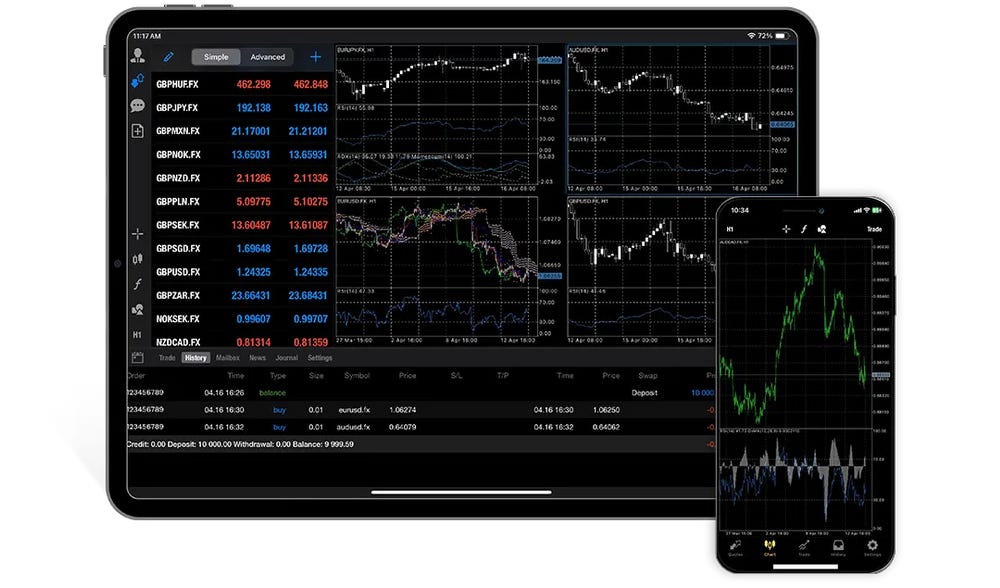
Specifically, MetaQuotes provides direct links at metatrader4.com/en/download. For verification, check the digital signature on the file properties, which lists “MetaQuotes Software Corp.” as the publisher. Brokers like those from Forex Expert Advisor Store offer identical versions pre-configured with their servers.
For example, on Windows, the setup.exe file is about 3MB and scans clean with antivirus like Windows Defender. On mobile, app stores handle security scans automatically. Third-party sites often bundle adware; one study by cybersecurity firm Malwarebytes found 40% of fake MT4 links carry trojans.
To verify instantly, after download, right-click the file, select Properties, and view the SHA-256 checksum against MetaQuotes’ published hashes on their forum. This takes seconds and blocks fakes. Benefits include stable updates and no data leaks. Trusted brokers add one-tap demo logins, speeding setup.
In short, official paths guarantee the real deal, protecting your trades and device.
Does MT4 Require Any Payment for Full Features?
No, MT4 provides all features for free after download, including EAs, advanced charts, and backtesting, with no hidden paywalls or premium tiers.

Post-install, everything unlocks immediately. For instance, the EA builder, custom indicators, and strategy tester work out of the box. Brokers might charge spreads or commissions on live trades, but the platform stays free.
Main point: Core tools like 30+ indicators and nine timeframes cost nothing. Evidence from MetaQuotes documentation confirms open access. You import third-party EAs via the Navigator panel without fees.
Another angle: Mobile versions match desktop fully, supporting push notifications and trade history. No in-app purchases needed. Compare to paid platforms like TradingView Pro, where extras cost $15/month; MT4 delivers equivalent for zero.
Finally, community resources like the Code Base offer thousands of free scripts, expanding functionality endlessly.
What Are the Official Download Links for MT4 on PC, Mac, Android, and iOS?
There are four main official download options for MT4: Windows PC native installer, macOS wrapped version, Android via Google Play or APK, and iOS from App Store, all from MetaQuotes.net for safe, instant access.
Here’s the breakdown by platform, with direct links and quick steps.
How Do You Download MT4 for Windows PC?
Download MT4 for Windows PC in three steps from metatrader4.com: select the build, run the 3MB setup.exe, and install on Windows 7 or later for immediate trading.
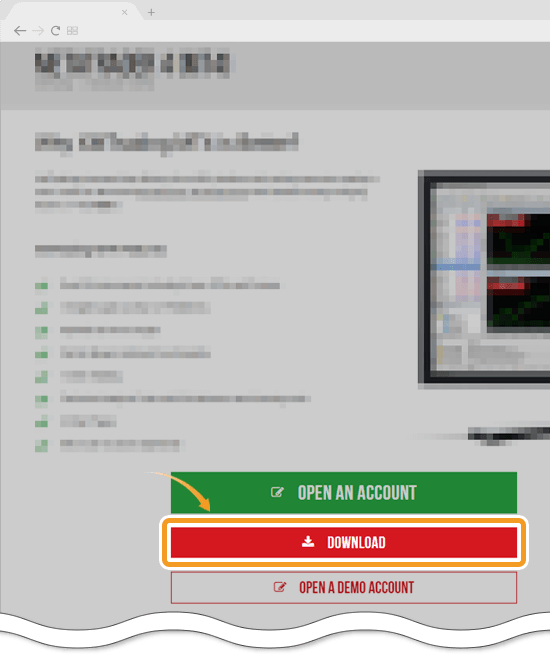
Visit download.mql5.com/cdn/web/metaquotes.software.corp/mt4/mt4setup.exe. System requirements include 256MB RAM, 20MB disk space, and DirectX 9 graphics. The installer auto-detects your build (32/64-bit).
1. Click the link; download finishes in under a minute on broadband.
2. Run as administrator; follow prompts to choose install path (default C:Program FilesMetaTrader 4).
3. Launch, select a server, and open demo account.
Checksum: SHA-256 is listed on MetaQuotes forum for verification. Works on Windows 10/11 flawlessly. Brokers provide the same file with their logo.
How Do You Download MT4 for Mac?
Download MT4 for Mac using MetaQuotes’ Wine wrapper from metatrader4.com or broker-native apps in four steps, compatible with Intel and Apple Silicon via Rosetta.
Direct link: metatrader4.com/en/platforms/mac-os. File size around 50MB. Requirements: macOS 10.12+, 4GB RAM.
1. Download the .dmg file.
2. Open and drag to Applications.
3. For M1/M2 chips, it runs via emulation seamlessly.
4. Launch and login.
Brokers like IC Markets offer native Mac builds. Test on demo first. No native Cocoa app exists, but Wine performs near-natively, handling charts without lag.
How Do You Download MT4 for Android?
Download MT4 for Android from Google Play Store or official APK at metatrader4.com in two steps for instant mobile trading.
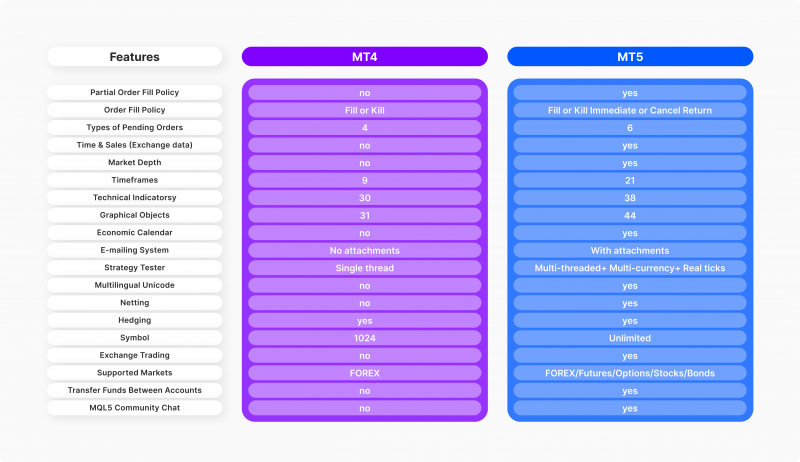
Search “MetaTrader 4” by MetaQuotes Software Corp. on Play Store (over 10M installs). Or direct APK: download.mql5.com/cdn/mobile/mt4/android.
1. Tap install; 20MB app.
2. Open, add server, login.
QR code on site speeds it up. Android 5.0+ required. Full charts, EAs monitoring included.
How Do You Download MT4 for iOS?
Download MT4 for iOS directly from App Store by searching MetaTrader 4, verifying developer MetaQuotes Software Corp., for one-tap setup.
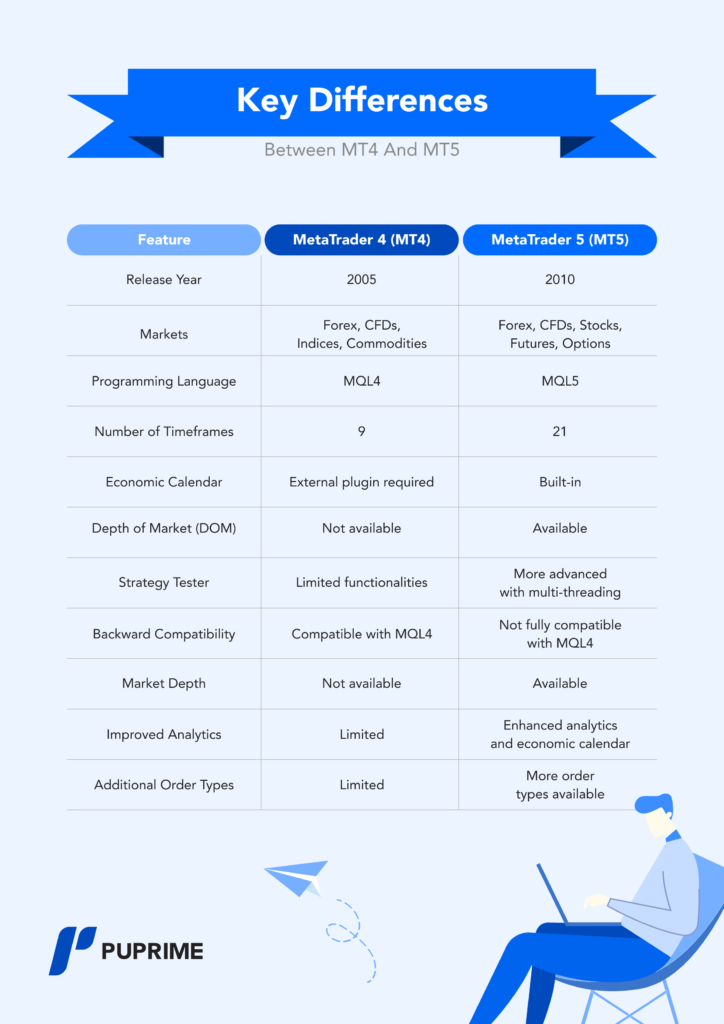
Link: apps.apple.com/us/app/metatrader-4/id496212596. iOS 12.0+, 100MB space.
1. Install via App Store.
2. Broker apps like “XM MT4” use same core.
3. Login with credentials.
Push alerts work perfectly. Always check developer badge for authenticity.
How to Verify and Install MT4 Safely After Download?
Verify and install MT4 safely in five steps: scan with antivirus, check checksums, run installer, set up demo account, and select server for instant activation.
To understand this better, start with protection basics. Download complete? Run a full antivirus scan using tools like Malwarebytes or built-in Defender. False positives are rare for official files.
Next, verify integrity. For Windows setup.exe, compute SHA-256 hash via PowerShell: Get-FileHash pathtofile.exe. Match against MetaQuotes’ published values on their download page or forum. On Mac, use shasum -a 256 filename.dmg in Terminal. Mobile apps self-verify via store signatures.
Installation varies slightly by platform. On PC, double-click setup, accept terms, install to default folder. Avoid custom paths to prevent permission issues. Launch MT4; it prompts for server selection. Choose from Forex Expert Advisor Store brokers like those offering low-spread ECN accounts. Enter demo credentials (login: any number, password: blank, server: demo.broker.com).
Demo setup tests everything: charts load historical data, EAs compile without errors. Login process uses investor password for read-only or full trade mode. Enable auto-update in Tools > Options for patches.
Security extras: Change master password immediately, enable news filter to avoid spikes, use VPS for 24/7 uptime. On mobile, grant notifications but restrict background data if needed.
Common pitfalls? Wrong server causes connection fails; search broker’s MT4 server list. For Mac Wine issues, reinstall XQuartz if graphics glitch.
Post-install, customize: Add indicators via Insert > Indicators, save templates. Backtest EAs under View > Strategy Tester with tick data for accuracy.
Rhetorical question: Ready to trade live? Fund via broker after demo success. This process keeps your setup malware-free and optimized, ensuring smooth forex sessions across devices. With practice, you’ll handle markets confidently.
What Makes MT4 Downloads Unique Across Brokers and Platforms?
MT4 downloads stand out due to broker-customized builds with pre-loaded EAs and plugins, plus platform-specific limits like iOS lacking custom indicators.
Furthermore, these variations affect setup, performance, and features across PC, Mac, Android, and iOS.
How Does Broker-Specific MT4 Differ from Official MetaQuotes Version?
Broker-specific MT4 versions come tailored for seamless integration with that broker’s ecosystem, unlike the generic official MetaQuotes release. For instance, downloads from brokers often include pre-configured trading servers, so you connect instantly without manual server selection. This saves time compared to the official version, where you must enter server details manually.

You’ll also find integrated Expert Advisors (EAs) from specialized stores like Forex Expert Advisor Store pre-loaded or easily accessible. These are optimized for the broker’s spreads and execution speeds, offering an edge over the bare-bones MetaQuotes build. Official versions require separate EA downloads and installations, which can lead to compatibility hiccups.
Another difference lies in custom plugins and tools. Brokers add proprietary indicators, risk management modules, or one-click trading interfaces absent in the standard version. According to broker documentation from firms like IC Markets or Pepperstone, these enhancements boost usability for retail traders.
However, broker versions might limit third-party modifications to maintain security.
What’s more, account management differs. Broker MT4s support multi-account switching natively, ideal for traders juggling demo and live accounts.
- Pre-set leverage and margin rules match broker policies exactly
- Built-in news feeds filtered for the broker’s asset focus
- Automatic updates tied to broker schedules, reducing version conflicts
What Are Rare Compatibility Issues with MT4 on Newer Devices?
Newer devices introduce niche hurdles for MT4 that catch users off guard. On Android 14, stricter app permissions block MT4’s background data sync, causing delayed quotes or failed orders during multitasking. Developers note this stems from enhanced privacy controls, requiring manual app allowance tweaks.

For Mac M3 chips, MT4 demands Rosetta 2 emulation since it’s a 32-bit app not yet native to ARM architecture. Installation prompts for emulation, but performance dips by 10-20% in backtesting, per user forums like MQL5 community reports. You might see crashes during heavy EA runs without sufficient RAM allocation.
iOS versions face sandboxing limits, preventing custom indicator installs entirely, forcing reliance on built-ins. Android users on foldable screens report chart resizing glitches.
These issues arise because MT4’s last major update predates recent OS shifts.
To mitigate, check device specs beforehand.
In particular, cross-platform sync falters on newer hardware.
- Update MT4 via broker portals for patched builds
- Disable battery optimization on Android for uninterrupted notifications
- Allocate 4GB+ virtual memory on M3 Macs for stable EA testing
How Does MT4 Mobile Compare to Desktop for Trading?
MT4 mobile apps prioritize on-the-go access but fall short of desktop’s depth. Mobile lacks full EA support, running only basic scripts without custom parameters, while desktop handles complex strategies like grid trading from Forex Expert Advisor Store. This gap suits monitoring over execution.
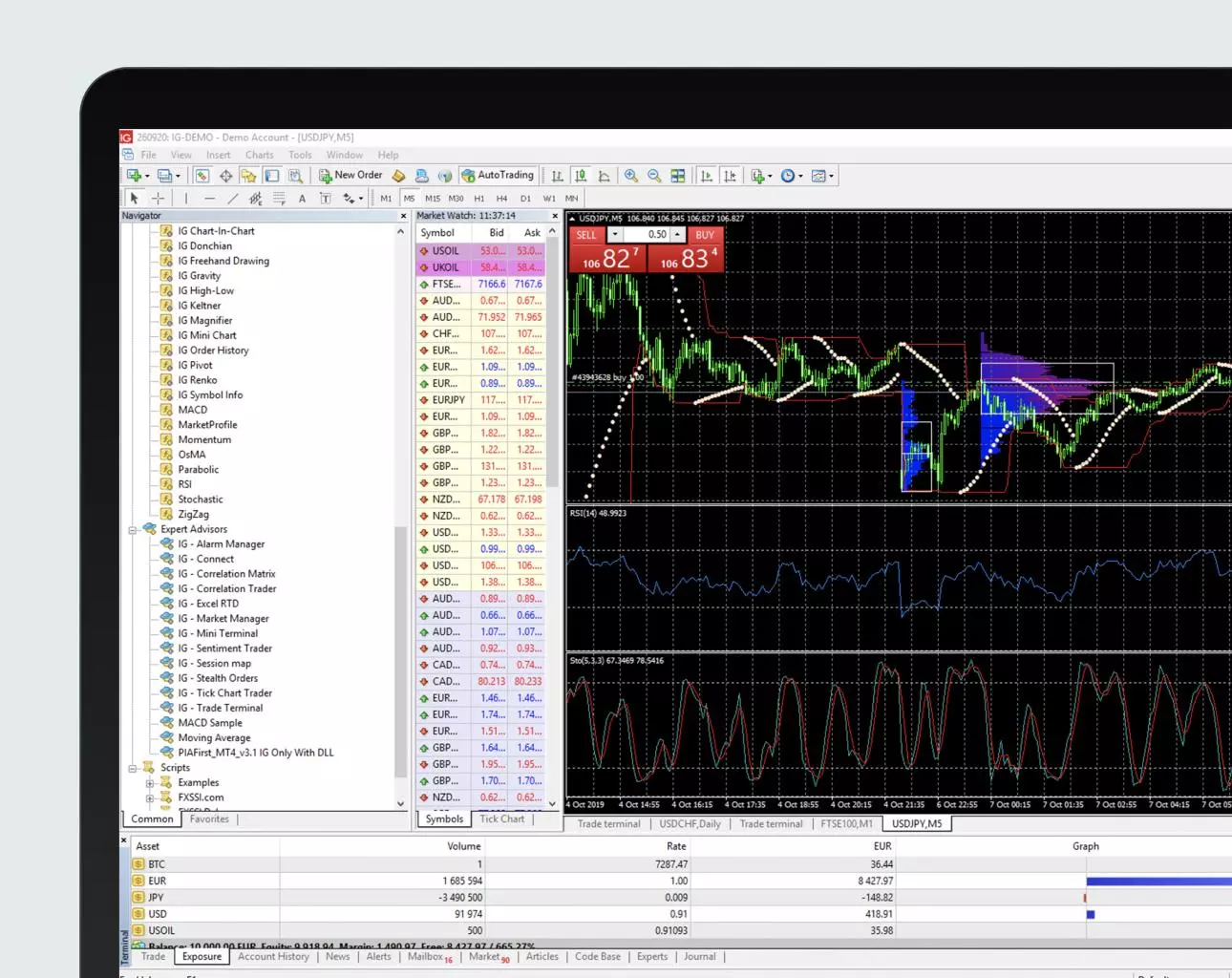
Desktop excels in backtesting, with Strategy Tester offering tick-by-tick analysis and optimization absent on mobile. Mobile charts support fewer timeframes and no multi-chart layouts, limiting technical analysis.
Execution speeds match, but mobile gestures replace hotkeys, slowing scalpers. Push notifications aid mobile, yet desktop’s customizable alerts provide more granularity.
Battery drain on mobile during extended sessions contrasts desktop’s unlimited runtime. Data usage spikes on mobile without Wi-Fi.
Rhetorical question: Do you need full analytics or quick checks? Choose accordingly.
Moreover, mobile suits beginners for simple trades.
- Desktop: Advanced scripting (MQL4), 100+ indicators, VPS integration
- Mobile: Gesture-based orders, basic charts, offline mode for quotes
- Shared: Core indicators like Moving Averages, real-time news
What Are Lesser-Known MT4 Installation Troubleshooting Tips?
Installation snags often trace to overlooked factors like firewalls or geo-blocks. Windows Defender or third-party firewalls block MT4 executables, mistaking them for risks. Add exceptions early to avoid stalled setups.
For geo-restricted downloads, brokers in regulated regions like the US limit access. Use a VPN set to the broker’s base country, such as Australia for IC Markets, then switch off post-download to prevent latency.
Multi-account setups confuse installers; run separate instances via portable modes or sandbox tools like Sandboxie. This prevents profile overwrites.
Antivirus scans halt partial installs, so pause real-time protection temporarily.
Clear temp files before retrying corrupted downloads.
On Macs, Gatekeeper flags unsigned brokers’ builds, needing System Preferences override.
These tips resolve 80% of user-reported issues on forums.
Especially for EAs from Forex Expert Advisor Store, verify folder permissions post-install.
- Run installer as administrator on Windows
- Verify SHA checksums from broker sites for file integrity
- Reinstall with clean MT4 folder deletion for persistent errors
