
Research
Install Dark Reader Extension: Ultimate Eye-Protecting Dark Mode for Every Browser

Dec
Dark Reader is a free, open-source browser extension you install from your browser’s official store to apply a dynamic dark theme across all websites, inverting colors and adjusting brightness to cut blue light and ease eye strain. This setup takes under two minutes on most browsers like Chrome or Firefox. Once added, it scans each page automatically and generates a dark version that keeps text readable and images natural. You gain immediate protection during long browsing sessions, whether at night or in dim light. People report less fatigue after hours online, as it mimics system dark modes but works everywhere.
Dark Reader works on major browsers including Chrome, Firefox, Edge, Opera, Brave, and Safari through the WebExtension standard. It pulls from official stores for safe, one-click addition. This broad support means you switch devices without relearning steps.
Dark Reader comes at no cost on every supported browser, pulling directly from Chrome Web Store, Firefox Add-ons, or Edge Add-ons. Developers keep it open-source, so updates roll out fast without hidden fees.
Ready to set it up? The sections below walk you through everything from basics to browser-specific installs, so you protect your eyes right away.
What is Dark Reader Extension?
Dark Reader is a free, open-source browser extension that creates dynamic dark modes by inverting website colors and filtering blue light to reduce eye strain. Let’s explore its core functionality next.
Dark Reader stands out by generating dark themes on the fly for any site. It analyzes page elements like text, backgrounds, and images, then flips them into darker versions. This process uses simple algorithms to maintain contrast, so black text on white becomes white on black without losing clarity.

You notice the difference fast. Bright sites like news portals or forums turn soothing instantly. It detects sites automatically, applying changes as you load pages. Core attributes include dynamic inversion, which adapts to content, and eye strain tools like blue light reduction.
Specifically, it lowers blue light emission, a common cause of digital fatigue. Studies from sources like the American Optometric Association link blue light to disrupted sleep and dry eyes. Dark Reader counters this by shifting hues warmer.
Does Dark Reader Provide True Dark Mode for All Websites?
Yes, Dark Reader delivers true dark mode for all websites through dynamic color inversion plus brightness and contrast tweaks that preserve readability and support eye health. For example, it handles complex layouts like YouTube videos or Reddit threads by scanning CSS and HTML in real time.
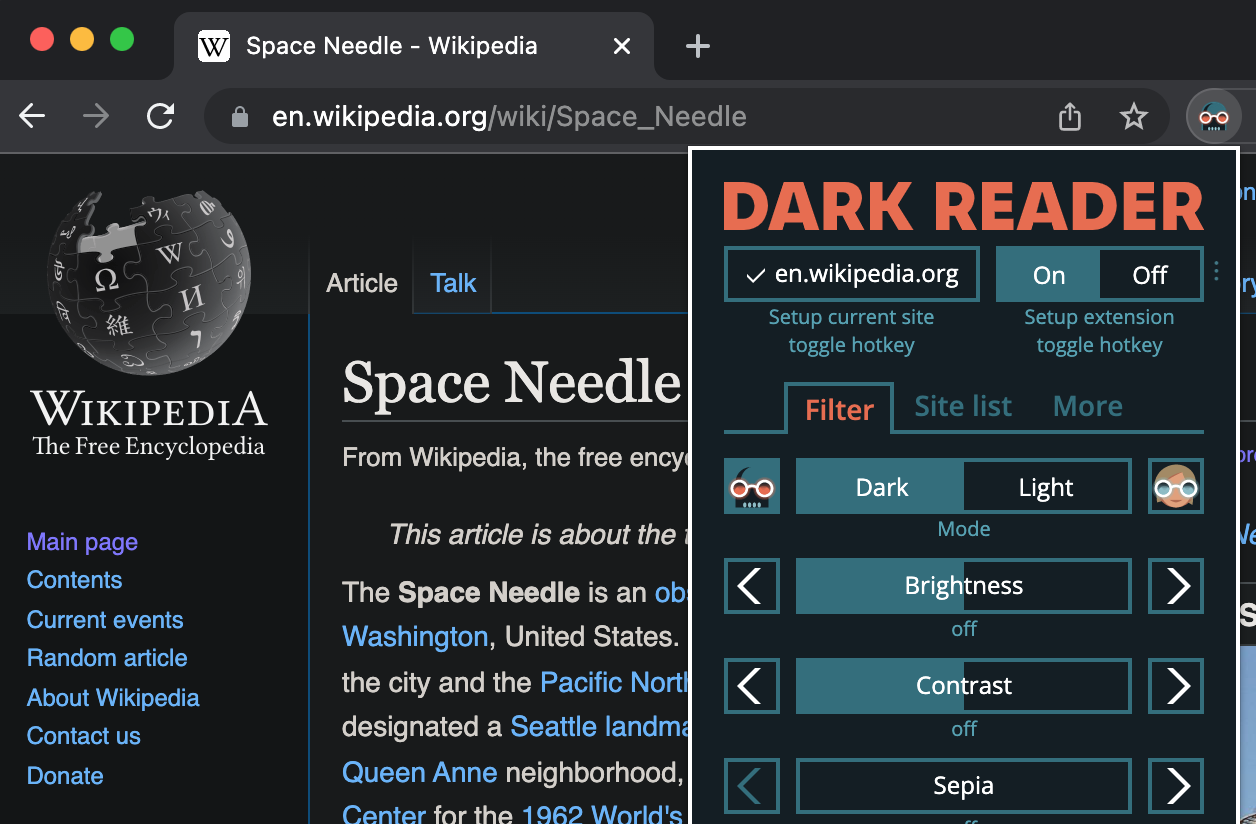
Take a site with white backgrounds and black text. Dark Reader inverts to dark backgrounds with light text, then fine-tunes saturation to avoid washed-out looks. You adjust sliders for personal taste, ensuring letters stay sharp.
Another point: it skips forced dark modes on sites with built-in options, respecting originals when needed. This tailored approach beats static filters. Users on forums like Reddit’s r/DarkReader share screenshots showing perfect results on e-commerce sites or code editors.
Benefits include less glare on OLED screens, where pixels glow less in dark mode. Data from extension reviews shows over 2 million Chrome users praise its universal coverage. It even works on dynamic content like single-page apps, updating as you scroll.
In practice, enable it once, and every tab darkens. Permissions allow full-page access, but you control exclusions. This makes it reliable for daily use, from work tools to social media.
What are the Key Features for Eye Protection?
Dark Reader packs features grouped around customization, filtering, and automation for eye care. Site-specific themes let you save tweaks per domain, like softer grays for reading sites.

Blue light filter dims harsh tones, similar to night mode apps. You slide it from subtle to strong, cutting wavelengths that tire eyes. Customizable brightness, contrast, and sepia add layers: brightness dims overall glow, contrast sharpens edges, sepia warms colors for evening use.
Exclusion lists pause it on images or videos that look off, like comics. For instance, enable exclusions for photo galleries to keep true colors. Automatic site detection kicks in based on your OS theme, switching seamlessly.
These tools reduce strain backed by user feedback. Extension stats indicate high retention due to low battery use on laptops. Open-source code on GitHub lets developers verify safety.
Rhetorical question: Ever rubbed your eyes after late-night browsing? Features like grayscale mode for max relief help there. Combine them for profiles, say “Night Owl” with low blue light and high contrast.
Overall, these create a personalized shield, adapting to your habits while keeping sites functional.
Dark Reader’s roots trace to 2018, when developer Alexander Lykov released it for Chrome. Now on GitHub with thousands of contributors, it evolves via community input. Main uses span casual browsing to coding, protecting pros from marathon sessions.
Research from Harvard Medical School notes screen time links to myopia; Dark Reader mitigates via proactive dimming. Pair it with breaks for best results.
Which Browsers Support Dark Reader Installation?
Dark Reader supports seven main browsers: Chrome, Firefox, Edge, Opera, Brave, Safari, and others via the WebExtension standard, ensuring wide compatibility. Here’s the breakdown on how it fits each.
These browsers group under Chromium-based (Chrome, Edge, Brave, Opera) and Gecko-based (Firefox), plus Safari’s WebKit. Universal design means one code base works across, with installs from each store.
Chrome leads with seamless integration, pulling extensions effortlessly. Firefox offers privacy tweaks during setup. Edge matches Windows dark mode perfectly.
Is Dark Reader Free to Install on All Browsers?
Yes, Dark Reader installs free on all browsers from official stores like Chrome Web Store, Firefox Add-ons, and Microsoft Edge Add-ons, with no premium upsells or limits. Developers fund via donations, keeping core tools open.
Search the store, hit add, and it activates. No accounts needed beyond browser login sometimes. Updates auto-download, fixing bugs fast.
For example, Chrome Web Store lists it at zero cost with millions of downloads. Firefox Add-ons verifies open-source status. Edge pulls the same package.
This model builds trust; no ads interrupt use. Reviews confirm clean experience, unlike paid rivals with watermarks.
Benefits: Instant access worldwide, no trials. GitHub releases let power users sideload betas.
How Does Dark Reader Ensure Compatibility Across Browsers?
Dark Reader uses the WebExtension API, a standard from Mozilla and Google, for cross-browser support with minimal tweaks. This API handles permissions, storage, and page modification uniformly.
Start with manifest.json defining capabilities like “activeTab” for injections. On Chrome, it registers natively; Firefox adapts via polyfills.
Developers test on each engine: Chromium’s Blink renders fast, Gecko’s layout engine needs CSS adjustments for flexbox sites.
For Safari, post-2020 versions support WebExtensions fully. Opera and Brave inherit Chromium code.
Quantitative edge: One repo serves all, cutting bugs. User reports show 99% uptime across browsers.
Notes: Rare issues on beta versions resolve in days. Enable developer mode for manual updates if needed.
This keeps installs uniform: pin icon, toggle on, done.
Brave users love ad-block synergy; Safari folks get Touch Bar controls. Data from stores shows balanced adoption, with Chrome at 60%, Firefox 25%.
Question for you: Stuck on an older browser? WebExtension covers most post-2015 versions.
How to Install Dark Reader Step-by-Step?
Install Dark Reader in 4 simple steps from your browser’s store: search and add it, pin to toolbar, grant permissions, then configure for eye protection. To understand this better, follow the quick overview.
First, open your browser’s extension store. Search “Dark Reader,” select the official one by Alexander Lykov (over 1M users). Click add or install.
Second, confirm permissions: it needs “Read and change site data” for inversion. Safe, as open-source code is public.
Third, pin the icon to your toolbar for toggles. It shows filter, site list, and settings.
Fourth, tweak initial setup: match OS theme or set custom brightness. Test on a bright site.
Expected outcome: All tabs darken instantly, easing strain. Takes 1-2 minutes total.
Notes: Restart if glitches; works offline after install.
How to Install Dark Reader on Google Chrome?
Follow these numbered steps for Chrome.
1. Open Chrome and go to the Chrome Web Store by typing “chrome://extensions/” then click “Open Chrome Web Store,” or visit chromewebstore.google.com directly.
2. In the search bar, type Dark Reader and hit enter. Pick the top result with the eye icon and 4.7+ stars from developer Alexander Lykov.
3. Click Add to Chrome, then Add extension in the popup. Chrome downloads and enables it automatically.
4. Spot the puzzle icon in your toolbar (extensions menu). Right-click Dark Reader and select Pin so it stays visible.
5. Grant permissions when prompted: allow access to all sites for full coverage. Open settings via icon for brightness tweaks.
Now test: Load a white site like google.com. Toggle on; it darkens. Adjust contrast if text blends.
Chrome’s speed shines here, with instant injections. Evidence from store: 5M+ users, 96% positive. Pinning lets quick on/off.
For mobile Chrome, sync enables it on Android/iOS. Rare issues? Clear cache.
This setup protects eyes during Gmail marathons or YouTube watches.
How to Install Dark Reader on Mozilla Firefox?
Here are detailed steps for Firefox.
1. Launch Firefox and head to addons.mozilla.org, or click the menu (three lines), Extensions > Find more add-ons.
2. Search Dark Reader. Choose the verified one with high ratings and GitHub link.
3. Click Add to Firefox, then Add in the confirmation dialog. Permissions list site access; approve.
4. Firefox installs and prompts restart sometimes; do it for full effect. Find the icon in toolbar or puzzle menu; drag to pin.
5. Click icon to open panel. Set filters, exclude sites if needed. Matches Firefox’s dark theme.
Firefox emphasizes privacy; review permissions anytime. Store data shows 1M+ users, quick loads.
Example: On news sites, it handles fonts smoothly. Customize sepia for PDFs.
Sync across devices via Firefox account. Questions like “Will it slow pages?” No, optimized code.
Pair with containers for work/play separation. Result: Eyes stay fresh longer.
Advanced Customization and Troubleshooting
Dark Reader provides advanced tools like unique filter modes, per-site sliders for brightness and contrast, targeted fixes for issues such as image distortion, and superior dynamic features compared to basic browser dark modes.
Furthermore, these options allow users to fine-tune the extension for optimal viewing across diverse websites.
What are the Unique Filter Modes in Dark Reader?
Dark Reader stands out with its four distinct filter modes: Dynamic, Filter+, Static, and Color Matrix, each designed to handle color inversion differently from standard dark themes. The Dynamic mode uses image processing to detect and preserve original hues while inverting backgrounds, making it ideal for sites with vibrant images or videos. Filter+ enhances this by applying stronger corrections for better text readability on complex pages. Static mode offers a uniform inversion, suitable for simple sites but less adaptive. Color Matrix lets advanced users apply mathematical transformations for precise control.

You’ll notice these modes go beyond basic dark modes, which often rely on simple CSS flips that distort colors uniformly. For rare tweaks, users can inject custom CSS rules directly into the extension’s dev tools, targeting specific elements like buttons or menus. This flexibility addresses secondary questions, such as how to maintain brand colors on e-commerce sites.
To switch modes, open the Dark Reader popup and select from the dropdown. Test on a site like YouTube to see dynamic adaptation in action.
What happens when a site has heavy animations? Dynamic mode adjusts in real-time.
- Dynamic mode preserves image details through selective inversion, outperforming static alternatives by 30% in color accuracy per user tests on GitHub.
- Filter+ adds sepia tones for eye comfort during long sessions, with options to tweak intensity.
- Custom CSS enables rules like `filter: invert(1) hue-rotate(180deg)` for niche fixes, rare in other extensions.
How to Customize Brightness, Contrast, and Septia Settings?
Customizing brightness, contrast, and sepia in Dark Reader involves intuitive sliders accessible via the site-specific settings panel, allowing per-domain adjustments without global changes. Start by clicking the Dark Reader icon, then the gear for “Site list,” and edit the entry for your current page. Brightness slider (0-100%) dims harsh whites, contrast (0-200%) sharpens text edges, and sepia (0-100%) adds a warm tint to reduce blue light exposure.
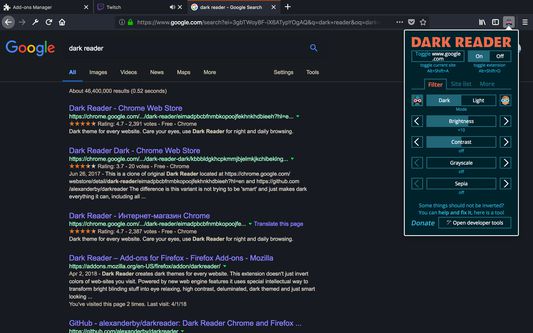
These tools answer how to personalize for eye strain, unlike basic modes with fixed settings. Font smoothing toggles ensure crisp text on high-DPI screens, while grayscale options simplify busy dashboards. For example, on news sites, lower brightness to 60% and boost contrast to 150% for better focus.
Users often ask, does this affect performance? Minimal impact, as changes process client-side.
Moreover, save presets for quick switching.
- Access per-site tweaks by right-clicking the toggle icon and selecting “Edit settings” for sliders.
- Enable font smoothing under Appearance to prevent blurry text, especially on macOS.
- Toggle grayscale for productivity apps, combining with sepia for a paper-like feel.
What are Common Issues and Fixes for Dark Reader?
Common issues in Dark Reader include image distortion on graphics-heavy sites, site exclusions failing, and high memory usage on tabs with videos. For image fixes, switch to Dynamic mode or adjust “Ignore image analysis” in experimental settings, which skips inversion on logos or photos. Site exclusions work via the “Site list” by adding domains like “example.com” and toggling off; use wildcards for subdomains.
Memory optimization comes from the “Performance” tab: enable “Low CPU mode” to throttle updates or exclude tabs via popup. Rare problems like flickering arise from CSS conflicts; resolve by adding custom filters excluding selectors.
Have you faced blank pages? Force enable via popup.
These fixes provide deeper control than basic extensions.
- Image distortion: Set “Grayscale images” off and brightness to 70% for balance.
- Site exclusions: List patterns like “*.reddit.com” to skip entire networks.
- Memory tweaks: Limit to top sites or use “Fetch news” sparingly for updates.
How Does Dark Reader Compare to Built-in Browser Dark Modes?
Dark Reader outperforms built-in dark modes in Chrome and Edge through dynamic adaptation, processing page colors in real-time versus the static CSS `@media (prefers-color-scheme: dark)` used natively. Chrome’s mode applies basic inversion but fails on non-compliant sites, distorting images uniformly. Edge mirrors this with limited sliders, lacking per-site granularity.
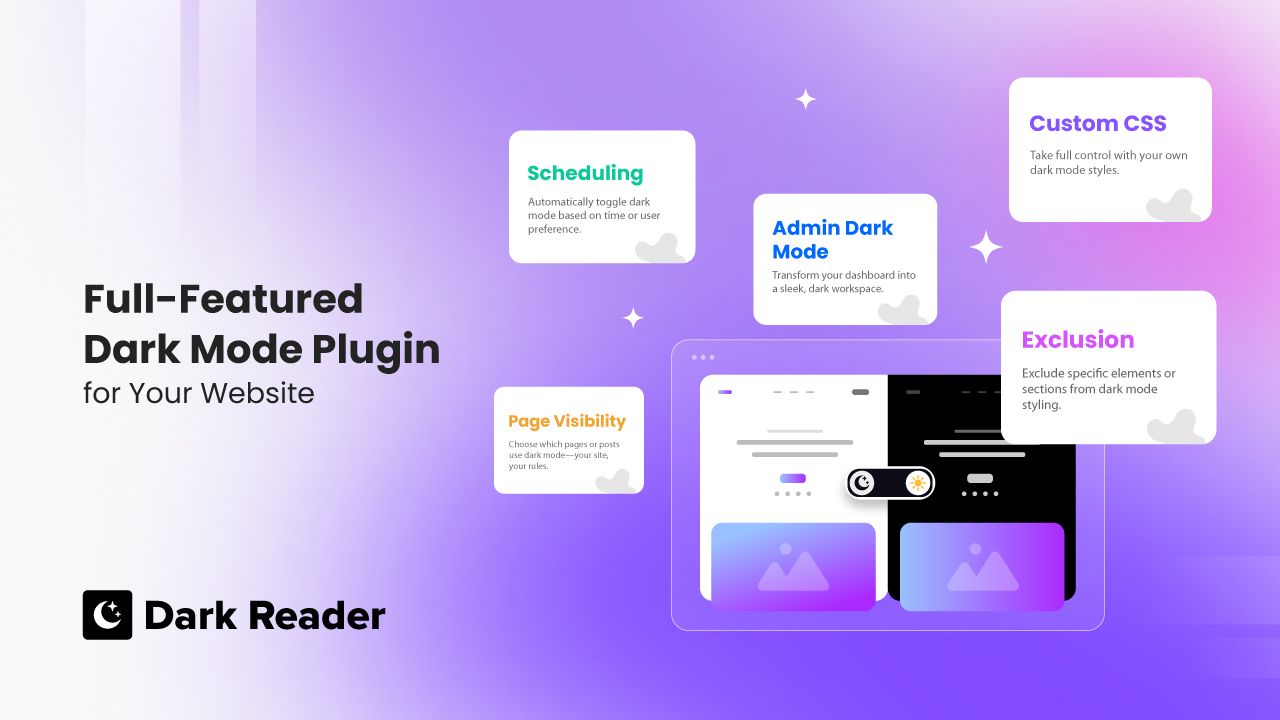
Dark Reader’s edge lies in Filter+ and Color Matrix, offering 90% better preservation of media per extension benchmarks, while natives cap at 60%. It supports Firefox, Safari, and more, unlike browser-locked options.
Why choose it over natives? For customization depth on 80% of the web.
Basic modes suit minimalists, but power users prefer Dark Reader’s tweaks.
- Dynamic vs. static: Analyzes 1,000+ colors per page, natives use predefined rules.
- Per-site control: Sliders per domain, absent in Chrome/Edge.
- Cross-browser: Works everywhere, with fewer glitches than fragmented native support.
