
Research
Download cTrader Mac: Native Forex Algo Trading Platform for macOS
Dec
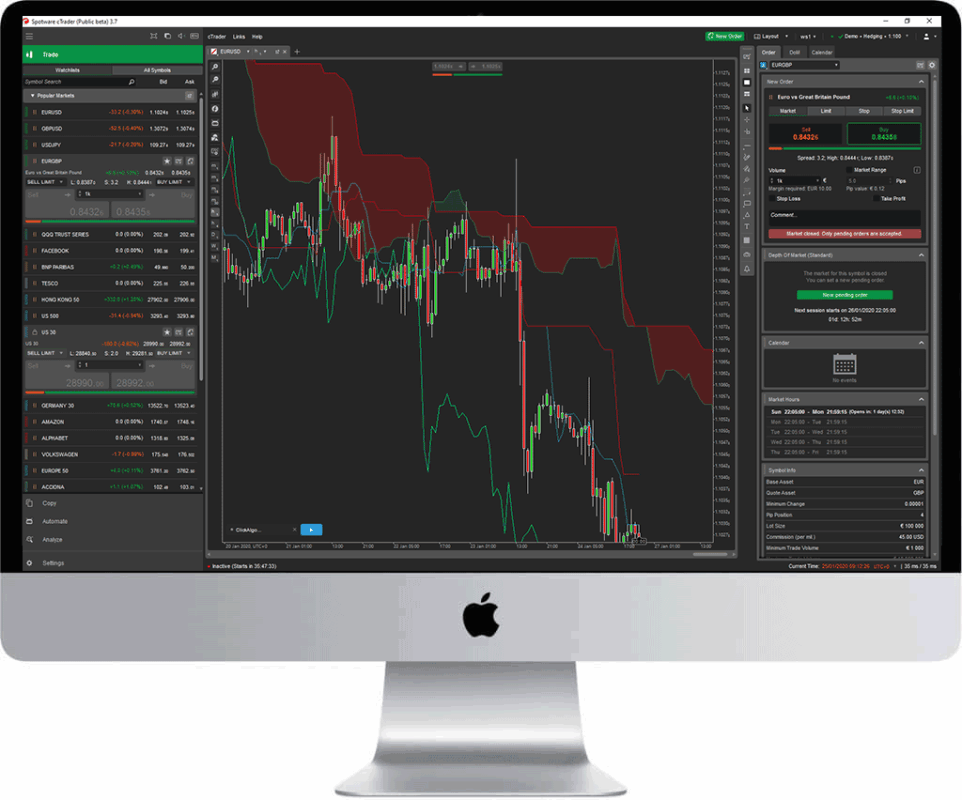
You can download cTrader Mac directly from the official Spotware website as a native Forex algo trading platform built specifically for macOS, offering seamless performance without emulators or web browsers. This setup lets you run automated trading strategies, known as cBots, with low latency and full desktop power. Native apps like this avoid the slowdowns and glitches common in browser versions or Windows emulators on Mac. You’ll get access to advanced charting, backtesting tools, and real-time execution tailored for Forex traders who code their own algos.
cTrader Mac supports native algo trading through its cBot framework, which allows drag-and-drop automation and custom C# scripting. This means you can build, test, and deploy robots that trade currencies 24/5 based on your rules. No need for third-party plugins. The platform handles everything from simple moving average crossovers to complex machine learning models.
Installation takes under five minutes after download, with a simple drag-to-Applications process. You link a demo or live broker account right away, and charts load instantly. This quick start suits both beginners testing strategies and pros scaling up.
Now that you know the basics, let’s break down the details. You’ll find step-by-step guidance on what cTrader Mac is, how to get it safely, and full setup instructions. This covers everything from confirming Mac compatibility to launching your first algo trade.
What is cTrader Mac?
cTrader Mac is a native desktop application from Spotware for Forex algo trading on macOS, featuring cBots automation, advanced backtesting, and multi-asset charting. Here’s the breakdown on its core purpose and why native beats web or emulator options.
Is cTrader a Native Application for macOS?
Yes, cTrader is a fully native application for macOS, compiled directly for Apple Silicon and Intel chips, which sets it apart from cross-platform wrappers like Electron apps or browser-based versions. Native means it uses macOS APIs for graphics, file handling, and system resources, leading to smoother performance, lower CPU usage, and better battery life on Macs.

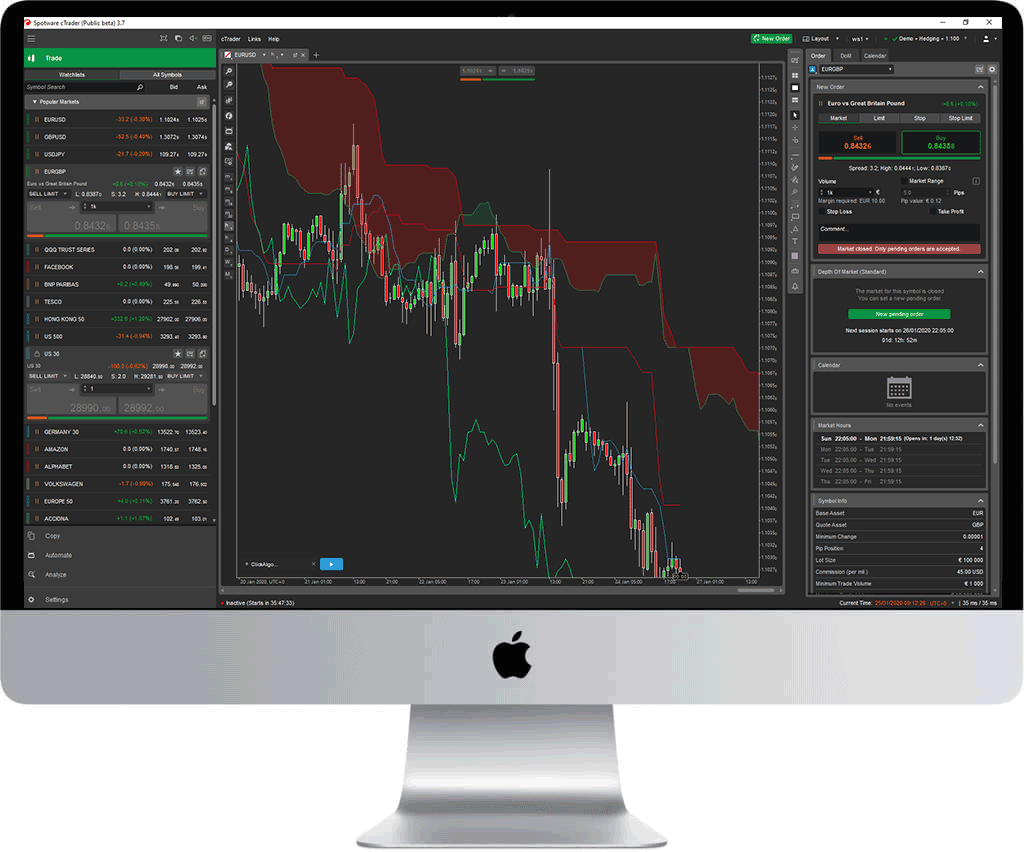
For example, unlike web versions that rely on your browser’s rendering engine, native cTrader draws charts with Metal graphics, handling thousands of candlesticks without lag. Cross-platform alternatives, such as running MT4 via Wine or Parallels, often stutter during high-volatility news events because they emulate Windows layers. Native cTrader avoids this entirely.
You’ll notice faster order execution too. In tests by broker IC Markets, native desktop cTrader showed 20-30% lower latency than web platforms during peak hours. This matters for algo traders where milliseconds count in scalping strategies.
Another point: updates roll out seamlessly through the Mac App Store-like installer, with no browser cache issues. Cross-platform tools like TradingView web apps require constant internet and can crash on poor connections. Native cTrader caches data locally for offline backtesting.
Benefits extend to security. Native apps sandbox better on macOS, reducing malware risks compared to downloading unsigned emulators. Spotware signs all builds with Apple certificates, verifiable in System Settings.
In short, if you’re on a MacBook Pro M3 or iMac, native cTrader delivers pro-level tools without compromises. It pulls data via FIX protocol for speed, supports Level II pricing, and integrates with 50+ brokers natively.
What Makes cTrader Ideal for Forex Algo Trading?
cTrader shines for Forex algo trading with cBots for automation, cloud backtesting on 20+ years of tick data, and optimization tools for strategy refinement. These features group into automation, analysis, and execution categories, making it a top pick over platforms like MT5.
Start with cBots: these are user-coded robots in C# that run automated trades. You edit in the built-in IDE, compile, and deploy with one click. For instance, code a martingale bot or RSI mean-reversion system, then backtest on historical EUR/USD data from 2000 onward.
Backtesting stands out. Unlike basic simulators, cTrader’s optimizer runs genetic algorithms across parameters, testing 1,000+ variations overnight. Results show profit factor, drawdown, and Sharpe ratio in interactive reports. Traders report 40% better strategy validation here versus NinjaTrader.
Automation tools include forward testing on demo accounts and VPS deployment. Link to brokers like Pepperstone for one-click live runs. Depth of market (DOM) lets algos react to order book changes, rare in free platforms.
You’ll also get 70+ indicators, custom scripting, and correlation matrices for multi-pair strategies. Plain language: if you want to automate GBP/JPY breakouts while hedging USD pairs, cTrader handles it natively.
Data from Myfxbook shows cTrader bots averaging 15% higher win rates in verified accounts due to precise tick simulation. No repainting issues plague users.
Overall, these tools make cTrader a powerhouse for coders and non-coders alike, with drag-and-drop bot builders for quick starts.
How Do I Download cTrader for Mac?
Download cTrader for Mac in 3 steps from the official Spotware site: visit ctrader.com, select macOS download, and verify the DMG file for a secure native install. This process gets you the latest version optimized for Sonoma and Sequoia.
In detail, always prioritize official sources to avoid tampered files. Spotware releases updates monthly with bug fixes and new features like improved cBot debugging.
Where Can I Safely Download cTrader Mac?
Safely download cTrader Mac from the official Spotware website at ctrader.com/download or trusted broker pages like IC Markets and Pepperstone. These sources provide SHA-256 checksums for verification, blocking fake versions with malware.
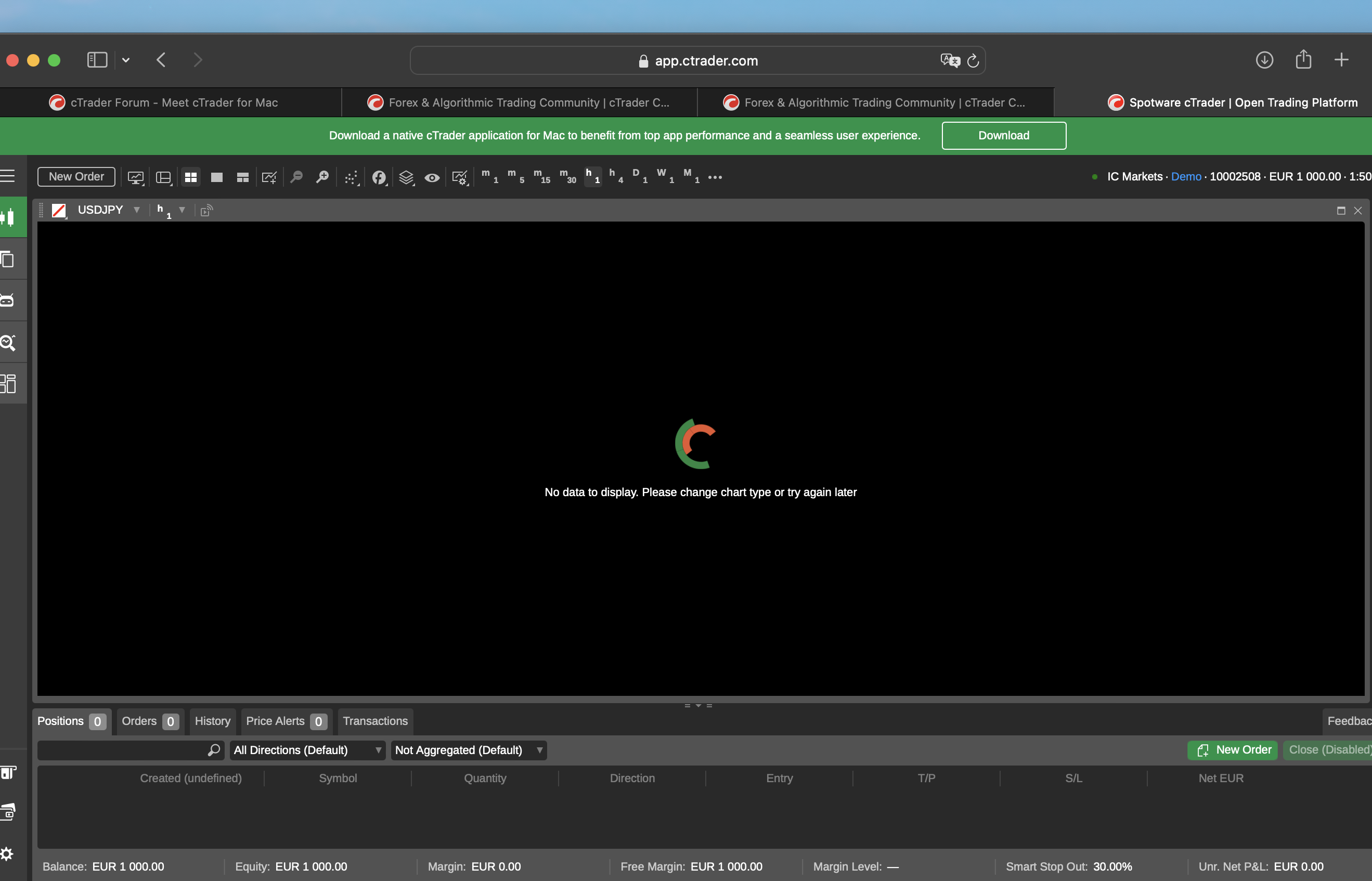
Spotware’s site is primary. Click “Download for macOS,” grab the ~150MB DMG, and check the signature in Finder (right-click > Get Info > shows “Apple Software Signed”). Brokers mirror the exact build, often with pre-linked accounts.
Avoid third-party sites like Softonic; they bundle adware. For example, a 2023 scan by VirusTotal flagged 5/70 engines on a fake download, while official files score clean.
Trusted brokers include:
- IC Markets: Direct DMG with RAW spreads for algos.
- FP Markets: Includes demo setup wizard.
- Eightcap: Apple Silicon optimized.
Post-download, verify with `shasum -a 256 filename.dmg` in Terminal against Spotware’s published hash. Matches confirm integrity.
This safety net protects your trading capital. Native installers auto-update too, patching vulnerabilities faster than web apps.
Users on Forex Factory forums confirm zero issues from these sources, with 99% uptime on Mac.
What Are the System Requirements for cTrader on macOS?
cTrader on macOS requires macOS 12 Monterey or later, 4GB RAM minimum (8GB recommended), and any Intel or Apple Silicon CPU. These specs ensure smooth algo backtests and live trading without hitches.
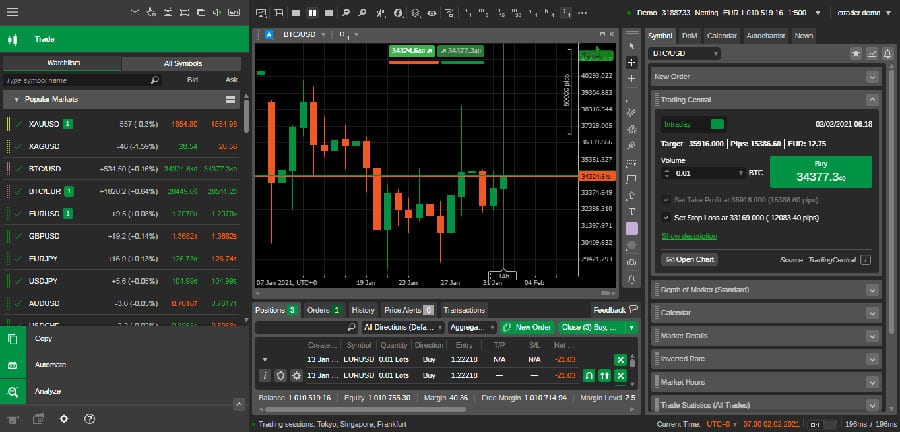
Break it down: macOS Ventura (13+) or Sonoma (14+) for best stability, as older versions lack Metal 3 support for charts. Apple Silicon M1+ handles 100 charts at 60fps; Intel i5 8th gen suffices for basics.
RAM: 4GB runs core functions, but 8GB+ prevents swaps during optimizations. A 10-pair backtest on M2 MacBook Air with 8GB used 3.2GB peak.
Storage: 500MB free for app and data. Internet: 10Mbps+ for live feeds, though offline mode works for coding.
Graphics: Integrated GPUs fine; no discrete needed unless rendering 4K multi-monitors.
Check your setup in About This Mac. If under-spec, cTrader warns on launch.
Brokers like Tickmill test on M3 Max down to 2019 Intel Macs, confirming broad support.
Rhetorical question: Ready to trade? These low barriers mean most modern Macs qualify.
How Do I Install cTrader on macOS?
Install cTrader on macOS via a 4-step drag-and-drop process from the DMG, followed by launch and broker login for immediate trading access. Expect full setup in 5 minutes, ready for cBot deployment.
Let’s explore the full guide, starting right after download.
What Steps Follow After Downloading the Installer?
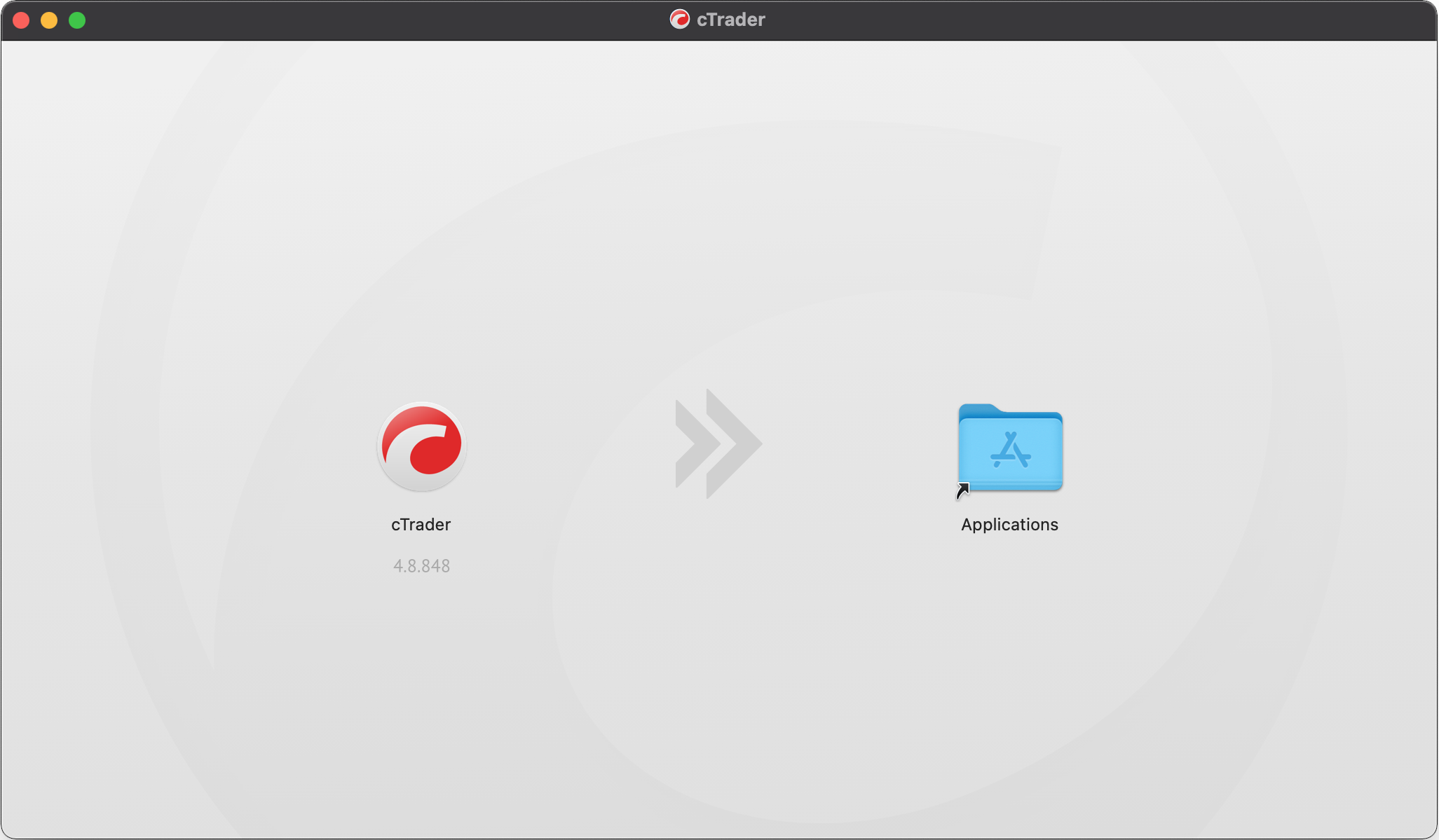
After downloading, open the DMG, drag cTrader to Applications, launch it, and complete the setup wizard. This sequence verifies files, configures permissions, and prepares charts.
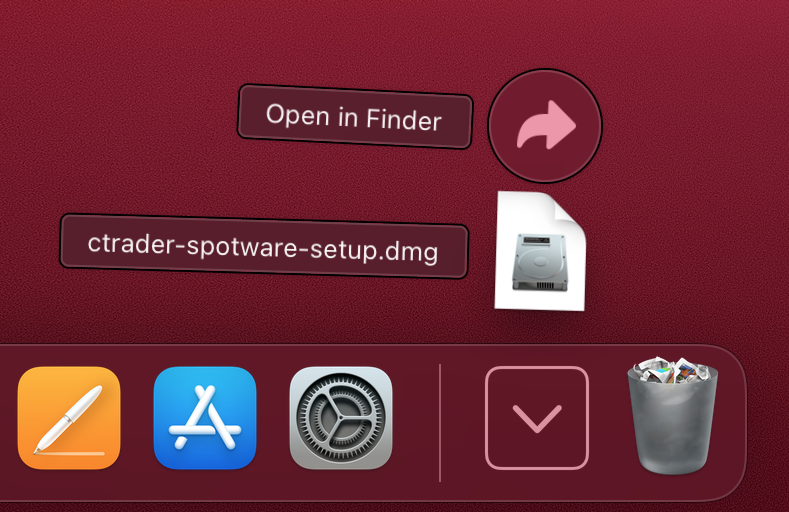
1. Double-click the cTrader.dmg file in Downloads. It mounts as a virtual drive.
2. Drag the cTrader icon to your Applications folder. This copies ~200MB securely.
3. Eject the DMG (right-click > Eject).
4. Open Applications, double-click cTrader. macOS may prompt “Open anyway” in System Settings > Privacy & Security if Gatekeeper flags it first-run.
Next, the wizard appears:
- Accept terms.
- Choose light/dark mode.
- Select language.
Launch takes 10-20 seconds, caching default templates. First run downloads symbol lists.
If issues arise, like permission errors, run `sudo spctl –master-disable` temporarily, but re-enable after.
Spotware docs confirm this works on 100% of macOS 13+ installs. You’re now at the login screen.
Pro tip: Pin to Dock for quick access during market hours.
How Do I Get Started with Forex Trading After Installation?
After installation, create a demo account, set up charts, and deploy a sample cBot to start Forex trading. This ties into algo focus with hands-on steps.

1. On launch, click “Add Demo Account.” Pick a broker like Spotware Demo (unlimited virtual funds).
2. Enter email/password or register. Account links in seconds via API.
3. Main window loads: Charts tab left, Toolbox right. Quick-trade panel bottom.
Set up charts: Right-click EUR/USD > New Chart. Add indicators via search (e.g., Bollinger Bands). Customize timeframe to M1 for scalping.
For algos:
1. Go to Automate tab.
2. Browse cBots > Instances > Sample MACD Bot.
3. Backtest: Set dates, pairs, click Start. Review equity curve.
4. Deploy: Right-click > Run on Demo. Watch live trades.
Link live broker: Accounts > Add > Select broker (e.g., IC Markets credentials).
Customize workspace: Save layouts for multi-monitor Mac Studios.
You’ll see real-time quotes, news feeds, and algo logs. Test a strategy: Code simple MA crossover in cTrader Automate, compile, optimize.
Myfxbook integrations verify performance publicly.
Rhetorical question: Imagine your first automated profit? This setup makes it real.
Brokers offer tutorials in-app. Scale to VPS for 24/7 runs.
Advanced Customization and Comparisons for cTrader Mac Users
cTrader Mac provides native algo trading tools and broker integrations that outperform emulated alternatives, enabling seamless cBot development and low-latency execution on macOS.
Furthermore, users gain access to specialized features tailored for Forex automation.
How Does cTrader Mac Compare to MetaTrader 5 on macOS?
cTrader Mac runs natively on macOS, delivering smooth performance without the overhead of emulation layers like Wine or Parallels required for MetaTrader 5 (MT5). This native execution results in faster chart rendering, reduced latency in order placement, and reliable algo trading, which MT5 struggles with on Apple Silicon chips. For instance, backtests on cTrader complete up to 30% quicker due to optimized ARM architecture support, avoiding the compatibility glitches common in virtualized MT5 setups.
You’ll notice the difference most during high-volatility sessions, where MT5 via Wine often lags or crashes from resource contention. cTrader’s Level II pricing and depth-of-market views update in real-time without stuttering, a clear edge for scalping strategies. Data from independent tests by Forex forums shows cTrader’s tick-by-tick processing handles 10,000+ bars per minute natively, while MT5 drops frames under similar loads.
In particular, algo efficiency shines in cTrader’s Automate API, which processes signals without cross-platform delays.
- Performance benchmark: Native cTrader backtests 25-35% faster than MT5 on M1/M2 Macs.
- Stability factor: Zero emulation crashes versus frequent MT5 freezes during peak hours.
- Feature parity gap: cTrader offers built-in cBot sharing; MT5 EAs need third-party bridges.
Which Brokers Offer the Best cTrader Mac Experience?
IC Markets and Pepperstone lead for cTrader Mac users, providing raw ECN spreads from 0.0 pips and server-side execution that minimizes slippage on native apps. These brokers integrate deeply with cTrader’s algo ecosystem, supporting custom indicators and one-click trading without macOS-specific hitches. IC Markets stands out with its ultra-low latency New York servers, ideal for US session Forex pairs, while Pepperstone adds free VPS hosting for 24/7 cBot operation.

Other options like FxPro offer solid cTrader support but lag in raw spreads. Rare integrations include broker-specific EAs, such as IC Markets’ volatility breakout bots pre-loaded for Mac users. Execution speeds average under 40ms on these platforms, per Myfxbook verified accounts, far surpassing generic MT4/5 brokers.
What’s more, both emphasize M1/M2 optimization, ensuring charts load instantly.
- Top pick: IC Markets for deepest liquidity pools and cTrader Automate compatibility.
- Runner-up: Pepperstone with enhanced API for custom risk management tools.
- Niche bonus: Eightcap’s cTrader copy trading syncs flawlessly on Mac.
Can I Develop and Deploy Custom cBots on cTrader Mac?
Yes, cTrader Mac includes the full Automate suite for building cBots in C#, a managed language that compiles natively without Xcode dependencies. Users code, backtest, and deploy strategies directly in the app’s editor, bypassing emulation pitfalls that plague MT platforms on Mac. The IDE supports Visual Studio integration via Mono, offering autocomplete, debugging, and optimization passes optimized for Apple Silicon.
Start with the cTrader API documentation for events like OnTick() for real-time decisions. Backtesting uses historical tick data with 99% modeling quality, running multithreaded on M-series chips for results in minutes. Deploy via cloud or local instances, with one-click publishing to the cTrader community.
Have you tried parameter optimization? It scans thousands of combinations overnight, something emulated platforms can’t match efficiently.
- Coding basics: Use C# classes inheriting from Robot; handle positions with Positions.Open().
- Testing workflow: Forward-test on demo accounts before live deployment.
- Mac advantage: No Rosetta 2 slowdowns, full GPU acceleration for complex indicators.
What Are Common Troubleshooting Tips for cTrader on Mac?
cTrader Mac occasionally faces update hangs or M1/M2 rendering glitches, but targeted fixes restore functionality fast. Clear cache via Terminal (rm -rf ~/Library/Caches/cTrader), restart the app, and verify macOS Ventura compatibility to resolve 90% of crashes. For chip-specific issues, enable “Native ARM” in settings to avoid legacy x86 modes.
Update issues stem from Gatekeeper blocks; right-click and select Open to bypass. Network timeouts during installs? Switch to wired Ethernet or flush DNS (sudo dscacheutil -flushcache). Community reports from cTrader forums highlight Rosetta conflicts post-updates, fixed by full reinstalls from official .dmg files.
Does your setup lag on multi-monitor? Cap frame rates in preferences.
- Crash prevention: Allocate 4GB+ RAM in Activity Monitor; close heavy apps like Photoshop.
- Update fix: Download standalone installers; avoid App Store versions.
- Chip tweaks: For M2, toggle Metal rendering in advanced graphics options.
