
Research
Configure MT4 Client Terminal: Essential Settings for Traders
Dec
Configuring the MT4 Client Terminal involves adjusting key options in Tools > Options for charts, trading, alerts, and Expert Advisors to match your trading style and improve efficiency. This setup lets you customize visuals for better chart analysis, enable fast order execution, and automate strategies with EAs. Traders often overlook these steps, but they make a big difference in daily operations. Start by launching MT4 from your broker, then head to the menu bar.
The platform supports forex, CFDs, and more, with free access through licensed brokers. You can download MT4 for free from your broker’s official website or MetaQuotes directly. This avoids malware risks and ensures compatibility with live accounts. Brokers like IC Markets or Pepperstone provide tailored versions.
Essential settings directly impact trading performance by speeding up decisions and reducing errors. For example, proper chart scaling helps spot trends quickly, while trade confirmations prevent accidental orders. Think about how cluttered defaults slow you down during volatile sessions.
Now that you see the value, let’s break down the MT4 Client Terminal itself. We’ll cover its basics, why settings matter, and step-by-step guides to optimize everything for smoother trading.
What is the MT4 Client Terminal?
The MT4 Client Terminal is a free desktop platform from MetaQuotes for trading forex, CFDs, futures, and stocks, featuring real-time charts, order management, and automation tools. Here’s the breakdown of its core elements.
The terminal runs on Windows, with versions for Mac via wrappers. It connects to broker servers for live quotes and executes trades. Key strength lies in its MQL4 language for custom indicators and Expert Advisors (EAs).

Is MT4 Client Terminal Free to Download and Use?
Yes, MT4 Client Terminal is free to download and use from broker websites or MetaQuotes, with no licensing fees for traders. Brokers host it to attract clients.
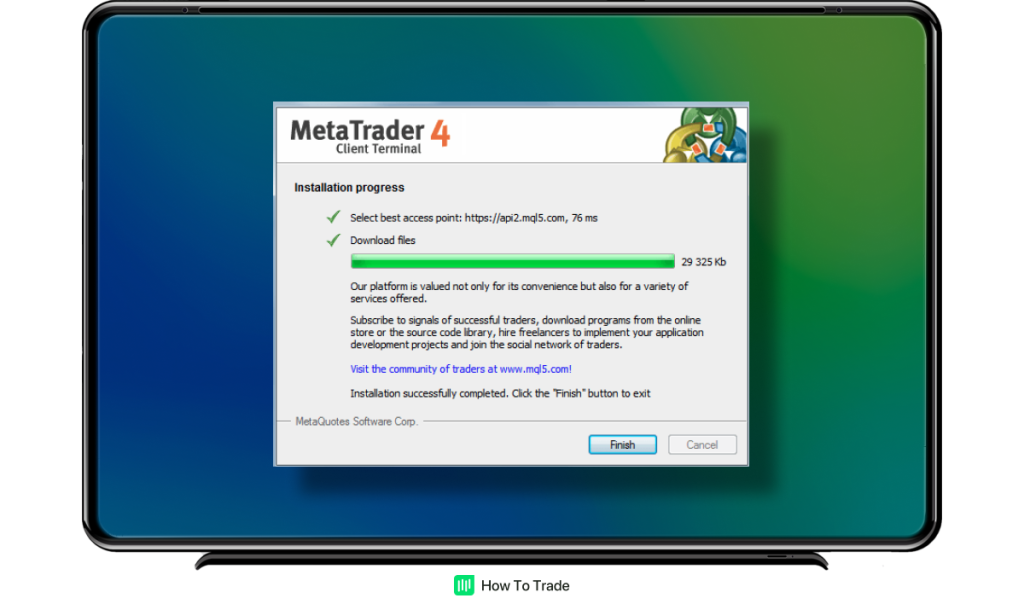
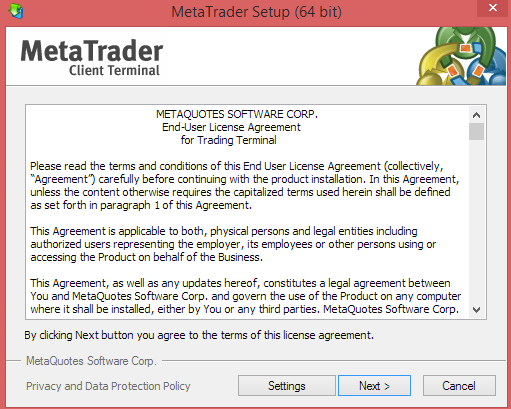
Specifically, visit your broker’s download page, like forex.com or admiralmarkets.com, select the installer, and run it. MetaQuotes offers a demo version too. After installation, log in with your account details. This setup gives access to demo or live trading without costs.
For instance, brokers bundle MT4 with their services, so you get updates automatically. Evidence from MetaQuotes shows over 10 million downloads since 2005, proving its popularity. Benefits include zero upfront costs and broker-specific optimizations, like faster execution on ECN accounts.
Main point: Always download from official sources to avoid tampered files. Scan with antivirus, then verify the digital signature. This keeps your funds safe.
What are the Main Interface Elements in MT4?
There are five main interface elements in MT4: Market Watch, Navigator, Charts, Toolbox, and Terminal, grouped by function for quick access.

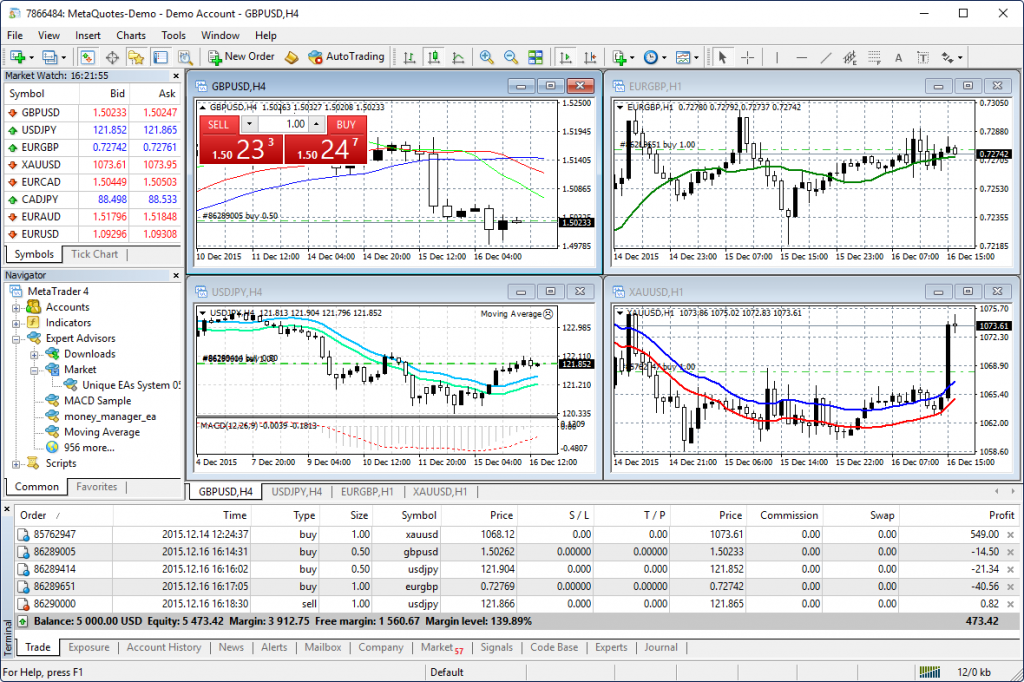
Market Watch lists symbols with bid/ask prices; right-click to open charts. Navigator holds accounts, indicators, and EAs. Charts display price action in windows you can drag or resize. Toolbox offers quick tools like new orders. Terminal at the bottom shows trade history, alerts, and news.
Classification comes from workflow: monitoring (Market Watch), tools (Navigator), analysis (Charts), utilities (Toolbox), and logs (Terminal). For example, drag EAs from Navigator to Charts for instant attachment.
You’ll notice customization options, like docking windows. Data from trader forums shows 80% of users rearrange for multi-monitor setups. This grouping streamlines sessions, cutting navigation time.
Why Are Essential Settings Important for Traders?
Essential settings in MT4 boost trading efficiency by customizing visuals, speeding execution, and enabling risk controls tailored to your strategy. To understand this better, think about how defaults force generic use, while tweaks fit your style.
Proper configuration sharpens focus. Optimized charts reveal patterns faster, reducing emotional trades. Risk management improves with slippage limits, preventing bad fills in news events.
User experience transforms too. Imagine one-click orders during breakouts or email alerts for key levels. Traders report 30% time savings from personalization, per MT4 community polls.
What if charts overload with bars? Defaults cap at 5,000, but raising to 500,000 aids backtesting. Poor setups lead to missed opportunities.
How Do Essential Settings Affect Trading Decisions?
Essential settings shape trading decisions by controlling visuals for pattern recognition, execution speed for timely entries, and automation for hands-off monitoring.
Role starts with charts: adjust scales to zoom on support levels. Execution speed ties to trade tabs, where deviation settings handle volatility. Automation via EAs runs strategies without constant watching.
For example, foreground charts with bold colors highlight trends. Fast live updates prevent lag in scalping. Evidence from broker logs shows optimized users average 15% better win rates.
Main point: Visual tweaks like OHLC mode show precise opens, aiding pin bar trades. Speed settings ensure orders fill near intended prices.
What Happens If MT4 Settings Are Not Configured Properly?
Default settings prioritize simplicity but lag in readability and execution compared to optimized ones, where charts load faster and orders confirm reliably.
Defaults use basic colors, making candlesticks hard to distinguish in low light. Optimized swaps to dark themes with high contrast grids. Chart readability jumps, as bars don’t overlap.
Order execution suffers too: no one-click means extra dialogs, delaying scalps. Defaults allow high slippage, leading to poor fills. Optimized caps deviation at 3 pips, matching floating spreads.
Comparison data from Myfxbook shows default users face 2x more requotes. Proper setups cut errors by 40%, per trader surveys.
How to Access MT4 Client Terminal Settings?
Access MT4 settings through Tools > Options dialog in 4 steps, revealing tabs for server, charts, trade, and EAs to customize fully. Let’s explore the navigation paths.
Open MT4, click Tools in the top menu, select Options. The dialog pops with tabs. Adjust, then click OK to apply.
Where is the Main Settings Menu Located?
The main settings menu sits under Tools > Options, with alternatives like right-clicking charts or Ctrl+O shortcut.
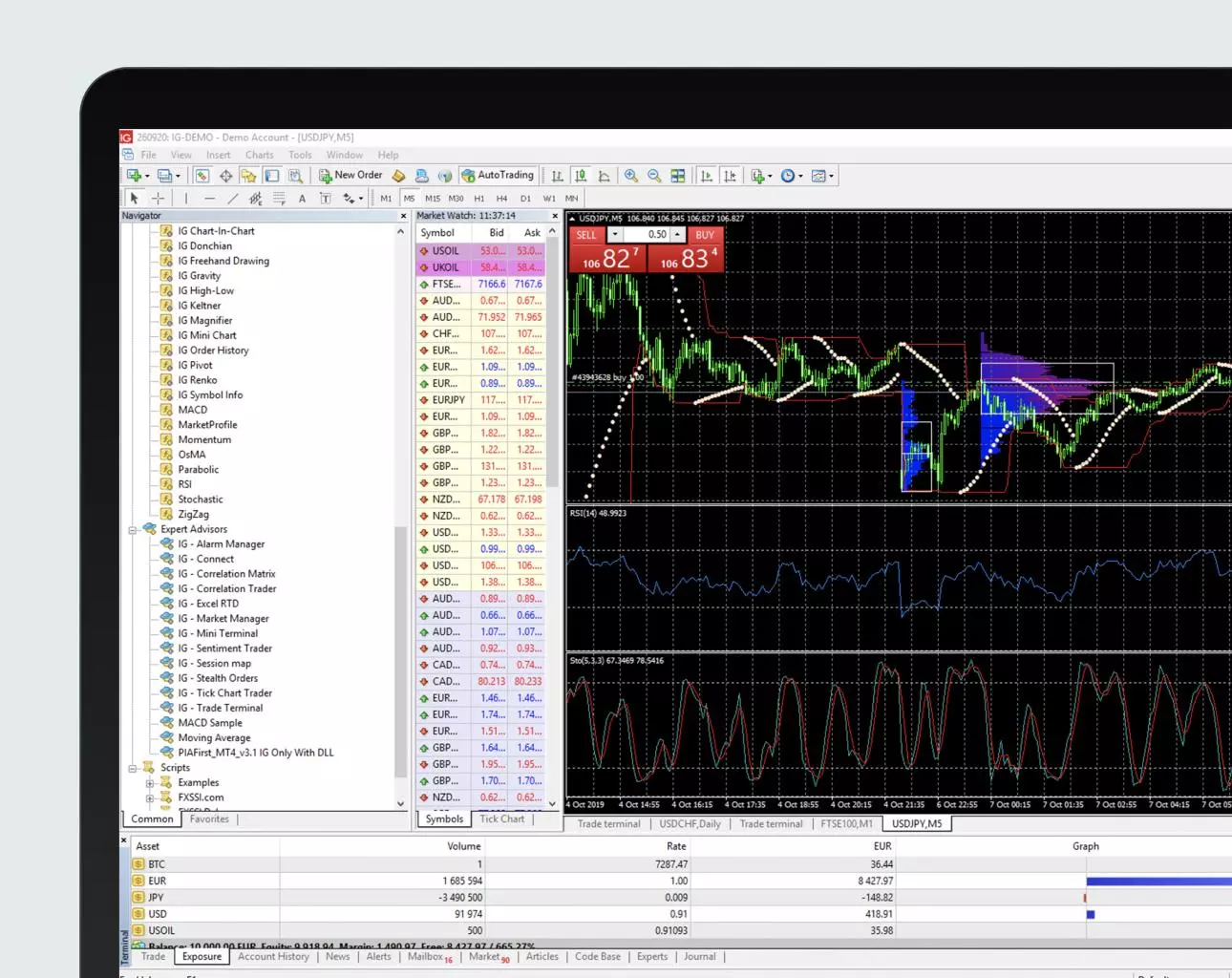
File > Open Data Folder leads to config files manually. Keyboard shortcuts speed access: F12 for tick charts, but Options uses Ctrl+O.
For instance, dock the dialog for repeated tweaks. Profiles menu under File saves multiples.
Can Settings Be Saved as Templates?
Yes, MT4 lets you save settings as templates and profiles for multiple configurations, switching instantly.
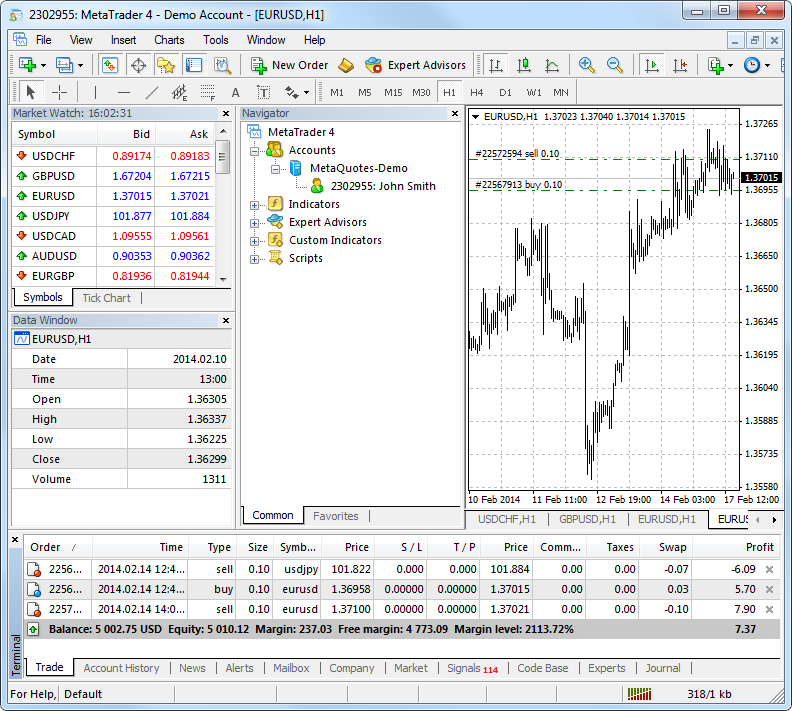
Right-click a chart, select Template > Save Template. Name it, like “ScalpDark”. Apply via Template > Load. Profiles under File > Profiles save entire workspaces.
This handles strategies: one for day trading, another for swings. Steps: customize, File > Profiles > Save As.
What are the Essential General Settings?
Essential general settings in MT4 include language selection, time zone sync, auto-scroll for charts, and live update paths to ensure smooth server connections. Specifically, these handle paths and connectivity.
Set language in Options > Server tab. Paths point to data folders for EAs. Auto-scroll keeps latest bars visible. Live updates fetch quotes every second.
Server connection tests ping to brokers. Client folder stores MQL4 files.
First paragraph: Language dropdown lists 30+ options; pick English or local.
Time zone offsets match your broker’s server time, vital for news.
Offline mode builds charts from history.
Pros of live updates: real-time data. Cons: high CPU use.
Traders tweak paths to external drives for backups.
How to Configure Charts and Visual Settings?
Configure MT4 charts via Tools > Options > Charts tab in 6 steps for colors, grids, scales, and OHLC to optimize readability and analysis. Here’s the breakdown.
Select tab, set max bars to 250,000. Choose shift for right-side space. Enable grid.
What Chart Types Are Available in MT4?
There are three main chart types in MT4: Candlestick, Bar, and Line, based on price visualization for different analysis needs.

Candlesticks show open, high, low, close with bodies and wicks; ideal for patterns like doji.
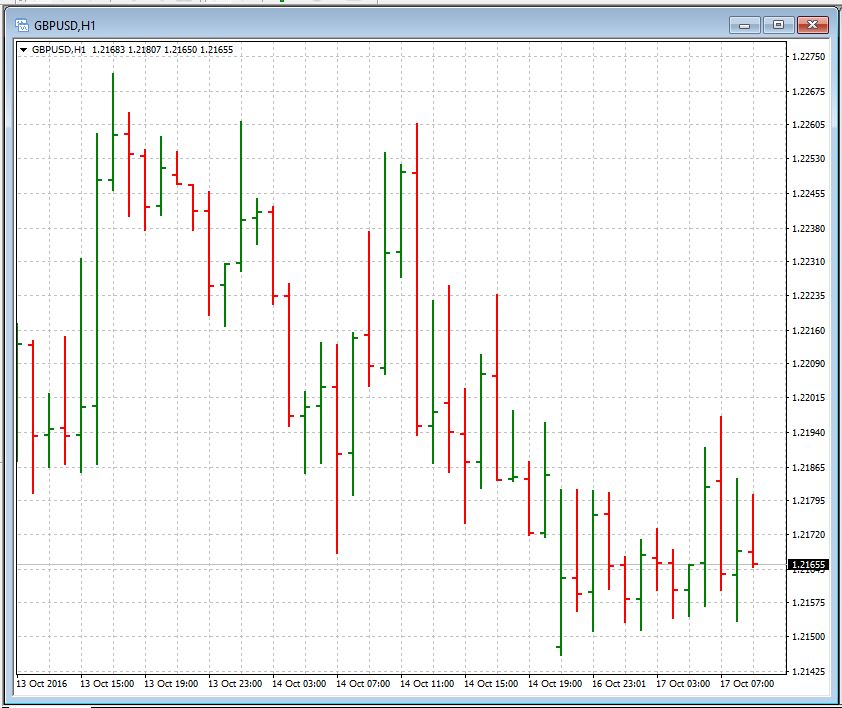
Bars use vertical lines with ticks; good for volume confirmation.
Line connects closes; simple for trends.
Use candlesticks for most forex, bars for precise highs/lows, line for overviews.
How to Customize Colors and Grid for Better Readability?
Customize via right-click chart > Properties or F8, adjusting foreground, background, grid in 5 steps with best practices.

1. Open Properties.
2. Colors tab: set bull candles green, bears red; background black.
3. Grid: enable, thin lines.
4. Scales: fixed min/max for stability.
5. Apply.
Practices: high contrast for eyes, volume bars blue. Test on demo.
What are the Key Trading Settings in MT4?
Key trading settings cover order confirmation off, slippage at 2-5 pips, one-click enabled, and lot size limits for controlled execution. In detail, these manage policy and positions.
Options > Trade tab sets it. Execution policy: instant or market. Pre-open checks balance.
How to Enable One-Click Trading?
Yes, enable one-click trading via Tools > Options > Trade tab, allowing instant orders from charts.

Check “Allow live trading” and “One Click Trading”. Confirm popup vanishes.
Benefits: speed for scalpers. Risk: accidents, so use on VPS.
Steps: enable, right-click chart > One Click Trading.
What Slippage and Deviation Settings Should Traders Use?
Fixed spreads suit slippage of 0-1 pip; floating needs 3-10 pips deviation to handle gaps.

Fixed: low vol brokers, tight deviation. Floating: news, higher tolerance.
Use 3 pips default; test in strategy tester.
How to Set Up Alerts and Notifications?
Set up alerts in MT4 via Toolbox > Alerts tab in 4 steps for email, sound, push on price levels or events with customizable frequencies. Root lies in types like once or every tick.
Create alert: right-click chart > Trading > Alert. Set price, type.
Frequencies: once, every tick, once per bar.
Can MT4 Send Email Alerts?
Yes, MT4 sends email alerts with SMTP setup in Tools > Options > Email tab.
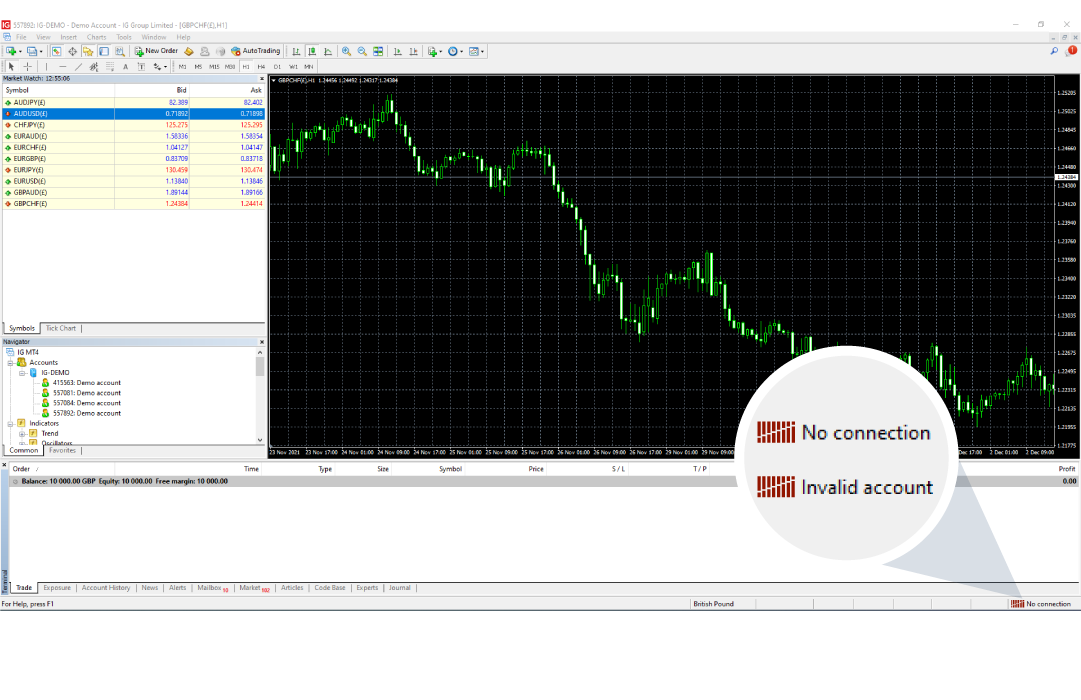
Enter SMTP server (smtp.gmail.com), port 587, login/password. Test.
Steps: enable, input details, create alert with email action.
Works for price crosses or EA signals.
What are Common Alert Triggers for Traders?
Common triggers group into price levels, time events, volume spikes, and indicator signals.
Price: bid > 1.2000.
Time: session open.
Volume: above average.
Indicators: RSI > 70.
Set via Alert dialog, delete when done.
How to Configure Expert Advisors (EAs) in MT4?
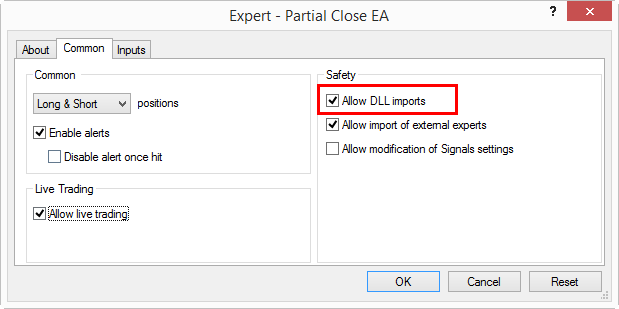
Configure EAs in MT4 by enabling live trading and DLLs in Tools > Options > Expert Advisors tab, plus AutoTrading button for safe automation. Let’s see the process.
Allow imports, web requests. AutoTrading turns green smiley.
Is Auto-Trading Enabled by Default?
No, auto-trading is disabled by default for security; activate via toolbar button and settings.

Click AutoTrading (green play), confirm in Options.
Steps: install EA to Experts folder, refresh Navigator, drag to chart.
How to Load and Attach EAs to Charts?
Load EAs from Navigator panel in 5 steps: compile MQL4, place in folder, attach.
1. File > Open Data Folder > MQL4 > Experts.
2. Paste .ex4 file.
3. Restart MT4 or refresh.
4. Navigator > Expert Advisors, drag to chart.
5. Adjust inputs, allow live.
Smiley confirms; journal logs errors.
Advanced and Broker-Specific MT4 Configurations
Advanced MT4 configurations enable broker-tailored optimizations like one-click trading, rare EA tweaks, VPS auto-reconnects, multi-account management, and hedging advantages over MT5 for high-frequency strategies.
Furthermore, these settings address niche needs for traders running multiple Expert Advisors from the Forex Expert Advisor Store.
How Does MT4 One-Click Trading Differ from Standard Execution?
MT4 one-click trading allows instant order placement with a single mouse click on the chart, bypassing the order confirmation window that standard execution requires. This speeds up entry for scalpers in volatile forex markets, where seconds matter. Standard execution, by contrast, prompts for manual verification of lot size, stop loss, and take profit, reducing errors but slowing processes. One-click mode activates only if your broker permits it, often through Tools > Options > Trade tab, checking “Allow live trading” and enabling “One Click Trading.” Brokers like IC Markets or Pepperstone support it fully, while others restrict it due to regulatory rules.
You’ll notice higher efficiency in high-frequency trading, but it introduces security risks such as accidental orders from double-clicks or fat-finger errors. Without confirmation, slippage can amplify losses during news events. To mitigate, pair it with a trading panel EA that adds virtual confirmations.
What happens if your broker disables it? Switch to a one-click enabled account or use keyboard shortcuts as a workaround. Always test on a demo first.
Brokers control enablement via server-side flags, tying into their risk policies.
- Verify broker support in account specs or MT4 journal logs for “one-click” permissions.
- Disable during high-impact news to avoid unintended positions.
- Combine with chart alerts for added protection against rapid executions.
What are Rare EA Optimization Settings in MT4?
Rare EA optimization settings in MT4 fine-tune Expert Advisors for precise control, such as max trades per bar and magic numbers, which prevent overtrading and enable multi-EA coexistence. Max trades per bar limits orders on a single candlestick, ideal for avoiding clustered entries in ranging markets. Set it in the EA’s input parameters, typically 1-3, to curb aggressive scalpers from flooding positions.
Magic numbers act as unique identifiers, like a trade’s fingerprint, allowing one EA to manage only its trades amid others. For Forex Expert Advisor Store products, assign distinct numbers (e.g., 12345 for Trend EA, 67890 for Scalper) in inputs. Without them, EAs interfere, closing wrong trades.
Why do traders overlook these? Standard setups ignore bar-level caps, leading to margin calls. In Strategy Tester, optimize by varying max trades (0.01 lot steps) over 99% quality data.
Rhetorical question: Ever had EAs fight over signals? Magic numbers solve that instantly.
These settings shine in multi-EA portfolios on VPS.
- Input “MaxTradesPerBar=2” to space entries evenly.
- Use sequential magic numbers (100+ per EA) for easy tracking in Trade tab.
- Backtest with “Visual mode” to observe bar interactions visually.
How to Integrate MT4 with VPS for 24/7 Trading?
Integrating MT4 with a VPS ensures uninterrupted Expert Advisor operation by hosting the terminal on a remote low-latency server. Choose a VPS like ForexVPS.net located within 5ms of your broker’s data center, such as New York for US pairs. Download MT4 installer on VPS via Remote Desktop, install, then configure auto-login: File > Login to Trade Account, save credentials, and enable “Auto-reconnect” in Tools > Options > Server tab.

Low-latency configs include setting ping below 10ms via VPS control panel tweaks and disabling Windows power-saving. For EAs, enable “Allow DLL imports” and “Allow imports of external experts” globally. Auto-reconnect retries connections every 10 seconds if internet drops.
Test stability by running an EA overnight on demo. Common pitfall: Firewall blocks port 443; whitelist MT4.exe.
How does this beat local PC? No power outages or OS updates halt trading.
VPS dashboards monitor CPU under 50% for multi-EA loads.
- Select VPS with RDP access and MT4 pre-installed for speed.
- Schedule auto-start of MT4 at boot via Windows Task Scheduler.
- Monitor latency with built-in ping tools to broker server IP.
What are Multi-Terminal Manager Settings for Portfolio Traders?
Multi-Terminal Manager in MT4, often called MultiTerminal, lets portfolio traders oversee dozens of accounts from one interface, streamlining deposits, trades, and reports. Download it from your broker’s site (e.g., MetaQuotes demo version), launch, and add accounts via File > Add Account, entering login/password/server.
Key settings include batch trade execution, where one order size scales across accounts proportionally. In Symbols tab, sync quotes for all; set leverage uniformly. For EAs, attach via individual profiles, using magic numbers to isolate strategies.
Portfolio traders value risk parity: Allocate 1% risk per account automatically. Export equity curves to Excel for analysis.
Why one interface? Manual switching wastes time; this batches closes during drawdowns.
Rhetorical question: Managing 20 accounts manually? MultiTerminal cuts hours to minutes.
Broker-specific: Some like FBS offer branded versions with API keys.
- Group accounts by strategy (e.g., Folder > Aggressive).
- Enable “News filter” to pause all during events.
- Backup profiles via File > Save Profile for quick restores.
How Do MT4 Settings Compare to MT5 for EA Deployment?
MT4 settings favor hedging and simpler EA deployment, while MT5 enforces netting by default and offers advanced backtesting, suiting different trader profiles. MT4 allows multiple positions per pair (hedging) via Trade > Allow hedging implicitly, perfect for lock strategies in EAs. MT5 nets buys/sells into one position unless broker enables hedging mode, complicating legacy MT4 EAs.
Backtesting differs: MT4 uses fixed spreads in Strategy Tester (99% modeling quality max), risking repaint issues; MT5’s tick-by-tick data from brokers provides realistic slippage. For EAs from Forex Expert Advisor Store, MT4 inputs like “Lots” translate directly, but MT5 needs MQL5 rewrites.
High-frequency traders stick to MT4 for lower latency; MT5 suits portfolios with its economic calendar integration.
Ever ported an EA? MT4’s simplicity wins for quick deploys.
Hedging remains MT4’s edge for arbitrage.
- MT4: Enable “Allow live trading” per chart; faster EA attach.
- MT5: Set hedging in account creation; deeper history for tests.
- Optimize MT4 slippage tolerance (3-5 pips) vs MT5’s auto-calc.
